路由器 · FRITZ!(前身為 AVM)
FRITZ!Box 登入、重新啟動、FRITZ!OS 更新與 UPnP
在瀏覽器中透過 http://fritz.box 管理你的 FRITZ!Box。由供應商提供的設備可能會隱藏某些設定。
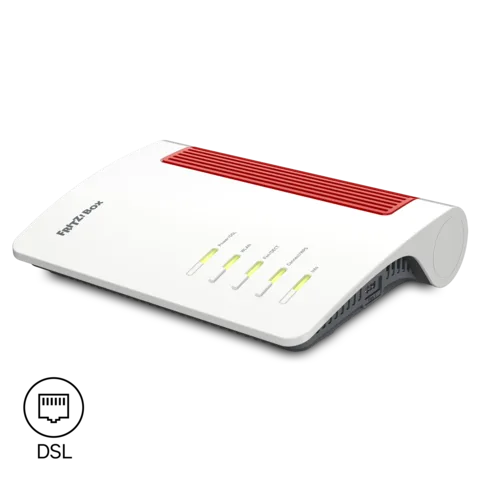
- 登入
fritz.box或192.168.178.1- App
- MyFRITZ!App(iOS 和 Android)
- 密碼
- FRITZ!Box 密碼請看設備底部的標籤。Wi-Fi 金鑰可能會另外列在標籤上。
- 型號
- FRITZ!Box 7690, FRITZ!Box 7590 AX, FRITZ!Box 7590, FRITZ!Box 7530 AX, FRITZ!Box 5690 Pro, FRITZ!Box 5590 Fiber, FRITZ!Box 6690 Cable, FRITZ!Box 6660 Cable
登入 FRITZ!Box
用 Wi-Fi 或線材把 Mac 連接到 FRITZ!Box,但不要透過訪客存取。
在瀏覽器中打開
http://fritz.box。如果頁面沒有載入,請試試
http://192.168.178.1或備用位址http://169.254.1.1。輸入 FRITZ!Box 密碼,然後點一下 Log In。
忘了密碼嗎?點一下 Forgot your password?,如果有提供,再點 Send push service mail。否則請拔掉電源一分鐘後重新連接,並在 10 分鐘內選擇 Forgot your password? › Restore Factory Settings。這會清除所有設定。
正確地重新啟動
重新啟動會保留你的設定,但會清除事件記錄,所以如果你正在追查故障,請先閱讀 System › Event Log。這大約需要兩分鐘。
在
http://fritz.box登入,然後點一下 System › Backup。開啟 Restart 分頁。
點一下重新啟動按鈕,並等到設備重新上線。
不使用使用者介面
把 FRITZ!Box 的電源拔掉 5 秒。
重新插上,並等待約兩分鐘。
排程重新啟動
FRITZ! 的說明頁面沒有記載排程重新啟動。
更新韌體
登入後點一下 System › Update。
點一下 Find New FRITZ!OS。
點一下 Next 並依照精靈操作,或如果有提供,點一下 Start Update Now。
在 Automatic Update 分頁上,保持開啟 Notify me about new versions of FRITZ!OS and install new versions automatically。
自動更新預設為開啟,並分階段推出,所以線上更新可能更快取得新版本。如果沒有 Update 選單,表示設備是由你的供應商提供的,FRITZ!OS 由它為你安裝。
查看已連線的裝置
登入後點一下 Home Network › Mesh,查看每個運作中的裝置及其連線方式。
若要查看完整清單,請點一下 Home Network › Network,並開啟 Network Connections 分頁。
點一下裝置旁的編輯按鈕,即可重新命名或查看其詳細資料。
在 Idle Connections 下,點一下你不再擁有的裝置旁的刪除。
在 MyFRITZ!App 中,Home Network 選單會顯示裝置,並可讓你封鎖或為它們排定優先順序。
連接到 Kilobat
Kilobat Pro 會在你的家用網路上讀取 TR-064。FRITZ!Box 提供它的裝置清單、整個家庭的流量和運作時間;它不會透過這個介面提供各裝置的流量。
在 System › FRITZ!Box Users 中,建立一個專用使用者,賦予 FRITZ!Box Settings 權限,且不允許從網際網路存取。
在家用網路上,開啟 Kilobat 的 「工具」›「裝置」›「連接你的路由器」,選擇 FRITZ!Box,並輸入該使用者的憑證。
Kilobat 會向設備詢問它的 HTTPS 連接埠。在選擇信任並連接之前,請把憑證指紋與設備上的指紋比對。
密碼會保存在這台 Mac 的鑰匙圈中。Kilobat 只讀取;其餘的整個家庭流量算作「其他裝置」,絕不會是測得的攝影機或其他單一裝置的用量。連線詳細資料與限制。
UPnP 和連接埠轉送
FRITZ!Box 支援 UPnP IGD 和 PCP(Port Control Protocol)。透過 UPnP 的連接埠分享是針對各個裝置允許的,而不是整個網路,而且每個裝置在你開啟之前都是關閉的。
登入後點一下 Home Network › Network,再點 Network Connections 分頁。
點一下需要開啟連接埠的裝置(例如遊戲主機)旁的編輯按鈕。
開啟 Home Network 分頁。
勾選 Permit independent port sharing and clearing and restoring the internet connection for this device。
點一下 Apply。以這種方式開啟的連接埠會出現在 Internet › Permit Access 和 Diagnostics › Security 下。
FRITZ! 警告,一旦允許某個裝置自行開啟連接埠,該裝置上的惡意軟體也可以,並會繞過 FRITZ!Box 的防火牆。只在需要的裝置上允許它,並保持它們自己的防火牆開啟。連接埠分享還需要供應商提供的公用 IPv4 或 IPv6 位址。
透過 UPnP 的狀態資訊
此外,FRITZ!Box 可透過 UPnP IGD 分享唯讀的狀態:連線狀態、線路同步和傳輸的資料。FRITZ! 將 Transmit status information over UPnP 標為建議使用。網路上的程式不需要密碼就能讀取它。
點一下 Home Network › Network,再點 Network Settings 分頁。
點一下 Change Advanced Network Settings,並找到 Transmit status information over UPnP。
勾選它,然後點一下 Apply。
FRITZ! 目前的說明頁面並沒有指出這個選項在 FRITZ!OS 8 中位於哪個分頁。
NAT-PMP
FRITZ! 記載了用於自動連接埠分享的 UPnP IGD 和 PCP,沒有記載 NAT-PMP。
優先處理通話和遊戲
FRITZ!OS 會自動為通話排定優先順序。可為其他流量新增規則。
點一下 Home Network › Network,再點 Network Connections 分頁。
點一下裝置旁的編輯按鈕。
在 Internet Use 區段中,啟用 prioritized,然後點一下 Apply。
優先順序規則
點一下 Internet › Filter,再點 Prioritization 分頁。
選擇 Real-Time Applications、Prioritized Applications 或 Background Applications,然後點 Create New Rule。
選擇裝置和應用程式,然後點一下 Add。
2.4 和 5 GHz,以及頻道
預設情況下,2.4 和 5 GHz 網路使用同一個名稱,所以設備可以把裝置導引到較好的頻段。使用不同的名稱會關閉頻段導引。
登入後點一下 Wi-Fi › Wi-Fi Network。
啟用 Use different names for Wi-Fi networks。
在 Name of the Wi-Fi network (SSID) 中為每個頻段輸入名稱。
點一下 Apply,然後重新連接你的裝置。
更改頻道
點一下 Wi-Fi › Wi-Fi Channel。
關閉 Set Wi-Fi channel settings automatically (recommended),即可自行選擇頻道。
點一下 Apply。Wi-Fi 會短暫中斷後重新連線。
即使手動設定了頻道,設備也會避開強烈的干擾,並把它記錄在事件記錄中。
Mesh:裝置使用哪個節點
FRITZ! Mesh 把中繼器、電力線轉接器和其他設備納入同一個 Mesh Master 之下。
點一下 Home Network › Mesh,並確認每台中繼器都顯示 Mesh 符號。
在每台中繼器自己的介面中,開啟 Home Network › Mesh,再開啟 Mesh Settings 分頁。
啟用 Adopt settings enabled,然後點一下 Apply。
只有在兩個頻段使用同一個網路名稱時,Mesh Wi-Fi 導引才會運作。
訪客網路
登入後點一下 Wi-Fi › Guest Access,然後啟用訪客存取。
選擇 Private Wi-Fi guest access,建立有密碼保護的網路。
設定名稱、Encryption,以及 8 到 63 個字元的 Network key。
點一下 Apply。Print Info Sheet 會提供供訪客使用的 QR Code。
Mesh 中繼器會自動承載訪客網路。
DNS 設定
登入後點一下 Internet › Account Information,再點 DNS Server 分頁。
啟用 Use other DNSv4 servers,並填入 Preferred DNSv4 server 和 Alternative DNSv4 server。
如果你使用 IPv6,請在 Use other DNSv6 servers 下做同樣的設定。
若要加密,請啟用 Encrypted name resolution in the internet (DNS over TLS),並加入伺服器的名稱。
點一下 Apply,如果設備要求,請在設備上確認。
錯誤的位址會讓該 IP 版本的網際網路連線中斷。
DNS 過濾清單
FRITZ!OS 8.50 可根據過濾清單,封鎖家用網路和訪客網路的網域。
點一下 Home Network › Network › Network Settings › Change Advanced Network Settings。
開啟 DNS Filter 分頁,並依名稱和 URL 新增過濾清單。
連線狀態和記錄
點一下 Internet › Online Monitor,查看連線以及哪些裝置使用最多頻寬。
開啟 Connection Details 分頁,查看你的公用 IPv4 位址(Internet, IPv4)。
在 DSL 機型上,點一下 Internet › DSL Information 和 DSL 分頁,查看 Current data rate 和錯誤計數。
點一下 System › Event Log,再點 Internet Connection,查看斷線和登入錯誤。
100.64.0.0–100.127.255.255(電信業者級 NAT)或 192.0.0.0–192.0.0.7(DS-Lite)範圍內的 IPv4 位址,表示無法從外部透過 IPv4 連到這台設備。
手冊和下載
- FRITZ!Box 7690 manual (PDF)
- FRITZ!Box 7590 AX manual (PDF)
- FRITZ! Service: FRITZ!Box 7690
- FRITZ! Manuals
- 韌體下載
連結會前往製造商自己的頁面。
常見問題
我的 FRITZ!Box 沒有 Update 選單。為什麼?
它是由你的供應商提供的,FRITZ!OS 由它自行安裝。請向供應商詢問新版本。
即使開啟了連接埠分享,遊戲仍顯示 NAT 類型為嚴格。為什麼?
開啟連接埠需要公用 IPv4 位址。請查看 Internet › Online Monitor › Connection Details:如果是 DS-Lite 或電信業者級 NAT 位址,就只有你的供應商才能改變這一點。
這個網路上的 Mac 問題
Mac 使用者在家用路由器和 Mesh 系統上最常遇到的問題的解決方法。
資料來源
- FRITZ! Knowledge Base: Opening the FRITZ!Box user interface
- FRITZ! Knowledge Base: Determining the password for the FRITZ!Box user interface
- FRITZ! Knowledge Base: Forgot password for the FRITZ!Box user interface
- FRITZ! Knowledge Base: FRITZ!Box user interface cannot be opened
- FRITZ! Knowledge Base: Loading the FRITZ!Box factory settings
- FRITZ! online help: System / Backup / Restart
- FRITZ! Knowledge Base: Updating FRITZ!OS of the FRITZ!Box
- FRITZ! Knowledge Base: Setting up automatic port sharing in the FRITZ!Box
- FRITZ! online help: UPnP (Transmit status information over UPnP)
- FRITZ! Development support: interfaces (TR-064 and UPnP IGD)
- FRITZ! Knowledge Base: Setting up MyFRITZ!App for iOS
- FRITZ! Knowledge Base: Prioritizing internet access for important network applications and devices
- FRITZ! Knowledge Base: Prioritize internet use for a device in the FRITZ!Box
- FRITZ! Knowledge Base: Changing the name of the Wi-Fi network (SSID)
- FRITZ! Knowledge Base: Optimizing the Wi-Fi network of the FRITZ!Box
- FRITZ! Knowledge Base: FRITZ!Box changes the Wi-Fi channel that was manually set
- FRITZ! Knowledge Base:What is Mesh Wi-Fi steering and how does it work?
- FRITZ! Knowledge Base: Setting up Wi-Fi guest access in the FRITZ!Box
- FRITZ! Knowledge Base: Configuring different DNS servers in the FRITZ!Box
- FRITZ! Knowledge Base: Configuring DNS filters in the FRITZ!Box
- FRITZ! Knowledge Base: Identifying the address range of the IPv4 address for the internet connection
- FRITZ! Knowledge Base: Internet access over the FRITZ!Box is slow
- FRITZ! Knowledge Base: DSL connection drops frequently
- FRITZ!: FRITZ!OS 8.50 release notes for the FRITZ!Box 7690
查核日期:2026 年 11 月 1 日。
看看你的路由器告訴不了你的事
Kilobat 是一款 Mac 選單列 App,從你這一側觀察網路:哪個 App 在使用它、是 Wi-Fi、路由器還是供應商變慢,以及通話為什麼凍結。
brew install seifip/kilobat/kilobat