Cameras and doorbells · Wyze
Wyze Cam Wi-Fi: 2.4 vs 5 GHz, data use and going offline
Wyze cameras and doorbells join your home Wi-Fi directly and are set up in the Wyze app. Depending on the model, the camera hears a voice prompt or scans a QR code on your phone to learn the network.
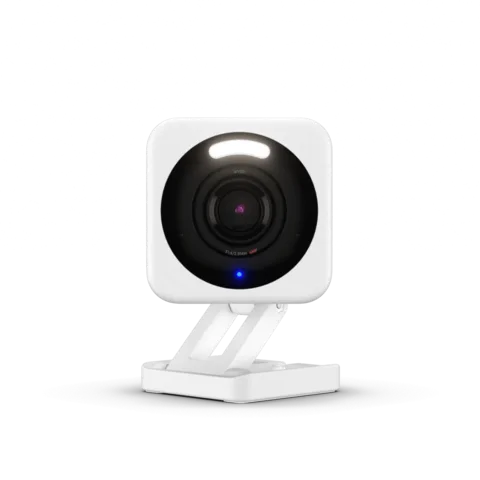
- Wi-Fi
- 2.4 GHz on most models; 5 GHz on the Cam Pan v4, Battery Cam Pro, Cam Floodlight Pro, Video Doorbell Pro and Duo Cam Doorbell.
- Security
- Wyze generally lists WPA/WPA2. Check the exact model’s security requirements.
- App
- Wyze app
- Models
- Wyze Cam v3, Wyze Cam v4, Wyze Cam Pan v3, Wyze Cam Pan v4, Wyze Cam OG, Wyze Cam Floodlight v2, Wyze Cam Floodlight Pro, Wyze Battery Cam Pro, Wyze Video Doorbell Pro, Wyze Duo Cam Doorbell
Wi-Fi it needs
Wyze says nearly all its devices need a 2.4 GHz network to connect and work normally. Only a few cameras and doorbells can use 5 GHz.
- 2.4 GHz only: Wyze Cam v3, Cam v4, Cam Pan v3, Cam OG and Cam Floodlight v2, among others. The Cam v4 has a Wi-Fi 6 radio, but on 2.4 GHz only.
- 5 GHz as well: Cam Pan v4, Battery Cam Pro, Cam Floodlight Pro, Video Doorbell Pro and Duo Cam Doorbell.
- Security: Wyze says most devices use WPA/WPA2. Check the network security supported by your exact model.
- One name for both bands: some routers use one name for both bands. Check your camera model and router settings if setup fails.
- Wyze Mesh Router: Wyze’s setup guide offers single and split network options. Its troubleshooting page says the bands cannot be split; check your router’s current app and firmware.
- Enterprise and portal networks: Wyze doesn’t support enterprise Wi-Fi or networks with a sign-in page.
Set it up
These steps are for the Wyze Cam v4. Other models use different menus or setup methods. Connect the phone to the 2.4 GHz network for v4 setup.
In the Wyze app, go to Home, tap +, then Device.
Choose Cameras › Wired Camera, then your model, and tap Next with the camera plugged in.
If needed, press the SETUP button behind the lens once until the Cam v4 says “ready to connect”.
Tick the box confirming you heard it, then tap Begin Setup. Allow Bluetooth access if prompted.
Follow the app’s prompts; when it asks for Wi-Fi, give it the 2.4 GHz network.
When the camera says setup is completed, tap Next, name it and tap Finish.
If the app shows a QR code
Models such as the Cam v3 learn the Wi-Fi details from a QR code on your phone.
Hold the camera 15–25 cm (6–10 in) from the phone screen.
Move the phone slowly away and then closer until the camera says “QR code scanned”.
Tilt the screen to avoid glare, and turn off Invert Colors on an iPhone.
Confirm the QR code scanned prompt in the app.
On a router that merges the bands
Give the 2.4 GHz and 5 GHz bands different names, such as
MyWiFi_2.4andMyWiFi_5G.If the bands have different names, join the 2.4 GHz network on your phone.
Follow Wyze’s model-specific setup steps if your router uses one name for both bands.
How much data it uses
Wyze’s spec sheet for the Cam Pan v3 gives data use while streaming and the upload speed each quality needs. The Pan v2 page gives the same figures.
| Quality | Data while streaming | Upload speed needed |
|---|---|---|
| SD | 1–2 MB per minute | 1.0 Mbps |
| HD | 4–7 MB per minute | 1.5 Mbps |
That is roughly 60–120 MB an hour in SD and 240–420 MB in HD (our arithmetic). Wyze suggests SD or 360p to use less bandwidth. Wyze publishes no per-hour figures for the 2.5K Cam v4. Recording to a microSD card is local; live viewing or cloud events may still use data.
Guest, hotel and dorm Wi-Fi
Wyze states that it doesn’t support enterprise Wi-Fi or networks that use a sign-in (portal) page, so hotel, dorm and many guest networks won’t work.
- Sign-in pages: the camera can’t accept terms or log in to a hotel or campus portal.
- Enterprise Wi-Fi: networks that ask for a username and password per person aren’t supported.
- Travel router: a community-written article in Wyze’s help centre uses a travel router in WISP (repeater) mode. The camera joins the travel router, and you complete the portal from a browser. Wyze doesn’t support or endorse this setup.
Some venues time out portal sessions, so the travel router may need signing in again.
When it won’t connect
Check the router has its 2.4 GHz band turned on.
Check the camera’s supported security against your router settings. Prefer WPA2 or newer where supported.
Set the 2.4 GHz Wi-Fi mode to 802.11 b/g/n.
Save the settings and restart the modem and router.
Remove the camera from the Wyze app, then add it again.
Wyze gives these steps for “Device is offline (error code 90)”. If the QR code won’t scan, see the QR tips under setup.
When it keeps going offline
Unplug the camera, or switch off its breaker, for at least 10 seconds.
Restart your Wi-Fi router.
Check the signal under the camera’s Device Info; at two bars or fewer, move it closer to the router.
Check the camera model supports the band used by your network.
Update the camera’s firmware and the Wyze app.
If other steps fail, follow Wyze’s reset instructions for the exact model.
A reset can clear device settings and require setup again. Check the model-specific instructions first. Wyze also points to distance, walls and interference as possible causes.
Manuals and support pages
Questions
Does Wyze Cam v4 work on 5 GHz?
No. Wyze says the Cam v4 only supports 2.4 GHz networks, even though it has a Wi-Fi 6 radio.
Do Wyze cameras support WPA3?
Wyze’s general network guidance lists WPA/WPA2 for most devices. Check the specifications for your camera and hardware version.
How much data does a Wyze camera use?
Wyze gives 1–2 MB per minute in SD and 4–7 MB per minute in HD while streaming, for the Cam Pan v3 and Pan v2.
Sources
- Wyze Help Center: Which Wyze devices work with 5 GHz networks?
- Wyze Help Center: What kind of Wi-Fi network or router do I need?
- Wyze Help Center: Troubleshooting Wyze Cam Connectivity Issues on Dual-Band Routers
- Wyze Help Center: Wyze Cam Pan v3 Tech Specs
- Wyze Help Center: Wyze Cam v4 Setup Guide
- Wyze Help Center: I get “Device is offline (error code 90)” in the app for Wyze Cam Pan
- Wyze Help Center: My camera is offline and I’m away from home
- Wyze Help Center: Wyze Mesh Router Setup Guide
- Wyze: Wyze Cam v4 product page
Checked on 1 November 2026.
See your network from your Mac
Kilobat is a Mac menu-bar app with a CLI and an MCP server for AI agents. It lists the devices on your Wi-Fi and says when a new one joins, keeps a history of the router’s and the internet’s health, scans nearby channels, and shows which app on your Mac is using the network. Read the docs.
brew install seifip/kilobat/kilobat