Cameras and doorbells · Ring (Amazon)
Ring doorbell and camera Wi-Fi: 2.4 vs 5 GHz, setup and going offline
Ring doorbells and cameras join your home Wi-Fi and are set up in the Ring app. During setup the device makes its own temporary Wi-Fi network, which your phone joins to hand over your network name and password.
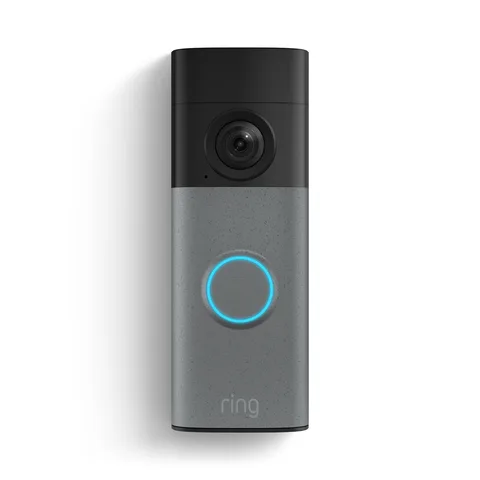
- Wi-Fi
- 2.4 GHz on every model; 5 GHz on dual-band models such as Video Doorbell 4 and Wired Doorbell Pro.
- Security
- WPA2-Personal. WPA3 gives an “Incompatible Network” error on several models.
- Setup network
Ring-orRing Setupfollowed by letters and numbers, made by the device in setup mode- App
- Ring app
- Models
- Battery Doorbell, Wired Doorbell Plus, Video Doorbell 4, Wired Doorbell Pro, Stick Up Cam Pro, Spotlight Cam Pro, Floodlight Cam Wired Pro, Outdoor Cam, Indoor Cam
Wi-Fi it needs
Ring says every Ring device works on 2.4 GHz, and some also work on 5 GHz. The device’s page in the Ring app, under Device Health, shows which network it uses.
- 2.4 GHz: works with all Ring doorbells and cameras. If your 5 GHz network doesn’t appear in setup, choose the 2.4 GHz one.
- 5 GHz channels: in Canada, Europe, the UK, Australia, New Zealand and Japan, Ring devices can’t use channels 36–64. Ring recommends setting the router to channels 100–165.
- Dual-band doorbells: the Video Doorbell 4 and Wired Doorbell Pro (formerly Video Doorbell Pro 2) connect to 5 GHz on channels 100 and above.
- WPA3: the Video Doorbell 3, 3 Plus and 4, Stick Up Cam Pro and Spotlight Cam Pro show “Incompatible Network” on WPA3. Use WPA2-Personal.
- Network name: Ring asks you to remove special characters from the Wi-Fi name, such as apostrophes, spaces and
! @ # $ % &. - One router: Ring says more than one Wi-Fi router can cause connection problems. Use one, or put the second in bridge mode.
- Mobile hotspots: Ring does not support a phone hotspot for normal use. Its devices are intended for a home or business network.
Set it up
Charge or power the device first, keep your phone close to it, and have your Wi-Fi password ready.
In the Ring app, tap Set Up a Device at the bottom of the dashboard.
Scan the QR code on the back of the device, or under the faceplate or battery cover.
Pick or create a location, name the device and follow the preparation steps.
Press the setup button when asked, then confirm the light is spinning or flashing.
When the app asks to join the Ring network, tap Join (iPhone) or Connect (Android).
Choose your home Wi-Fi network, enter its password and tap Continue.
Leave the device powered while it updates its firmware, and don’t press the setup button.
If the Ring network doesn’t connect by itself
The device’s setup network is named Ring- or Ring Setup followed by letters and numbers. It has no internet, so your phone may warn about that.
Open your phone’s Wi-Fi settings.
Select the
Ring-orRing Setupnetwork.Go back to the Ring app to carry on.
How much data it uses
Ring publishes the upload speed each device needs for its video resolution. Add the figures together for several devices.
Ring publishes no figures for data used per day or per month. Ring says devices adjust video quality to your internet speed but need at least 1 Mbps to work.
| Video resolution | Upload speed per device |
|---|---|
| 4K | 15 Mbps |
| 2K | 10 Mbps |
| 1536p | 2.5 Mbps |
| 1080p | 2 Mbps |
| 720p | 1 Mbps |
If a speed test next to your router shows under 1 Mbps, or under 60% of the speed you pay for, Ring suggests calling your internet provider.
Guest, hotel and dorm Wi-Fi
Ring devices connect out to Ring’s service, and you watch them through the Ring app. Ring’s own offline fixes even suggest setting a device up on another network, such as a guest network.
Ring documents nothing about hotel, dorm or other networks with a sign-in page. Ring does not support a mobile phone hotspot for normal use.
When it won’t connect
These are Ring’s fixes when setup fails or the device can’t join your Wi-Fi.
Move the device closer to the router for setup.
Check your phone can join the same network, and that ring.com loads on it.
If 5 GHz isn’t listed, choose your 2.4 GHz network instead.
Remove special characters and spaces from the Wi-Fi network name.
Unplug every Ethernet cable from the router except the one to the modem or wall.
Restart the router and modem by unplugging them for 30 seconds.
As a last resort, factory reset or power cycle the device and set it up again.
If the app says “Incompatible Network”
This means the network uses encryption the device doesn’t support, such as WPA3. It isn’t a signal problem.
Open your router’s admin page or app and go to its Wi-Fi security settings.
Change the network type to WPA2-Personal.
Save, restart the router and try setup again.
Still failing? Hold the setup button for 20 seconds, wait for the light to flash, then retry.
If you can’t change the router, use a separate 2.4 GHz WPA2 network if it has one.
When it keeps going offline
An offline device shows an icon on its camera tile. Tap it for an error code, such as P1-65, and the matching steps.
In the Ring app, tap the menu (☰), then Devices, then the device.
Tap the Device Health tile.
Under Network, tap Reconnect, or Change Network if your Wi-Fi name or password changed.
Restart the router and modem by unplugging them for 30 seconds.
Make sure the battery is charged, or the wired device has the right transformer.
Move the device or router closer, or try a 2.4 GHz network instead of 5 GHz.
Add a Chime Pro as an extender, or a mesh system, if the signal is weak.
Read the signal strength (RSSI)
Device Health shows Signal Strength as an RSSI number. The closer to zero, the stronger the signal.
| RSSI | What Ring says |
|---|---|
| 0 to −60 | Great: strong |
| −60 to −70 | Okay: could be improved |
| −70 to −80 | Poor: possible delays and interruptions |
| −80 or worse | Very poor: intermittent service or falling offline |
If there are multiple routers, check for conflicting routing or bridge-mode settings.
Questions
Do Ring doorbells work on 5 GHz Wi-Fi?
Some do. Every Ring device works on 2.4 GHz, and dual-band models such as the Video Doorbell 4 and Wired Doorbell Pro also use 5 GHz on channels 100 and above.
Why can’t my Ring doorbell see my 5 GHz network?
In Canada, Europe, the UK, Australia, New Zealand and Japan, Ring devices can’t use 5 GHz channels 36–64. Move the router to channels 100–165, or use 2.4 GHz.
What upload speed does a Ring camera need?
Ring lists 2 Mbps per device at 1080p, 2.5 Mbps at 1536p, 10 Mbps at 2K and 15 Mbps at 4K. Add them up for several devices.
Sources
- Ring Help: Fixing setup issues
- Ring Help: Understanding wifi recommendations for Ring devices
- Ring Help: Fixing offline devices
- Ring Help: Doorbell setup guide
- Ring Help: Security camera setup guide
- Ring Help: Fixing device setup errors by adjusting your router
- Ring Help: Video Doorbell 4 trouble connecting to 5GHz wifi
- Ring Help: Ring Video Doorbell and Security Camera FAQ
Checked on 1 November 2026.
See your network from your Mac
Kilobat is a Mac menu-bar app with a CLI and an MCP server for AI agents. It lists the devices on your Wi-Fi and says when a new one joins, keeps a history of the router’s and the internet’s health, scans nearby channels, and shows which app on your Mac is using the network. Read the docs.
brew install seifip/kilobat/kilobat