Cameras and doorbells · TP-Link
Tapo camera Wi-Fi: 2.4 GHz, the Tapo_Cam setup network and going offline
Tapo cameras are TP-Link’s indoor and outdoor Wi-Fi cameras and doorbells. You can set them up with the Tapo app. Some models use a temporary camera network; Bluetooth models use a different setup flow.
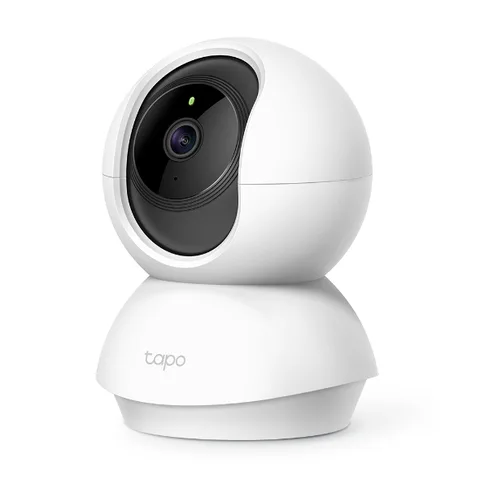
- Wi-Fi
- 2.4 GHz on most models; 5 GHz on a few, such as the C260, C460 and C840. Check the exact model’s specifications for other bands.
- Security
- WPA/WPA2 is common; selected models support WPA3. Check your model and hardware version. TP-Link says portal networks are unsupported.
- Setup network
- Some models use
Tapo_Cam_XXXX; Bluetooth models use a different setup flow. - App
- Tapo app
- Models
- Tapo C100, Tapo C200, Tapo C210, Tapo C211, Tapo C220, Tapo C225, Tapo C425, Tapo C500, Tapo C260, Tapo D130
Wi-Fi it needs
TP-Link says most Tapo cameras connect over 2.4 GHz only. A few newer models also support 5 GHz; the specifications page for each model says which.
- 2.4 GHz: the C210, for example, lists 2.4 GHz and 802.11b/g/n only. Keep the phone on the 2.4 GHz network during setup.
- 5 GHz: the C260, C460, C840 and some other models support it.
- Security: support varies by model. TP-Link lists WPA3 on the C500/TC40 (V1 and V2), C225 (V1 and V2), C125 and D130 V1.
- Not supported: TP-Link says sign-in (“portal”) and WPA/WPA2-Enterprise networks are unsupported. Its sources differ on WEP and open networks, so check the model’s specifications.
- Mixed mode: TP-Link’s offline guide suggests setting the router to WPA2/WPA3-Personal, so older cameras can still join.
- Hidden networks: they work, but choose Other Network and type the name and password.
- VPNs: TP-Link lists a VPN or ad-blocker among possible causes of setup trouble. Check its guidance for your configuration.
Set it up
These steps describe setup through a temporary camera network. Bluetooth models follow a different flow in the app.
In the Tapo app, tap +, then Add Device, and pick your camera model.
Plug the camera in and wait about 30 seconds for its light to blink red and green.
On iPhone, open Settings › Wi-Fi and join
Tapo_Cam_XXXX, then return to the app.On Android, allow location access and tap Connect; the app joins the camera’s network itself.
Choose a home network supported by your model, enter its password and tap Next.
Give the camera a name and location, then tap Done.
Status lights and reset procedures vary by model. Consult its instructions before resetting.
Move it to a new Wi-Fi network
On supported online cameras, the Tapo app can switch Wi-Fi without a reset. Availability depends on model, hardware and firmware.
Update the Tapo app and camera firmware while the camera is online.
Open the camera in the Tapo app and tap its settings icon.
Choose Network Connection › Switch Wi-Fi, if available.
Choose the new network, enter the password and follow the prompts.
An older TP-Link setup guide says a reset is needed. If switching is unavailable, consult the exact model’s current guidance before resetting.
How much data it uses
TP-Link says each camera needs approximately 5 Mbps of upload bandwidth to stream a live feed or upload videos. Recommended bandwidth varies by camera and resolution, and TP-Link publishes few per-quality figures.
| Recording quality | 24-hour recording on a 64 GB card | Works out at about |
|---|---|---|
| 2MP (1920×1080) @15fps | 192 hours | 330 MB per hour |
| 3MP (2304×1296) @15fps | 128 hours | 500 MB per hour |
| 4MP (2556×1440) @15fps | 96 hours | 670 MB per hour |
| 5MP (2560×1960) @15fps | 72 hours | 890 MB per hour |
| 8MP (3840×2160) @15fps | 48 hours | 1.3 GB per hour |
For the 4G Tapo C501GW, TP-Link states that 1 hour of live view in 1080p uses about 594 MB. Event detection, cloud storage and firmware upgrades use more. A camera recording to its microSD card uses no upload for that.
Guest, hotel and dorm Wi-Fi
TP-Link suggests a separate 2.4 GHz guest network or a phone hotspot only as a test of your main Wi-Fi. Several things can still get in the way.
- Sign-in pages: Tapo cameras don’t support “Portal” networks, so hotel, campus and café Wi-Fi with a sign-in page won’t work.
- Enterprise Wi-Fi: networks that ask for a username as well as a password (WPA2-Enterprise) aren’t supported.
- Connection limits: TP-Link warns that guest networks often cap how many devices can join.
- Local viewing: watching without the internet only works when the phone and camera are on the same network.
When it won’t connect
Hold the phone near the camera so the signal shows full bars.
Check the network uses a band and security mode your model supports. Prefer WPA2 or WPA3 where available.
Connect the phone to the same 2.4 GHz network, with the same name, as the camera.
Check VPN and ad-blocking settings if setup still fails.
For a hidden network, choose Other Network and type its name and password.
Consult the model’s instructions before resetting, then try setup again.
Reset procedures differ by model and can erase settings. Check TP-Link’s instructions first.
When it keeps going offline
Check the Wi-Fi signal strength (RSSI) in the Tapo app, and move the camera closer if it’s weak.
Use the camera’s original power adapter, not an extension cable or another charger.
Update the camera’s firmware and the Tapo app.
Turn off Smart Connect, Wi-Fi optimising and channel optimisation on the router.
Set 2.4 GHz to a 20 MHz channel width and a fixed channel: 1, 6 or 11.
Give the camera a fixed (static) IP address in the Tapo app or the router.
Reboot the router and the camera, and check it reconnects.
PoE models need 802.3af/at (48 V) active PoE; passive PoE injectors aren’t supported. TP-Link also suggests an extender or mesh system for weak spots.
Questions
What is the Tapo_Cam Wi-Fi network?
Some models create a temporary Tapo_Cam_XXXX network for setup. Bluetooth models use a different flow.
Can a Tapo camera use 5 GHz Wi-Fi?
Most can’t: TP-Link says most Tapo cameras are 2.4 GHz only. A few models, such as the C260, C460 and C840, support 5 GHz.
Do Tapo cameras work with WPA3?
TP-Link lists WPA3 on selected models, including C500/TC40 V1/V2, C225 V1/V2, C125 and D130 V1. Check your model and hardware version.
Sources
- TP-Link: Tapo C320WS v2.20 and v2.26 specifications
- TP-Link: Tapo camera network requirements (Australia)
- TP-Link: Tapo Cameras: Setup, Features and Settings
- TP-Link: Switch Wi-Fi in the Tapo App
- TP-Link: Tapo Camera Setup: How to Use the Tapo App
- TP-Link: Tapo Camera Not Connecting to Wi-Fi? How to Fix It
- Tapo: Troubleshooting Guide: Tapo Camera, Doorbell, or Smart Device Going Offline
- Tapo: General Questions about the Tapo Camera
- TP-Link: Which microSD Cards Work With Tapo and Kasa Cameras?
- Tapo C210 specifications
- TP-Link: Tapo C501GW
Checked on 1 November 2026.
See your network from your Mac
Kilobat is a Mac menu-bar app with a CLI and an MCP server for AI agents. It lists the devices on your Wi-Fi and says when a new one joins, keeps a history of the router’s and the internet’s health, scans nearby channels, and shows which app on your Mac is using the network. Read the docs.
brew install seifip/kilobat/kilobat