Speakers and assistants · Apple
HomePod Wi-Fi: network issues, 6 GHz, hotel and dorm Wi-Fi and dropouts
HomePod and HomePod mini join the same Wi-Fi network as the iPhone or iPad that sets them up. After that, you change their network and check their signal in the Home app.
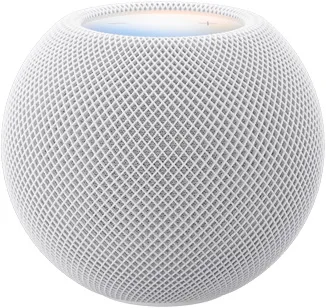
- Wi-Fi
- Takes the iPhone’s network; 802.11n on HomePod mini and HomePod (2nd gen), 802.11ac on the first HomePod, Wi-Fi 6E on HomePod mini 2.
- Security
- Home Wi-Fi with a password, plus 802.1X with PEAP, EAP-TLS, EAP-TTLS or EAP-FAST; WPA3 not listed per model.
- App
- Home app
- Models
- HomePod mini, HomePod mini 2, HomePod (2nd generation), HomePod (1st generation)
Wi-Fi it needs
HomePod has no Wi-Fi menu of its own during setup. It joins whichever network your iPhone or iPad is on.
- One name for every band: if setup shows a 6 GHz alert, give every router and band (2.4, 5 and 6 GHz) the same network name.
- Security: Apple recommends WPA3 Personal, or WPA2/WPA3 Transitional for older devices, and advises against WEP, TKIP and WPA.
- Hidden networks and MAC filtering: Apple recommends turning both off on the router.
- Campus and business Wi-Fi: HomePod joins most 802.1X networks using PEAP, EAP-TLS, EAP-TTLS or EAP-FAST. Networks needing a one-time password don’t work.
- Personal hotspots: Apple says they are not recommended.
| Model | Wi-Fi Apple lists |
|---|---|
| HomePod mini 2 | Wi-Fi 6E (802.11ax), where 6 GHz is allowed |
| HomePod (2nd generation) | 802.11n |
| HomePod mini | 802.11n |
| HomePod (1st generation) | 802.11ac with MIMO |
HomePod mini, HomePod mini 2 and HomePod (2nd generation) have Thread, so they can be your home hub and Thread border router. See Thread and Apple Home.
Set it up
You need an iPhone or iPad; a Mac can’t set up HomePod. HomePod (2nd generation) needs iOS 16.3 or later. Apple specifies a current iOS or iPadOS device for HomePod mini 2.
Connect your iPhone to the Wi-Fi network you want HomePod on.
Turn on Bluetooth on the iPhone.
Plug in HomePod and hold the unlocked iPhone next to it.
Follow the setup screen that appears on the iPhone.
If no setup screen appears, open the Home app and tap Add › Add Accessory › More options, then HomePod.
Move HomePod to a different network
Connect your iPhone to the new Wi-Fi network.
In the Home app, tap View Details on the network mismatch alert.
Tap Move HomePod to the new network.
If no alert appears, reset HomePod and set it up again on the new network.
Apple doesn’t document a setup network that HomePod creates; setup runs over Bluetooth from the iPhone. HomePod mini flashes orange if its adapter isn’t 20 W (9 V, 2.22 A).
How much data it uses
Apple publishes no data-use figures for HomePod, per hour or per stream quality.
- Apple says personal hotspots are not recommended for HomePod.
- With peer-to-peer AirPlay, a guest’s iPhone, iPad or Mac can play to HomePod without joining your Wi-Fi.
Guest, hotel and dorm Wi-Fi
Unlike most smart speakers, HomePod can join captive networks that need a sign-in, such as hotel or dorm Wi-Fi, and most 802.1X networks.
Set up HomePod first on a home or personal Wi-Fi network.
Update HomePod and your iPhone or iPad to the latest software.
Connect your iPhone or iPad to the other network.
In the Home app, open HomePod’s settings and move it to that network.
If the network needs a device certificate, install the administrator’s configuration profile and select HomePod.
- Wi-Fi address: some administrators need it. Find it in HomePod’s settings by tapping the Wi-Fi network name.
- Limited networks: A network that blocks peer-to-peer traffic can cause a “Some features may not work on this network” message. Stereo pairs, timers, Intercom and home cinema audio with Apple TV then don’t work.
- Guest networks: these often block peer-to-peer traffic. Join another network, or allow peer-to-peer traffic on the router.
When it won’t connect
If the Home app shows “Network Issue”, “No Internet” or “Wi-Fi Incompatible”, try these in order.
Restart HomePod.
Check that the modem and router have power, then restart both.
Make sure HomePod and your iPhone use the same Wi-Fi network.
For “Wi-Fi Incompatible”, forget the network on your iPhone, rejoin it and try setup again.
Turn on Bluetooth, two-factor authentication, and Passwords and Keychain in iCloud.
If you already have accessories, sign in with the home owner’s Apple Account.
If nothing works, reset HomePod and set it up again.
When it keeps going offline
For a HomePod that keeps dropping or shows “Wi-Fi Not Connected”, Apple checks the signal and the router.
In the Home app, open HomePod’s settings and scroll to Wi-Fi Network.
If the signal shows two bars or fewer, move HomePod closer to the router.
Remove sources of wireless interference near HomePod.
For a network mismatch alert, move HomePod to the same network as your home hub.
Make sure only one device on the network hands out addresses (DHCP).
Turn off NAT on the modem if the router also does NAT, to avoid double NAT.
If the home hub stays unreachable, check router firewall rules that may block it.
The signal indicator only shows when your iPhone is on the same network, and not on networks that block peer-to-peer traffic. Apple also suggests a shorter DHCP lease time or a higher client limit if the router runs out of addresses.
Questions
Can HomePod connect to hotel or dorm Wi-Fi?
Yes. Apple says HomePod can join captive networks that need extra sign-in steps, and most 802.1X networks. Set it up at home first, then move it to the network from the Home app.
Why does HomePod say “Wi-Fi Incompatible” about 6 GHz?
Different network names for the bands can cause this warning. Apple recommends the same name on every band and router.
Can I change HomePod’s Wi-Fi without resetting it?
Usually. Put your iPhone on the new network, then tap Move HomePod on the network mismatch alert in the Home app. Without an alert, reset and set up again.
Sources
- Apple Support: If HomePod has a “Network Issue” or “No Internet”
- Apple Support: If you can’t set up HomePod or HomePod mini
- Apple Support: Use your HomePod on an 802.1X Wi-Fi network
- Apple Support: Recommended settings for Wi-Fi routers and access points
- Apple: HomePod mini 2 technical specifications
- Apple: HomePod (2nd generation) technical specifications
- Apple Support: HomePod mini tech specs
- Apple Support: HomePod (1st generation) technical specifications
Checked on 1 November 2026.
See your network from your Mac
Kilobat is a Mac menu-bar app with a CLI and an MCP server for AI agents. It lists the devices on your Wi-Fi and says when a new one joins, keeps a history of the router’s and the internet’s health, scans nearby channels, and shows which app on your Mac is using the network. Read the docs.
brew install seifip/kilobat/kilobat