Speakers and assistants · Amazon
Amazon Echo Wi-Fi: 2.4 vs 5 GHz, setup, hotel Wi-Fi and dropouts
Echo speakers and Echo Show displays run Alexa over your home Wi-Fi. You set up a speaker in the Alexa app on your phone; an Echo Show also changes its Wi-Fi from its own screen.
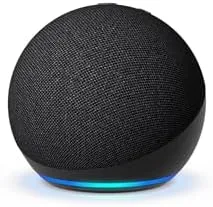
- Wi-Fi
- Dual band, 2.4 and 5 GHz (802.11a/b/g/n/ac); Echo Dot Max lists Wi-Fi 6E. Ad-hoc networks aren’t supported.
- Security
- WPA2 Personal; WPA3 not documented. Amazon documents WPA2 Enterprise for eligible Alexa Smart Properties deployments; check the model and deployment requirements.
- App
- Alexa app
- Models
- Echo Dot (5th Gen), Echo Dot Max, Echo Pop, Echo (4th Gen), Echo Studio (2025 release), Echo Spot, Echo Show 5, Echo Show 8, Echo Show 11, Echo Show 15, Echo Hub
Wi-Fi it needs
Amazon says Echo devices join the Wi-Fi used in most homes: dual-band networks on 2.4 GHz and 5 GHz.
- Bands: Echo Dot (5th Gen) lists dual-band 802.11a/b/g/n/ac on 2.4 and 5 GHz. Echo Dot Max lists Wi-Fi 6E (802.11ax).
- One name or two: if your router gives 2.4 GHz and 5 GHz separate names, Amazon suggests trying the Echo on the other one.
- No ad-hoc networks: Echo devices can’t join ad-hoc (peer-to-peer) networks.
- Security: Amazon’s consumer help pages don’t say which WPA modes Echo supports. Its business docs list WPA2 with a password, WPA2 Enterprise and open networks; WPA3 isn’t mentioned.
- Distance: Amazon asks for the Echo within 30 feet (9 metres) of the router, away from microwaves and baby monitors.
- eero Built-in: on an eero mesh, Echo Pop, Echo Dot (4th Gen and later), Echo (4th Gen), Echo Dot Max and Echo Studio (2025) can extend the mesh.
Many Echo models are also smart-home hubs. Some Echo models have a Thread border router built in. Check Amazon’s current compatibility list for the exact model. See Thread and Matter.
Set it up
You need the Alexa app on your phone, your Amazon account, and your Wi-Fi name and password.
Update the Alexa app from your phone’s app store.
Plug in the Echo with its own power adapter.
Wait for the light ring to turn orange, which means it’s ready for setup.
In the Alexa app, open Devices and tap the plus icon.
Select Add Device › Amazon Echo › Echo, Echo Dot, Echo Pop and more.
Follow the instructions, and choose your Wi-Fi network when asked.
Change the Wi-Fi network later
In the Alexa app, open Devices and select your Echo.
Select Device Settings › Change or remove a Wi-Fi network.
Pick a saved network, or select Join another Wi-Fi Network and follow the app.
On an Echo Show
Say “Go to settings”, or swipe down from the top and select Settings.
Select Device Options › Network and make sure Wi-Fi is on.
Select your network and follow the prompts on the screen.
If your network isn’t listed, select refresh, or scroll to Preferences for advanced Wi-Fi options. Menus vary by model.
On Echo Spot (2024)
Tap the Wi-Fi-off icon on the Echo Spot screen.
Scan the QR code and follow the Alexa app prompts to change Wi-Fi.
How much data it uses
Amazon publishes no data-use figures for Echo speakers or Echo Show, per hour or per quality.
- For hotels and other properties, Amazon’s business guidance asks for an internet connection of at least 512 Kbps so guests can stream.
- Music and video quality is set by the streaming service, not by the Echo.
- Amazon’s setup fix of using your phone as a hotspot uses mobile data while it lasts.
Guest, hotel and dorm Wi-Fi
Amazon documents no way for an Echo to get past a hotel, dorm or café sign-in page. Its business documentation says Alexa devices can’t be configured through captive portals.
- Sign-in pages: Alexa Smart Properties does not support configuring devices through captive portals. Check the property’s setup instructions.
- Phone hotspot: Amazon’s own setup fix is to try setup again with your phone as a Wi-Fi hotspot.
- Hotels with Alexa: Amazon recommends that properties run Alexa devices on their own network name, on 5 GHz, with a fixed 20 MHz channel and no DFS channels.
- Enterprise Wi-Fi: Amazon documents WPA2 Enterprise for eligible Alexa Smart Properties devices. Follow the property administrator’s instructions.
When it won’t connect
A purple light during setup means a Wi-Fi problem; orange means the Echo is still trying to get online.
Check you have the latest version of the Alexa app.
Test the internet on another device to see if the problem is the Echo or the network.
If other devices can’t connect either, restart your router.
Unplug the Echo for 30 seconds, then plug it back in.
Re-enter your Wi-Fi password carefully, especially if it changed recently.
If the router has separate 2.4 GHz and 5 GHz names, try the other one.
Try setup again with your phone as a Wi-Fi hotspot.
If nothing works, reset the Echo and set it up again.
When it keeps going offline
For an Echo that drops off Wi-Fi now and then, Amazon gives these steps.
Restart the Echo: unplug it, wait 30 seconds and plug it back in.
Move it within 30 feet (9 metres) of the router.
Move it away from microwaves, baby monitors and other electronics.
Turn off a few other devices on the Wi-Fi to see if that helps.
In the Alexa app, check the Echo’s settings show the right Wi-Fi network.
If it still drops, reset the Echo and set it up again.
If several devices drop at once, Amazon suggests waiting a few hours in case of an outage, or contacting your internet provider.
Questions
Does Amazon Echo work on 5 GHz Wi-Fi?
Yes. Amazon says Echo devices join dual-band 2.4 GHz and 5 GHz networks, and Echo Dot Max lists Wi-Fi 6E. If one band gives trouble, try the other.
Can an Echo connect to hotel Wi-Fi with a sign-in page?
Amazon documents no way to do that, and its business docs say Alexa devices can’t be set up through captive portals. A phone hotspot is the fallback Amazon suggests during setup.
What does the orange or purple light on my Echo mean?
Orange means the Echo is in setup mode or trying to get online. Purple during first setup means there’s a Wi-Fi problem.
Sources
- Amazon Help: Update Wi-Fi settings for Echo devices
- Amazon Help: Echo Device Is Having Wi-Fi Issues
- Amazon Help: Echo Device Can’t Connect to Wi-Fi During Setup
- Amazon Help: Update the Wi-Fi Settings for Your Echo Device
- Amazon Help: Update the Wi-Fi Settings on Your Echo Devices with a Screen
- Amazon Help: Set Up Your Echo
- Amazon Help: What Do the Lights on Your Echo Speaker Mean?
- Amazon Help: Connect Your Echo Device to Your eero Network
- Amazon: Echo Dot (5th Gen) technical details
- Amazon: Echo Dot Max technical details
- Amazon Developer: Alexa Smart Properties core networking requirements
- Amazon Developer: Endpoint Wi-Fi Management API (security types)
- Amazon Developer: Connect your device to Alexa with Matter (Thread border router list)
Checked on 1 November 2026.
See your network from your Mac
Kilobat is a Mac menu-bar app with a CLI and an MCP server for AI agents. It lists the devices on your Wi-Fi and says when a new one joins, keeps a history of the router’s and the internet’s health, scans nearby channels, and shows which app on your Mac is using the network. Read the docs.
brew install seifip/kilobat/kilobat