Speakers and assistants · Sonos
Sonos Wi-Fi: 2.4 vs 5 GHz, WPA3, SonosNet, guest networks and dropouts
Sonos speakers join your home Wi-Fi, or compatible products use SonosNet, Sonos’s own wireless mesh, in a wired setup. You set them up and control them in the Sonos app, which must be on the same network.
- Wi-Fi
- 2.4 GHz on every model; 5 GHz on most (Wi-Fi 6 on Era, Arc Ultra, Move 2 and newer). Amp, Arc, Beam generations 1 and 2, and Ray are 2.4 GHz only.
- Security
- WPA and WPA2 Personal on every model, WPA3 on most current ones; WPA/WPA2 Enterprise not supported.
- App
- Sonos app
- Models
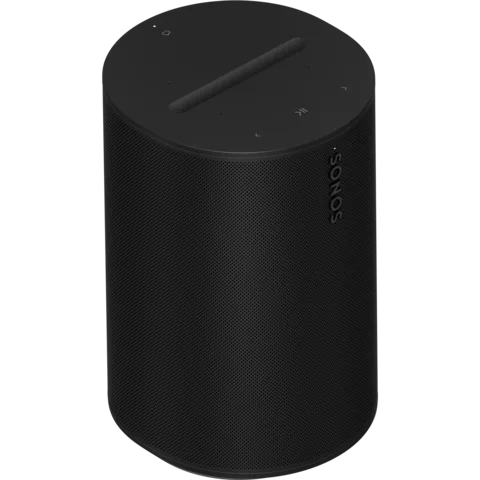
- Era 100, Era 300, Five, Move 2, Roam 2, Sonos Play, Arc Ultra, Beam (Gen 2), Ray, Sub 4, Amp, Port, One (Gen 2), SYMFONISK
Wi-Fi it needs
Every Sonos product joins 2.4 GHz Wi-Fi. Which other modes it uses depends on the model and on running the current Sonos app.
- No 5 GHz-only routers: Sonos lists routers that offer only 5 GHz as unsupported. Keep 2.4 GHz switched on.
- WPA3: supported on many current products, from Amp and Arc to Era and Sonos Play. One (Gen 1), the Play:1, Play:3 and Play:5 (Gen 2), Sub (Gen 1 and 2) and first-generation SYMFONISK stay on WPA/WPA2. Sonos says nothing about WPA2/WPA3 mixed mode.
- S1 Controller: most products set up with the older S1 app use 2.4 GHz 802.11b/g with WPA or WPA2. Move has additional 802.11a/n support.
- Router settings Sonos recommends: every Wi-Fi mode and band switched on, 20 MHz channel width on 2.4 GHz, and automatic channel selection.
- Mesh yes, extenders no: Sonos recommends a dedicated router or mesh system with Wi-Fi 5 or newer. Networks with wireless range extenders are not supported.
- Enterprise Wi-Fi: WPA/WPA2 Enterprise and networks needing certificates won’t work for wireless setup.
| Models | 2.4 GHz | 5 GHz |
|---|---|---|
| Era 100, Era 300, Arc Ultra, Beam Ultra, Move 2, Sub 4, Amp Multi, Sonos Play | Yes | Yes, up to Wi-Fi 6 (802.11ax) |
| Roam, Roam 2, Roam SL | Yes | Yes, up to Wi-Fi 5 (802.11ac) |
| Five, Move, One (Gen 2), One SL, Port, Sub (Gen 3), Sub Mini, newer SYMFONISK | Yes | Yes, 802.11a/n |
| Amp, Arc, Arc SL, Beam (Gen 1 and 2), Ray | Yes, up to 802.11n | No |
| One (Gen 1), Play:1, Play:3, Play:5 (Gen 2), older Subs and SYMFONISK | Yes, 802.11b/g | 802.11a only |
SonosNet: when a SonosNet-capable product is wired to the router (in a mesh, to the main node), compatible products can use SonosNet, a separate Sonos wireless mesh on its own channel. A home-theater surround or subwoofer cannot be the first wired product. Era, Move, Roam, Arc Ultra, Sub 4 and Sonos Play do not support it. It is on by default; turn it off in Settings › Network › SonosNet.
Set it up
You add a product in the Sonos app. Your phone must be on the Wi-Fi network you want Sonos on.
Plug in the product and check that its status light flashes green.
If it doesn’t flash green, check Sonos’s setup guidance for your model. Sonos does not recommend a factory reset for troubleshooting.
Open the Sonos app and go to Settings.
Tap the plus icon to add a speaker or component.
Follow the prompts, and enter your Wi-Fi password when asked.
If wireless setup fails
Select Alternate setup to set up a product with an Ethernet port over a cable instead.
Once it works, switch it back to wireless from the app if you prefer.
Some products use a temporary speaker network during wireless setup. Follow the app’s instructions for your product. A system holds up to 32 products.
How much data it uses
Sonos recommends a download speed of at least 5 Mbps for streaming music. It also recommends wiring as many products as possible if more than five rooms stream at once, especially high-bitrate audio.
Sonos publishes no data-use figures per hour or per quality. The music service sets the stream quality.
- Satellite, mobile hotspot and LTE router internet connections are not supported.
- Sonos lists the ports it uses, including a set of TCP ports from 1400 to 3500 for Sonos control, UDP 1900–1901 for app control and UDP 6969 for setup.
Guest, hotel and dorm Wi-Fi
Sonos says plainly that guest networks are not compatible with Sonos. Networks with a sign-in (portal) page aren’t supported either.
- Same network: the phone or computer running the Sonos app must be on the same subnet as the speakers. A phone on the guest network won’t find them.
- VPNs: a VPN that blocks local network access hides your speakers from the app. Turn it off and check again.
- Mobile hotspots: not supported for setup or as the internet connection.
- Away from Wi-Fi: Roam, Move and their newer versions switch to Bluetooth once they have been set up on Wi-Fi. Grouping and voice assistants don’t work in Bluetooth mode.
When it won’t connect
Select Show to check the Wi-Fi password you typed.
Check you picked the right network; select Use another network if not.
Make sure the router offers 2.4 GHz, not 5 GHz only.
Restart the router, wait for your phone to reconnect, then try setup again.
Move the product closer to the router, with your phone within about 3 metres (10 feet) of it.
Try setup from a different phone or tablet that already runs the Sonos app.
If the product has an Ethernet port, wire it to the router and run setup again.
When it keeps going offline
A product that disappears from the Sonos app has usually lost power or Wi-Fi signal.
Check the power lead, then press Play/Pause to see if the status light responds.
Restart the missing product. If its light then flashes green, add it to your system again.
Unplug the router for ten seconds, plug it back in and give it several minutes.
Move the product closer to the router, or to the nearest Sonos product in a wired setup.
Check its signal strength and SNR under Settings, in the product’s network details.
Move Sonos away from other electronics that cause wireless interference.
In a wired setup, set the router’s 2.4 GHz channel to 1, 6 or 11, different from SonosNet’s.
In a wireless setup, leave the router’s channel on Auto. If you use your own router or mesh, Sonos recommends putting the internet provider’s router in bridge mode. Products offline for over three months drop out of the app.
Questions
Does Sonos work on 5 GHz Wi-Fi?
Most current models do, and Era, Arc Ultra and Move 2 support Wi-Fi 6. Amp, Arc, Beam generations 1 and 2, and Ray use 2.4 GHz only, and every model needs the router to offer 2.4 GHz.
Can I use Sonos on hotel or guest Wi-Fi?
No. Sonos lists guest networks and networks with a sign-in page as unsupported. Roam and Move can play over Bluetooth instead, once set up at home.
Should I turn off SonosNet with a mesh router?
A SonosNet-capable product can create the network in a wired setup. A home-theater surround or subwoofer cannot be the first wired product, and not every model supports SonosNet. You can switch it off in Settings › Network › SonosNet; Sonos recommends a mesh system for larger homes.
Sources
- Sonos Support: Sonos system requirements
- Sonos Support: Supported WiFi modes and security standards for Sonos products
- Sonos Support: Recommended settings for using Sonos on wireless networks
- Sonos Support: Issues during wireless setup
- Sonos Community: Temporary network during setup
- Sonos Support: Products missing from the Sonos app
- Sonos Support: Change your router’s wireless channel
- Sonos Support: Factory reset cautions
- Sonos Support: Wired and wireless setup limitations
- Sonos Support: In-app SonosNet setting
- Sonos Support: Configure your firewall to work with Sonos
Checked on 1 November 2026.
See your network from your Mac
Kilobat is a Mac menu-bar app with a CLI and an MCP server for AI agents. It lists the devices on your Wi-Fi and says when a new one joins, keeps a history of the router’s and the internet’s health, scans nearby channels, and shows which app on your Mac is using the network. Read the docs.
brew install seifip/kilobat/kilobat