Speakers and assistants · Google
Google Nest speaker and Nest Hub Wi-Fi: bands, setup, hotel Wi-Fi and dropouts
Google’s smart speakers and Nest Hub displays join your home Wi-Fi during setup in the Google Home app. Your phone must be on the same network you want the speaker on.
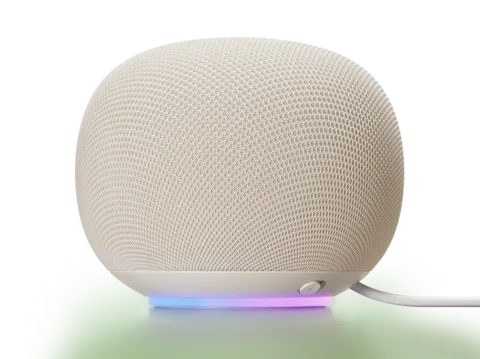
- Wi-Fi
- Dual band, 2.4 or 5 GHz on every model; Wi-Fi 6 on Google Home Speaker.
- Security
- WPA2 Personal is listed. Support for WPA3 varies by device and software; WPA2-Enterprise and 802.1X are not supported.
- App
- Google Home app
- Models
- Google Home Speaker, Nest Audio, Nest Mini (2nd gen), Google Home Mini, Google Home, Google Home Max, Nest Hub (1st gen), Nest Hub (2nd gen), Nest Hub Max
Wi-Fi it needs
Every Google smart speaker and display works on 2.4 GHz and 5 GHz. Google’s specification page lists these radios.
- Enterprise Wi-Fi: WPA2-Enterprise doesn’t work, and Google lists 802.1X/RADIUS networks as incompatible with Nest products.
- Security types: for a hidden network, the app offers None, WEP, WPA and WPA2. Google has also published a WPA3 setup fix; check your device and software.
- Hidden networks: supported, but you type the name and security type yourself.
- 5 GHz setup: to set up on 5 GHz, your phone must support 5 GHz too.
- Password: Google’s checklist expects at least eight characters; it is case-sensitive.
- Extenders: if you use one, turn off AP isolation in the extender’s settings before setup.
| Model | Wi-Fi Google lists |
|---|---|
| Google Home Speaker | Wi-Fi 6 (802.11ax), 2.4 and 5 GHz |
| Nest Audio, Nest Mini (2nd gen), Google Home Mini | 802.11b/g/n/ac, 2.4 or 5 GHz |
| Google Home, Google Home Max | 802.11b/g/n/ac, 2.4 or 5 GHz |
| Nest Hub (1st and 2nd gen), Nest Hub Max | 802.11b/g/n/ac, 2.4 or 5 GHz |
Google Home Speaker, Nest Hub (2nd gen) and Nest Hub Max support Matter over Thread and act as Thread border routers. Check Google’s current Matter guidance for the capabilities of other models. See Thread and Google Home.
Set it up
You need the latest Google Home app, a Google Account, Bluetooth on, and Android 9.0 or later or iOS 17.0 or later.
Plug the speaker or display into a wall socket.
If it was used before, factory reset it first.
Connect your phone to the Wi-Fi network you want it on.
In the Google Home app, tap Add › Device.
Scan the device’s QR code, or tap Use setup code and type it in.
Wait for Connected, then follow the steps in the app.
If your network isn’t listed
Stand within 15 to 20 feet (4.5 to 6 metres) of the router.
On the Wi-Fi screen, tap the arrow next to the network name field.
Scroll down and tap Other.
Enter the network name, security type and password, then tap Set Network.
Google’s troubleshooting can ask you to join the Google Nest or Home setup network. An existing device may use its assigned name.
How much data it uses
Google publishes no data-use figures for its speakers and displays, per hour or per quality.
- Google says mobile hotspots aren’t fully supported and may cost you in carrier data charges.
- Google’s products work best with an always-on connection; a hotspot that leaves home cuts them off.
Guest, hotel and dorm Wi-Fi
Google lists captive portal networks, the sign-in pages common in hotels, airports and cafés, as incompatible with Nest products.
- AP or client isolation: on guest, hotel or public networks that keep devices apart, you can’t set up the speaker at all.
- Shared networks: Google advises against business, school, dorm and shared-housing networks, and someone else’s guest network.
- Your own guest network: turn off AP isolation, or allow guests to see each other and reach the local network.
- Hotspots: a phone hotspot may work but isn’t fully supported.
When it won’t connect
For a speaker or display that won’t join Wi-Fi during setup, Google suggests these steps.
Check the Wi-Fi works on other devices; if not, restart the router.
Unplug the router for one minute, then plug it back in.
Unplug the speaker or display for one minute, then plug it back in.
Force close the Google Home app and open it again.
Turn your phone’s Wi-Fi off and on again.
On a dual-band router, try setup on both the 2.4 GHz and 5 GHz networks.
Retype the password, using the show password option to check it.
Try setup from another phone or tablet, or connect to a phone hotspot as a test.
When it keeps going offline
If the speaker stops answering, it may have lost its Wi-Fi. A voice response alone does not confirm that every network service is reachable.
Reboot the router and the speaker or display, one minute each.
Move it within 15 to 20 feet (4.5 to 6 metres) of the router.
If you changed the Wi-Fi name, password or provider, open the Google Home app.
Tap Add › Device › Search for device and set it up again.
If a new router replaced the old one, give it the old network name and password.
If it joins a phone hotspot but not your Wi-Fi, ask your internet provider about your network.
On Nest Wifi or Google Wifi, Google suggests turning off IPv6 under Wifi › Network settings › Advanced networking in the Google Home app when devices show offline.
Questions
Does Nest Mini or Nest Hub work on 5 GHz Wi-Fi?
Yes. Every Google speaker and display works on 2.4 GHz and 5 GHz. To set up on 5 GHz, your phone must support 5 GHz too.
Can I use a Nest speaker on hotel or dorm Wi-Fi?
Not on networks with a sign-in page, which Google lists as incompatible. Networks with AP isolation stop setup too, and Google advises against dorm networks.
Why can’t the Google Home app find my speaker on a guest network?
Guest networks often use AP isolation, which stops your phone reaching the speaker. Turn it off on your router, or use your main network.
Sources
- Google: Troubleshoot setup for speakers and displays
- Google Home release notes
- Google Nest Help: Google Nest and Home device specifications
- Google Nest Help: Fix Wi-Fi connection issues for your speaker or display
- Google Nest Help: Set up your Google smart speaker or display
- Google Nest Help: Wi-Fi network not listed in the Google Home app
- Google Nest Help: Wi-Fi networks that are incompatible or aren’t recommended
- Google Nest Help: Trouble setting up a Google Nest or Home device (AP isolation)
- Google Nest Help: Google Nest or Home device not connected to Wi-Fi network
- Google Nest Help: Devices disconnected after a new Wi-Fi network was set up
- Google Nest Help: Nest Wifi Pro, Nest Wifi or Google Wifi network not working
- Google Nest Help: Prepare your smart home for Matter
Checked on 1 November 2026.
See your network from your Mac
Kilobat is a Mac menu-bar app with a CLI and an MCP server for AI agents. It lists the devices on your Wi-Fi and says when a new one joins, keeps a history of the router’s and the internet’s health, scans nearby channels, and shows which app on your Mac is using the network. Read the docs.
brew install seifip/kilobat/kilobat