Provider box · Xfinity
Xfinity Gateway login, restart, port forwarding and UPnP
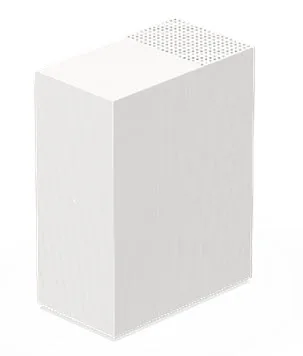
The Xfinity Gateway is the combined modem and router Xfinity rents out. You manage it mainly in the Xfinity app; the 10.0.0.1 Admin Tool is switched off by default and only covers some settings.
- Sign in
- The Xfinity app or
10.0.0.1 - App
- The Xfinity app (iOS and Android), signed in with your Xfinity ID
- Password
- The app uses your Xfinity ID. The Admin Tool username is
admin; you set its password when you first allow Admin Tool access in the app. - Models
- XB7, XB8, XB10, XB6
Sign in to the Xfinity Gateway
Most settings live in the Xfinity app. To use the browser Admin Tool on an XB6 or newer, switch it on in the app first.
Open the Xfinity app and tap WiFi.
Tap View WiFi equipment › Advanced settings › Admin Tool online access.
Slide the toggle to Allow Admin Tool access and tap Save.
The first time, set a new Admin Tool password and tap Save.
On your home Wi-Fi, open
http://10.0.0.1and sign in asadminwith that password.
If you allowed access before February 2026, the old password may still be the one on the sticker on the bottom of the gateway. Xfinity recommends switching Admin Tool access off again when you’re done.
Restart it properly
A restart takes up to 12 minutes. Home Wi-Fi and Xfinity Voice (including 911 calls) are down meanwhile.
Open the Xfinity app and tap WiFi.
Tap Troubleshoot.
Tap Restart your Gateway and wait for it to come back online.
Xfinity suggests running the network test in the app first: it tells you whether a restart is likely to help. Xfinity’s factory-reset article covers only the old XB2 and XB3; a reset erases your Wi-Fi name, password and other settings.
Restart by hand
Unplug the gateway’s power cable.
Wait one minute.
Plug the power cable back in.
Schedule a restart
Xfinity’s docs describe no scheduled restart.
Update the firmware
Leave the gateway plugged in and online; Xfinity sends updates to it automatically.
Xfinity lists regular automatic updates as part of renting the gateway. Its docs offer no way to check for or install an update yourself.
See connected devices
Open the Xfinity app and tap WiFi.
Scroll to Connected to your WiFi to see devices and the people they’re assigned to.
To group devices, tap Add a person, then Assign Device on that person’s page.
To cut someone off, select the person and tap Pause All Devices.
Only Primary and Manager users can pause people. Devices behind your own extra router or extender may not show up.
UPnP and port forwarding
Allow Admin Tool access in the app and sign in at
http://10.0.0.1.Go to Advanced › Device Discovery.
Turn UPnP on or off, and adjust Advertisement Period and Time To Live if needed.
Click Save.
Xfinity says UPnP may be on by default, letting apps on your network open ports automatically. That’s convenient for games and calls, but any device or malware inside can open a port too. Advanced Security may block traffic on UPnP or forwarded ports if it sees a known threat.
Port forwarding
In the Xfinity app, tap WiFi › View WiFi equipment › Advanced Settings › Port forwarding.
Tap Add Port Forward, then Continue.
Choose the device, then a preset such as Xbox, or Manual Setup.
Tap Next to finish.
On current gateways port forwarding is app-only, not in the Admin Tool. It works only for devices using IPv4 and DHCP.
NAT-PMP
Xfinity’s docs don’t mention NAT-PMP.
Prioritise calls and gaming
There’s no classic QoS page. On an XB8 or newer, Boost a Device prioritises up to three Wi-Fi devices.
Open the Xfinity app and tap WiFi.
Tap Boost a Device.
Pick the device and how long to boost it.
To stop, select the device on the WiFi tab and tap Turn off Device Priority.
Wired devices, extenders and smart home devices can’t be boosted. Boost a Device doesn’t work in Bridge Mode.
2.4 and 5 GHz, and the channel
Xfinity recommends one Wi-Fi name for all bands so the gateway can steer devices.
Open the Xfinity app and tap WiFi › WiFi details.
Tap Edit WiFi settings.
If offered, set a different name and password for 2.4, 5 and 6 GHz, then tap Save.
Change the channel
In the app, tap WiFi › View WiFi equipment › Advanced settings › WiFi bands.
Tap Edit next to 2.4 or 5 GHz.
Choose a number from Channel and tap Apply Changes.
On XB6 and newer, Xfinity manages channels automatically and these settings are usually hidden. They’re also hidden, and band splitting disabled, when Xfinity WiFi Extenders are active.
Mesh: which node a device uses
Xfinity WiFi Extenders form a mesh with the gateway. Devices join the best access point on their own.
Open the Xfinity app and tap WiFi › View WiFi equipment.
Check each extender’s status; a working one shows green.
Select an extender and tap Device Details to rename it.
Extenders don’t work while the gateway is in Bridge Mode. Xfinity’s docs don’t show which extender a given device is using.
Guest network
The gateway has no separate guest network. Xfinity offers two alternatives.
To share your main Wi-Fi, open the Xfinity app and tap WiFi › WiFi details.
Let your guest scan the QR code, or tap Share to send the details.
Guests who are Xfinity Internet customers can instead join the
xfinitywifihotspot the gateway broadcasts.
The hotspot is kept separate from your home network. You can turn it off under Advanced Settings in the app.
DNS settings
The app’s DNS Server setting only shows the configuration; Xfinity documents no way to change it on the gateway. Set DNS on the Mac instead, or use your own router with the gateway in Bridge Mode.
Connection status and logs
Open the Xfinity app; an outage banner appears if your area is affected.
Tap View outage details for the cause and estimated fix time.
Without the app, use the Xfinity Outage Map on xfinity.com/support, or text
OUTto266278.To see your public IP, tap WiFi › View WiFi equipment › Advanced Settings › LAN & WAN.
Xfinity applies outage credits automatically when you’re eligible; check under Outage map and credit on the Support page.
Manuals and downloads
- Xfinity XB6 and XB7 Gateway getting started guide (PDF)
- Xfinity WiFi Gateways and Routers overview and user guides
Links go to the maker’s own pages.
Questions
Why does 10.0.0.1 not load?
On XB6 and newer gateways the Admin Tool is off by default. Turn on Admin Tool online access in the Xfinity app, and connect to your home network.
Why can’t I find the channel or band settings?
Xfinity manages them automatically on newer gateways and when extenders are active, so the app and Admin Tool hide them.
Can I forward ports in the Admin Tool?
Not on current gateways. Xfinity says port forwarding on its gateways is set up only in the Xfinity app.
Sources
- Xfinity Support: Allow Xfinity WiFi Gateway Admin Tool online access using the Xfinity app
- Xfinity Support: How to restart your Xfinity Gateway
- Xfinity Support: Overview of Xfinity WiFi Gateways and Routers
- Xfinity Support: Manage users and devices with the Xfinity app
- Xfinity Support: Configure device discovery in the Xfinity WiFi Gateway Admin Tool
- Xfinity Support: Set up port forwarding using the Xfinity app
- Xfinity Support: Using Boost a Device in the Xfinity app
- Xfinity Support: Changing advanced WiFi settings in the Xfinity app
- Xfinity Support: How to change your home network’s WiFi channel selection or mode
- Xfinity Support: Xfinity WiFi Extenders FAQs
- Xfinity Support: Help guests access your home WiFi
- Xfinity Support: Check for a service outage
Checked on 1 November 2026.
See what your router can’t tell you
Kilobat is a Mac menu-bar app that watches the network from your side: which app is using it, whether the Wi-Fi, the router or the provider is slow, and why a call froze.
brew install seifip/kilobat/kilobat