Provider box · Cox
Cox Panoramic Wifi Gateway restart, port forwarding and split bands
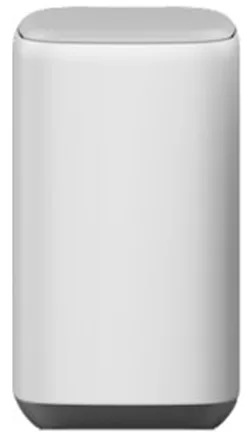
The Panoramic Wifi Gateway is the combined cable modem and Wi-Fi router that Cox rents out. You manage it in the Cox Panoramic Wifi app, signed in with your Cox user ID.
- Sign in
- The Cox Panoramic Wifi app
- App
- Cox Panoramic Wifi app (iOS 13 or later, Android 10 or later)
- Password
- The app uses your Cox primary user ID and password. The default Wi-Fi name (SSID) and password are on the bottom of the gateway; a factory reset brings them back.
- Models
- Technicolor CGM4981, Technicolor CGM4331, CommScope TG4482, Technicolor CGM4141, Arris TG1682, XER10 Panoramic Wifi Router
Sign in to the Cox Panoramic Wifi Gateway
Install the Panoramic Wifi app from the App Store or Google Play.
Tap Sign In and enter your primary Cox user ID and password.
Tap Continue. The Overview screen opens.
To see the Wi-Fi password, tap WiFi › WiFi details, then the Blocked Eye icon.
To change it, tap Edit WiFi settings, edit WiFi Name and WiFi Password, and tap Save.
Cox’s help mentions a browser Admin Tool and an app switch, Control Admin Access, to turn Admin Tool access on for a technician and off afterwards. It doesn’t document how to sign in to the Admin Tool, so use the app.
Restart it properly
A restart can take up to 12 minutes. Home Wi-Fi and the internet are down meanwhile.
In the app, tap WiFi in the bottom toolbar.
Tap the Troubleshoot tab.
Tap Restart your Gateway.
During an area outage, Cox says not to reset your equipment. On the CGM4981, holding the WPS button for 60 seconds factory-resets the gateway and erases all your settings.
From My Account
Sign in to My Account on cox.com.
Scroll to Manage your services & equipment and open Equipment.
Tap Reset device next to the gateway.
Restart by hand
Unplug the power cord from the back of the gateway, not at the wall socket.
Wait 30 seconds, then plug it back in.
Schedule a restart
Cox documents no scheduled restart.
Update the firmware
Leave the gateway plugged in and online. Cox installs software updates itself.
If the light flashes amber and green (green on the XER10), a download is in progress. Don’t unplug it.
Cox lists regular software updates and an equipment upgrade every three years as part of Panoramic Wifi. Its docs offer no way to check for or install an update yourself.
See connected devices
In the app, tap WiFi. Connected to your WiFi lists each device; a green dot means connected.
Tap the arrow next to a device to rename it under Device details, or tap Pause Device.
To group devices, tap Add a person, name the profile and tap Assign Devices.
On a person’s profile, Pause All Devices cuts off all their devices at once.
Devices behind your own router or extender don’t appear. Disconnected devices stay under Not Connected for six months. The app can notify you when a new device joins for the first time.
UPnP and port forwarding
Cox documents port forwarding and a DMZ in the app. Its help pages don’t mention UPnP IGD or NAT-PMP, and the app’s Advanced Settings list no UPnP option.
In the app, tap WiFi, then the arrow on View WiFi equipment.
Tap Advanced Settings › Port Forwarding, then Add Port Forward.
Choose the device from the list of connected devices.
Pick a preset such as Xbox or PlayStation, or Manual Setup for your own ports.
Tap Apply Changes.
Cox warns that opening unnecessary ports may be a security risk: every open port is a way in from the internet. Open only the ports the device’s maker lists, and delete rules you no longer need.
Edit or delete a port forward
Open Advanced Settings › Port Forwarding and tap Edit next to the rule.
Change it and tap Apply Changes, or tap Delete this Port Forward.
A rule without an associated device can’t be edited; delete it and add it again.
Prioritise calls and gaming
Cox documents no QoS or device priority setting for the Panoramic Wifi Gateway.
2.4 and 5 GHz, and the channel
The gateway broadcasts 2.4 and 5 GHz under one name by default, so band steering can move devices between them.
In the app, tap WiFi, then the WiFi widget.
Tap Edit WiFi settings.
Switch on Split Bands to give each band its own name, or off to merge them.
Enter the names and passwords and tap Save.
Wifi Extenders need one network name for both bands. Activating them merges split bands back into one name.
Change the channel
Cox says the gateway chooses the best Wi-Fi channels automatically and documents no manual channel setting.
Mesh: which node a device uses
Cox Wifi Extenders (formerly Panoramic Wifi Pods) form a mesh with the gateway. They add coverage, not speed.
Make sure the gateway uses one Wi-Fi name for both bands, and turn on Bluetooth on your phone.
In the app, tap Account, then under Devices tap Activate WiFi Extender.
Pick the one-port or two-port extender and tap Get Started.
Plug it into a lower socket one room away, about 20 to 30 feet from the gateway.
Hold your phone within six inches of it and follow the prompts, then tap Finish Setup.
Don’t connect extenders to the gateway with a cable; they won’t activate. They take 24 to 72 hours to optimise the network. To check one later, tap it under Connected to your WiFi and choose Troubleshoot Device.
Guest network
Cox’s help pages document no guest network on Panoramic Wifi Gateways. The gateway also broadcasts a Cox hotspot for other Cox Internet customers; you can turn that off under Privacy Settings at cox.com/myprofile.
DNS settings
In the app, Advanced Settings › DNS Server only shows the DNS configuration. Cox documents no way to change it, so set DNS on the Mac instead.
Connection status and logs
In the app, tap WiFi, then the Troubleshoot widget.
Under Test your whole home network, tap the arrow. The app checks for area outages, then tests the gateway and each device.
For your public IP, open View WiFi equipment › Advanced Settings › LAN & WAN.
A solid white light on the gateway means online; solid red means no internet connection.
The app can also notify you with Gateway offline and There’s an outage in your area. On the web, sign in at cox.com’s outages page to see the outage map.
Manuals and downloads
- Cox: Panoramic Wifi app features
- Cox: Technicolor CGM4981 gateway (ports, lights, reset)
- Cox: Technicolor CGM4331 Easy Connect guide (PDF)
Links go to the maker’s own pages.
Questions
Can I change the Wi-Fi channel?
Cox documents no manual channel setting. It says the gateway picks the best Wi-Fi frequencies automatically.
Does the gateway have a guest network?
Cox’s help pages describe none. Share your main Wi-Fi, or add your own router or access point with a guest network.
Why can’t I edit an old port forward?
Rules without an associated device, such as ones made earlier in the Admin Tool, can’t be edited in the app. Delete the rule and add it again.
Sources
- Cox Support: Cox Panoramic Wifi app features
- Cox: Panoramic WiFi Gateway (setup and restart)
- Cox Support: Set up port forwarding
- Cox Support: Edit or delete port forwarding
- Cox Support: Using a single WiFi network name and password
- Cox Support: Managing WiFi network name and password in the Panoramic Wifi app
- Cox Support: Understanding WiFi Extenders
- Cox Support: Setting up WiFi Extenders
- Cox Support: Technicolor CGM4981
- Cox Support: Troubleshooting the Panoramic Wifi Router in the app
- Cox Support: Outage information
- Cox Internet welcome kit (PDF)
Checked on 1 November 2026.
See what your router can’t tell you
Kilobat is a Mac menu-bar app that watches the network from your side: which app is using it, whether the Wi-Fi, the router or the provider is slow, and why a call froze.
brew install seifip/kilobat/kilobat