Provider box · AT&T
AT&T Fiber gateway (BGW320, BGW210) login, restart, port forwarding and Wi-Fi
The BGW320 (now called an All-Fi Hub) and the older BGW210 are the gateways AT&T supplies for AT&T Fiber and AT&T Internet. Everyday jobs live in the Smart Home Manager app; port forwarding and firewall settings are in the browser at 192.168.1.254.
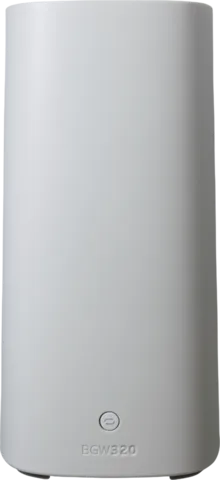
- Sign in
192.168.1.254- App
- AT&T Smart Home Manager (iOS, Android and on the web), signed in with your AT&T ID
- Password
- Pages that change settings ask for the Device Access Code, printed on the sticker on the side of the gateway. The Wi-Fi name and password are on the same sticker.
- Models
- BGW320, BGW210
Sign in to the AT&T Fiber Gateway
The app uses your AT&T ID. In the browser, the gateway asks for the Device Access Code before settings pages.
Connect your Mac to the gateway’s Wi-Fi or plug it in with Ethernet.
Open
http://192.168.1.254in a browser.Choose a tab, such as Home Network or Firewall.
When asked, type the Device Access Code from the sticker.
AT&T warns that anyone on your network can use the default code, so you can change it in the gateway settings. If you forget a changed code, hold Reset for at least 15 seconds. That factory reset also erases your Wi-Fi name, password and other custom settings.
Restart it properly
A restart disconnects every device. It can take up to five minutes to come back online.
Open the Smart Home Manager app.
Tap Network (the Wi-Fi icon).
Scroll to and tap Restart Wi-Fi.
Tap Restart again to confirm.
Restart by hand
Unplug the power cord from the gateway and the wall.
If there’s an internal backup battery, remove it too.
Wait 20 seconds, refit the battery and plug the power back in.
Pressing the red Reset button for less than 15 seconds only restarts the gateway; 15 seconds or more resets it to factory settings.
Schedule a restart
AT&T’s docs describe no scheduled restart.
Update the firmware
If you get a no-service error or a message to update, restart the gateway in Smart Home Manager.
AT&T says the restart gets the latest software version.
To see the installed version, tap Network, then your gateway, and scroll to Device info.
On a BGW320, a slowly blinking amber light means an update is installing. Wait until the light turns solid white.
See connected devices
In the Smart Home Manager app, tap Profiles & devices and choose the middle icon.
Tap a device to see its details, rename it or add it to a profile.
On a computer, sign in to Smart Home Manager and choose Network › Connected Devices.
To cut a device off, open it and choose to block it from your network.
Only devices that are connected right now are listed. Devices the app can’t identify show as Other or Unknown.
UPnP and port forwarding
AT&T’s support articles for the BGW320 and BGW210 don’t mention UPnP at all. Port forwarding is done by hand on the NAT/Gaming page.
Open
http://192.168.1.254and select the Firewall tab.Enter the Device Access Code, then select NAT/Gaming.
Pick an application from the Service list, or create one under Custom Services.
Choose the device from Needed by Device and select Add.
Wait for it to appear under Hosted Applications, then select Save.
AT&T warns that port forwarding may let others reach devices in your home without your knowledge. It suggests one service entry per port rather than a range. IP Passthrough removes the gateway’s firewall protection from that one device.
If you see a warning
On a BGW320, a warning on NAT/Gaming means port forwarding must first be enabled on your AT&T account. On a BGW210, AT&T says to restart the gateway, then try again.
IP Passthrough for your own router
In the gateway settings, select Firewall › IP Passthrough.
Set Allocation Mode to Passthrough and Passthrough Mode to DHCPS-fixed.
Enter your router’s MAC address in Passthrough Fixed MAC Address.
Select Save, then Restart Now.
Your own router then gets the public IP address, and UPnP and port forwarding are handled there.
NAT-PMP
AT&T’s docs don’t mention NAT-PMP.
Prioritise calls and gaming
AT&T’s docs describe no QoS or device priority setting for the BGW320 or BGW210.
2.4 and 5 GHz, and the channel
AT&T recommends one Wi-Fi name and password for all radios, so the gateway can steer devices between bands.
In the Smart Home Manager app, scroll to the My Wi-Fi card.
Choose Change next to the name or password.
Enter the new details and select Save, then reconnect your devices.
Find a clearer channel
In the Smart Home Manager app, tap the Network icon.
Swipe to and tap Wi-Fi channel scan.
Tap Scan now.
The scan shows which channel has the strongest signal and helps avoid interference. AT&T’s BGW320 and BGW210 articles don’t document setting a channel by hand.
Per-band settings in the browser
Open
http://192.168.1.254and select Home Network › Wi-Fi.Enter the Device Access Code and select Advanced Options.
Edit the 2.4GHz Radio and 5.0GHz Radio sections, then select Save.
Mesh: which node a device uses
AT&T’s AirTies 4971 Wi-Fi Extender works with the BGW320 and BGW210, provided both bands share one Wi-Fi name.
Open the Smart Home Manager app and tap Network.
Scroll to Wi-Fi equipment and select the card to add an extender, or tap +.
Follow the prompts to pair the extender.
On the web, sign in to Smart Home Manager and choose Home Network Hardware › Add Wi-Fi extender.
Guest network
From the Smart Home Manager main screen, tap My Wi-Fi.
Tap Create guest Wi-Fi.
Enter a guest Wi-Fi name and tap Next.
Enter a guest password and tap Done.
To share your main network instead, tap My Wi-Fi › Share Wi-Fi and send the details by text or email.
DNS settings
AT&T documents no way to change the DNS servers the gateway hands out. Set DNS on the Mac instead, or put your own router behind the gateway with IP Passthrough.
Connection status and logs
Check the front light; solid white means the gateway is online.
During an outage, open Smart Home Manager and tap Learn more on the outage card on the Home tab.
Without the app, check
att.com/outagesby ZIP code or after signing in.To test speed, tap the Network icon, then Speed test and the start icon.
A slowly blinking red light on a BGW320 means no broadband connection. A solid blue light means it’s running on Internet Backup.
Manuals and downloads
- AT&T All-Fi Hub (BGW320) support guide
- AT&T BGW210 Wi-Fi Gateway support guide
- AT&T BGW320 device support
Links go to the maker’s own pages.
Questions
Where is the Device Access Code?
On the sticker on the side of the gateway, next to the Wi-Fi name and password. It’s needed only to change settings at 192.168.1.254.
Why does NAT/Gaming show a warning?
On a BGW320, port forwarding must be enabled on your AT&T account first. On a BGW210, AT&T suggests restarting the gateway and trying again.
Can I change the Wi-Fi name in the app?
Yes. In Smart Home Manager, choose Change on the My Wi-Fi card. You can also do it under Home Network › Wi-Fi in the browser.
Sources
- AT&T Support: Learn about your All-Fi Hub (BGW320)
- AT&T Support: Learn about your BGW210
- AT&T Support: Gateway User Interface for Wi-Fi gateways
- AT&T Support: Change your Wi-Fi gateway access code
- AT&T Support: Restart or reset your All-Fi Hub or Wi-Fi gateway
- AT&T Support: Get software updates for your internet equipment
- AT&T Support: Manage Wi-Fi devices with Smart Home Manager
- AT&T Support: Get help with DMZ+ zone devices (BGW210, BGW320 IP Passthrough)
- AT&T Device Support: BGW320 creating a guest Wi-Fi network
- AT&T Device Support: BGW320 running a Wi-Fi channel scan
- AT&T Device Support: BGW320 viewing your Wi-Fi equipment’s info
- AT&T Device Support: BGW320 getting to know your equipment
- AT&T Support: Set up your AT&T Wi-Fi Extender
- AT&T Device Support: Smart Home Manager checking for a service outage
Checked on 1 November 2026.
See what your router can’t tell you
Kilobat is a Mac menu-bar app that watches the network from your side: which app is using it, whether the Wi-Fi, the router or the provider is slow, and why a call froze.
brew install seifip/kilobat/kilobat