Router · ARRIS (Vantiva)
ARRIS SURFboard Wi-Fi cable modem login, UPnP, port forwarding and DNS
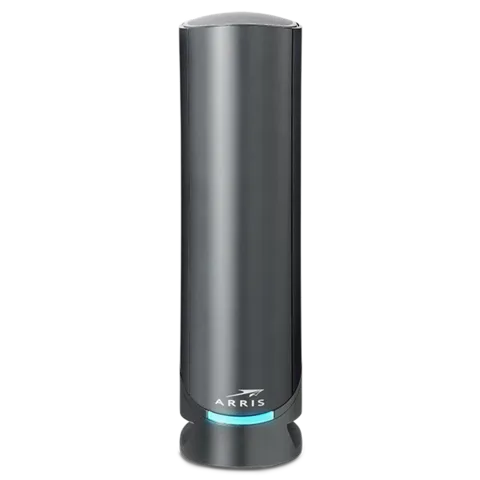
SURFboard Wi-Fi cable modems combine a DOCSIS cable modem and a Wi-Fi router in one tower, and you buy them yourself to use with cable internet services such as Xfinity. You manage one in the SURFboard Central app or in the browser Web Manager at http://192.168.0.1.
- Sign in
192.168.0.1- App
- SURFboard Central (iOS and Android)
- Password
- There’s no shared factory password. The first time you open the Web Manager, its Home Network Wizard makes you create your own admin password. If you set the modem up with SURFboard Central, you sign in with your ARRIS account email and the password shown in the app instead.
- Models
- SURFboard G34, SURFboard G36, SURFboard G54, SURFboard G18, SURFboard G20, SBG8300
Sign in to the ARRIS SURFboard Wi-Fi cable modem
ARRIS recommends the SURFboard Central app for everyday changes; port forwarding and firewall settings also live in the browser Web Manager.
Connect your Mac to the modem’s Wi-Fi or an Ethernet port.
Open
http://192.168.0.1and click Proceed on the https:// Redirect page.If the browser shows a security alert, ARRIS says it’s safe to continue.
The first time, set a password of at least 8 characters with an uppercase letter, a number and a symbol.
Afterwards, enter your password next to the username
adminand click Login.
Only one device can be signed in to the Web Manager at a time; a second sign-in logs out the first. Lost the password? Remove the modem from SURFboard Central, then hold the Reset button with a paper clip for at least 20 seconds. That erases every setting, and the modem takes about four minutes to come back.
Sign in after setting up with SURFboard Central
In SURFboard Central, tap the menu bar at the top left.
Tap Access Web Interface to see your Web Manager email and password.
Tap Copy, then Launch Web GUI, and sign in with that email and password.
Restart it properly
ARRIS’s own procedure for any SURFboard cable modem is a full power cycle.
Shut down your computer.
Unplug the modem from the wall socket and wait one minute.
Plug it back in.
Wait until the modem’s lights stay solid, then turn your computer back on.
Don’t press the Reset button to restart: holding it for 20 seconds wipes the modem back to factory settings.
Schedule a restart
ARRIS documents no scheduled restart for the G34 or G36.
Update the firmware
You can’t install firmware on a SURFboard cable modem yourself. Under the DOCSIS standard your cable provider tests updates from ARRIS and sends them to the modem.
To check which version you have, look under Device Info on the Web Manager sign-in page.
Or sign in and click Software in the left-hand menu.
The version is the Software Image Name under System Software Version.
ARRIS says it has limited control or visibility over when a provider rolls an update out. Some features vary with the firmware version.
See connected devices
In SURFboard Central, tap the My Devices box on the Home screen.
Tap + next to a device to see its band, IP address, MAC address and signal strength (RSSI).
Tap the pencil icon to rename it, or the Offline tab for devices that have left.
In the Web Manager, click Connected Devices to see the Online Devices list.
Pause someone’s internet
In SURFboard Central, set up Parental Control profiles and assign devices to them.
Tap My Experiences › Parental Control.
Swipe Pause Internet on next to a profile.
UPnP and port forwarding
SURFboard modems support UPnP IGD, and it’s on by default. ARRIS documents no NAT-PMP.
Sign in to the Web Manager and click Advanced in the left-hand menu.
Click the Device Discovery sub-menu.
Click Enable or Disable for UPnP, then click Save.
ARRIS warns that with UPnP on, malware on any device in your home could open ports and bypass the firewall, because UPnP trusts local programs. Its advice is to forward ports by hand and switch UPnP off. If an app or console needs UPnP, keep it on and keep your devices updated.
In SURFboard Central
Tap My Network at the bottom, then the Network Management box.
Expand Network Settings and tap General Setting.
Swipe the UPnP slider to switch it on or off.
Port forwarding
In the Web Manager, click Advanced; the Port Forwarding page opens.
Click Enable, then + Add Service.
Pick a Common Service, or choose Other and enter the name and ports.
Click Connected Device, choose the device, click Add, then Save.
ARRIS recommends reserving the device’s IP address afterwards so the rule keeps working.
Prioritise calls and gaming
ARRIS documents no QoS or device-priority setting for the G34 or G36.
2.4 and 5 GHz, and the channel
The modem broadcasts separate 2.4 and 5 GHz networks by default. Band Steering merges them under one name and moves devices to the less congested band.
Sign in and click Connection › Wi-Fi › Networks.
Under Network Options, select Enable or Disable for Band Steering.
Click Save Network Settings, then OK.
After disabling it, edit the 5 GHz network and give it its own name, such as your name plus
-5G.
Turning on Band Steering also turns on the secondary and guest networks if they were off.
Change the channel
Both bands default to Auto, which picks the least congested channel after a restart. ARRIS recommends leaving it there.
Click Troubleshooting › Wi-Fi Spectrum Analyzer and click Start Scan to see busy channels.
Click Gateway › Connection › Wi-Fi, then 2.4 GHz Radio or the 5 GHz radio.
Select Manual for Channel Selection and pick a channel.
Save. Wi-Fi devices drop off briefly while the channel changes.
Mesh: which node a device uses
ARRIS documents no mesh pairing for the G34 and G36. To extend coverage, use the modem’s Ethernet ports with access points or a mesh system of your own.
Guest network
The guest network is off by default and kept apart from your main Wi-Fi and wired devices. Its name is your main network name plus a guest suffix.
Sign in and click Connection › Wi-Fi › Networks.
Under Guest Wi-Fi Network, click Edit for the 2.4 GHz band.
Click Enable, then enter a network name and a password of 8 to 63 characters.
Type the CAPTCHA code and click Save.
Repeat for the 5 GHz band.
DNS settings
By default the modem uses your cable provider’s DNS servers.
Sign in and click Connection › Local IP Network › IPv4.
Untick Enable IPv4/IPv6 DNS Relay.
Select Statically configured for LAN DNS.
Enter the Primary DNS Server and Secondary DNS Server.
Type the CAPTCHA code and click Save Changes. The change applies at once.
ARRIS warns that you lose the internet connection if the addresses aren’t valid DNS servers.
Connection status and logs
Sign in and click Connection › WAN to see the cable signal.
Check that each downstream channel’s power is between
-15and+15dBmV.For logs, click Troubleshooting and choose System Logs, Event Logs or Firewall Logs.
Pick a Time Frame, click Show Logs, then Download to save them.
Manuals and downloads
Links go to the maker’s own pages.
Questions
What is the SURFboard admin password?
There isn’t a shared one. You create it in the Home Network Wizard the first time you open http://192.168.0.1, or SURFboard Central creates it and shows it under Access Web Interface.
Why can’t I update the firmware myself?
Cable modems follow the DOCSIS standard, under which only your cable provider can install firmware. ARRIS supplies updates to providers, who test and send them.
Sources
- ARRIS Consumer Care: G34/G36 Web Manager Access
- ARRIS Consumer Care: G34/G36 Web Manager First Time Login
- ARRIS Consumer Care: SURFboard Central Web Manager Access
- ARRIS Consumer Care: Cable Modem Power Cycle Procedure
- ARRIS Consumer Care: G34/G36 Factory Reset
- ARRIS Consumer Care: Upgrading Firmware on Cable Devices
- ARRIS Consumer Care: G34/G36 Locating the Firmware Version
- ARRIS Consumer Care: SURFboard Central View Connected Devices
- ARRIS Consumer Care: SURFboard Central Pause Internet
- ARRIS Consumer Care: G34/G36 UPnP Setup
- ARRIS Consumer Care: SURFboard Central UPnP Setup
- ARRIS Consumer Care: G34/G36 Port Forwarding Setup
- ARRIS Consumer Care: G34/G36 Band Steering Setup
- ARRIS Consumer Care: G34/G36 Changing the Wi-Fi Channel
- ARRIS Consumer Care: G34/G36 Customize Guest Wi-Fi Network
- ARRIS Consumer Care: G34/G36 DNS Setup
- ARRIS Consumer Care: G34/G36 Cable Signal Levels
- ARRIS Consumer Care: G34/G36 Troubleshooting Logs
Checked on 1 November 2026.
See what your router can’t tell you
Kilobat is a Mac menu-bar app that watches the network from your side: which app is using it, whether the Wi-Fi, the router or the provider is slow, and why a call froze.
brew install seifip/kilobat/kilobat