Provider box · Calix
Calix GigaSpire login, CommandIQ, restart, UPnP and port forwarding
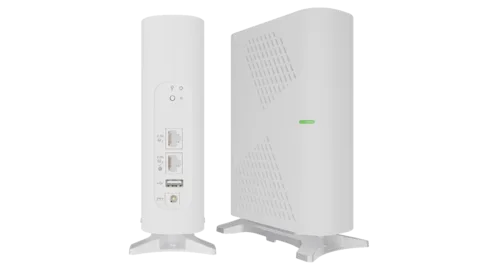
The Calix GigaSpire is the Wi-Fi router that many fibre and local internet providers hand out. You manage it in the CommandIQ app; the router also has a local web interface for settings the app doesn’t cover.
- Sign in
- The CommandIQ app or
192.168.1.1 - App
- CommandIQ (iOS and Android), signed in with an account you create
- Password
- The app uses an email and password you create. The local web interface uses the username
adminand an eight-character password unique to each router, printed on the product label. - Models
- GigaSpire 7u4, GigaSpire 7u6.2, GigaSpire 7u10t.2, GigaSpire 7u10txg.2, GigaSpire u6.3, GigaSpire u6txg, GigaSpire BLAST u4, GigaSpire BLAST u6
Sign in to the Calix GigaSpire
Install CommandIQ, enter your email and tap Continue.
New users fill in the Sign Up screen with a password of at least 8 characters.
Choose United States or All other countries, accept the terms and tap Continue.
Scan the QR code on the router’s label, or tap My System and Wi-Fi Are Already Set up.
If the Wi-Fi name still starts with CXNK, the app offers to set your own name and password.
The local web interface
Connect your Mac to LAN Ethernet port 1 with a cable.
Open
https://192.168.1.1in your browser.Sign in as
adminwith the password from the label.To change it, go to Security › Credentials, enter a new password twice and click Apply.
Calix requires 8 to 64 characters with at least one letter, number and special character.
Restart it properly
A restart interrupts the internet for up to five minutes, and you can’t cancel it once confirmed. Settings are kept.
In CommandIQ, tap the Reboot System tile on the Home screen and pick the router or satellite.
Or tap Network, open the Network Systems tab and tap the system.
Tap Reboot, confirm, and wait for it to come back.
Utilities › Restore to Factory Settings wipes your changes and keeps only your provider’s settings.
In the web interface
Sign in at
https://192.168.1.1and go to Utilities › Reboot.Click Reboot.
Schedule a restart
Calix documents no scheduled restart.
Update the firmware
Calix says providers upgrade GigaSpire systems themselves, usually after Calix’s quarterly software releases.
To see the version, tap Network in CommandIQ and open the Network Systems tab.
Tap the router and open Additional Details; the firmware version is listed there.
Ask your provider if you need a newer release.
CommandIQ itself updates automatically, so the app can be newer than the router’s software.
See connected devices
Tap Devices in CommandIQ’s bottom menu for every device, online or offline, with its connection type.
Tap a device and expand it to see its data use and speeds.
Tap the menu icon, then Device Information for its IP address, MAC address, band and signal.
Tap the menu icon and Edit Details to rename it, or Assign to Person to group it.
Offline devices drop off after 30 days. With ExperienceIQ, a device’s menu also has Pause Internet.
UPnP and port forwarding
The GigaSpire supports UPnP IGD, set in the local web interface. Calix documents no NAT-PMP, and CommandIQ has no UPnP switch.
Sign in at
https://192.168.1.1and go to Security › UPnP.Enable UPnP state, or disable it to turn UPnP off.
Click Apply. The same page lists UPnP devices and their mappings, which you can edit or remove.
UPnP is convenient for games and calls, but any app or malware on your network can use it to open ports without asking you. Turn it on only if something needs it, and check the UPnP mappings and Security › Port Forwarding for rules you don’t recognise.
Port forwarding
Go to Security › Port Forwarding and click New.
Under Local Port and IP, choose a device or IP address, the protocol and the port range.
Under Remote IP, keep All IP Addresses and enter the WAN port range.
Click Apply.
Calix reserves ports 8080 and 8443 for remote management, and ports 60002, 60012, 60018 and 60028 for the provider’s management system.
Prioritise calls and gaming
If your provider includes MyPrioritiesIQ, you can rank traffic types and give up to five devices top priority. Run a speed test first; it sets the limits.
On the Home screen, tap MyPrioritiesIQ.
Toggle a preset such as Gamer Mode or Work Mode on, pick days and times, and tap Save.
For a device, tap +Add next to Device Priorities and pick it.
Choose Always On or Set Duration, then tap Save.
Some models, including the 7u6 and several mesh satellites, don’t support MyPrioritiesIQ yet. Wi-Fi 7 models need software R26.2.0 or later.
2.4 and 5 GHz, and the channel
The main network covers all bands under one name. To get a band of its own, add a Custom Network, which can be 2.4, 5 or 6 GHz only.
In CommandIQ, tap Network, then Add Network.
Choose Custom Network and pick the band.
Enter a name, security type and password, then tap Save.
In the web interface, Wi-Fi › Wi-Fi Radio switches each radio and options such as DFS and 160 MHz on or off. A 6 GHz network only supports WPA3 and Enhanced Open security.
Change the channel
Calix documents no manual channel choice for subscribers. Dynamic Channel Selection watches for interference and moves each radio to a better channel automatically.
Mesh: which node a device uses
GigaSpire and GigaMesh satellites extend the router’s Wi-Fi. A satellite must not be paired to another router; if it was, hold its reset button for 30 seconds first.
In CommandIQ, tap Network and open the Network Systems tab.
Tap Add System and scan the QR code on the satellite’s sticker.
Enter a Mesh Name and tap Add Mesh.
Power the satellite up within ten minutes; its status changes from Pending to Online.
The Home Network map shows which devices use the router and which use each satellite, with their signal strength.
Guest network
A guest network is isolated from your main network by default and covers all bands.
In CommandIQ, tap Network, then Add Network.
Select Guest as the Network Type and enter a name and password.
Choose Permanent, or Temporary with start and stop times, then tap Save.
To share it, tap Share Wi-Fi and let your guest scan the QR code, or tap Share.
DNS settings
By default the router hands out your provider’s DNS servers.
Sign in at
https://192.168.1.1and go to Advanced › DHCP Settings.Set DHCP DNS Type to Custom Servers.
Enter the Primary DNS and Secondary DNS and click Apply.
If your provider includes ExperienceIQ, a parent can block DNS over HTTPS so filters can’t be bypassed. Calix says devices set to automatic DoH fall back to normal DNS; manually configured ones may stop resolving.
Connection status and logs
In CommandIQ, tap Speed Test on the Home screen, then Run Test.
Read the download, upload and latency for each router and satellite, and each device’s Wi-Fi strength.
In the web interface, Status › Internet shows the connection status and IP addresses.
Status › System shows the router’s CPU and memory use.
The app’s Contact Support tile shows your provider’s details, if it has added them.
Manuals and downloads
Links go to the maker’s own pages.
Questions
What is the GigaSpire admin password?
The username is admin; the password is printed on the router’s product label and differs for each unit. Change it under Security › Credentials.
Why doesn’t my app have a feature in this guide?
Calix updates CommandIQ every quarter, but your provider decides when to upgrade the router and which services, such as ExperienceIQ or MyPrioritiesIQ, to include.
Sources
- Calix CommandIQ Help: About CommandIQ Help
- Calix CommandIQ Help: Step 1, Launch and User Setup
- Calix CommandIQ Help: Initial Router Management Setup
- Calix CommandIQ Help: Dashboard (Home Screen)
- Calix CommandIQ Help: Network Systems
- Calix CommandIQ Help: Devices
- Calix CommandIQ Help: MyPrioritiesIQ
- Calix CommandIQ Help: Add Network
- Calix CommandIQ Help: Add System
- Calix CommandIQ Help: Speed Test
- Calix EXOS Systems: Embedded Web Interface (EWI)
- Calix EXOS Systems: Universal Plug-n-Play (UPnP)
- Calix EXOS Systems: Port Forwarding
- Calix EXOS Systems: DHCP Settings
- Calix EXOS Systems: Dynamic Channel Selection (DCS)
- Calix EXOS Systems: Radio
- Calix EXOS Systems: Reboot
- Calix EXOS Systems: Credentials
- Calix CommandIQ Help: DNS over HTTPS Content Blocking
Checked on 1 November 2026.
See what your router can’t tell you
Kilobat is a Mac menu-bar app that watches the network from your side: which app is using it, whether the Wi-Fi, the router or the provider is slow, and why a call froze.
brew install seifip/kilobat/kilobat