Provider box · T-Mobile Home Internet
T-Mobile 5G Gateway settings, restart, updates and Wi-Fi bands
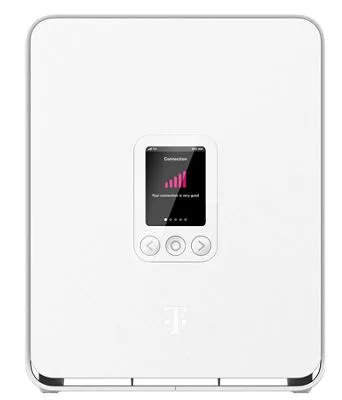
The T-Mobile 5G Gateway is the combined 5G modem and Wi-Fi router T-Mobile supplies with Home Internet. You manage it in the T-Life app; it has few settings, and no port forwarding, UPnP or bridge mode.
- Sign in
- The T-Life app or
192.168.12.1 - App
- T-Life (iOS and Android), signed in with your T-Mobile ID
- Password
- The default Wi-Fi name and Wi-Fi password are printed on the label on the back of the gateway. The T-Life app uses your T-Mobile ID, not a router password.
- Models
- 5G Gateway Gen5 (G5AR, G5SE), 5G Gateway Gen4 (G4AR, G4SE), Sagemcom Fast 5688W, Arcadyan KVD21, mesh Wi-Fi extender (V2)
Sign in to the T-Mobile 5G Gateway
T-Mobile says T-Life is the way to view and change gateway settings. The gateway must be online on the T-Mobile network for the app to reach it.
Install T-Life and sign in with your T-Mobile ID.
On the T-Life Home screen, select Home Internet.
Use the Overview, My Wi-Fi and More screens for the tasks below.
Customers with a mesh Wi-Fi extender must use T-Life. To find your Internet line number for support calls, open More and look under Internet line number.
The status page at 192.168.12.1
On the Arcadyan KVD21, T-Mobile documents a read-only web page. It shows connection status, signal bars, firmware version, serial number and running time.
Disconnect any active VPN on your computer.
Connect to the gateway by Wi-Fi or Ethernet.
Open
http://192.168.12.1in a browser.
Wi-Fi settings aren’t changed there: T-Mobile sends you back to the T-Life app.
Restart it properly
In T-Life, open Home Internet and go to the Overview screen.
Check that the gateway shows as online, then select Restart your gateway.
Wait for the gateway to restart.
Don’t restart the gateway while it is installing an update; it restarts itself when the update is done. To reset the gateway, T-Mobile points to the tutorials for your model; a reset erases your Wi-Fi name and password.
Restart by hand
Unplug the gateway from power.
Wait 30 seconds, then plug it back in.
Allow 2 minutes for it to reconnect before testing.
Schedule a restart
T-Mobile documents no scheduled restart.
Update the firmware
T-Mobile pushes firmware updates automatically. You can’t request one.
Leave the gateway switched on overnight. Updates install between 1 and 3 am Pacific time.
To see the installed version, open My Wi-Fi in T-Life and select the gateway.
Scroll down to General Info and read Firmware version.
Updates roll out in phases over a few weeks, so neighbours may get one before you. Each model’s support page lists the firmware versions and what they fixed.
See connected devices
Swipe the gateway’s LCD screen with the < and > arrows to the Devices screen.
The number shown counts every device connected, by Wi-Fi or cable.
To see and manage each device, open Home Internet in T-Life.
T-Mobile says T-Life lets you monitor connected devices, but its help pages don’t name the exact screen. The Gen5 gateway recommends up to 256 connected devices, the Sagemcom up to 64.
UPnP and port forwarding
T-Mobile says NAT, port forwarding, UPnP, static IP and NAT type can’t be configured on its gateways. Its docs don’t mention NAT-PMP or any UPnP status counters.
What this means for games and calls
T-Mobile tells gamers to ask the console maker or game developer for help with NAT errors. Home Internet uses dynamic IP addresses and T-Mobile can’t give you a static one. Third-party VoIP services that support IPv6 work.
Use your own router
A third-party router can plug into the gateway’s Ethernet port. There is no bridge mode, so the gateway still routes traffic and you will see both Wi-Fi networks until you turn the gateway’s off in T-Life.
Prioritise calls and gaming
T-Mobile documents no QoS or device priority setting on its gateways.
2.4 and 5 GHz, and the channel
The gateway starts with one Wi-Fi network on both 2.4 and 5 GHz, with band steering. To turn band steering off, create a separate network for each band with its own name.
In T-Life, open Home Internet › My Wi-Fi.
Select + Add Network.
Enter a Wi-Fi Network Name (SSID) and Wi-Fi Network Password (key).
Pick the Frequency band, and the WPA version and encryption mode if needed.
Save, then repeat for the other band.
T-Mobile suggests a separate 2.4 GHz network for smart home devices and for older or distant devices. WPA2/WPA3 is the default; WPA/WPA2 helps old devices but is less secure.
Change the channel
T-Mobile documents no channel setting. Its advice is to move the gateway away from microwaves, baby monitors, Bluetooth devices and metal appliances.
Mesh: which node a device uses
The T-Mobile mesh Wi-Fi extender (V2) pairs with the Gen4 and Gen5 gateways. Set up the gateway first.
Plug the extender in near the gateway and wait for the light to blink white.
Connect it to the gateway with the supplied Ethernet cable.
Wait for the light to turn solid green, then unplug the cable.
Move it halfway to where Wi-Fi is weak, in the open and near a socket.
To check placement, open Home Internet › My Wi-Fi, select the access point and tap Troubleshoot Access Point.
A blinking yellow light means a placement problem: fast blinking is too close to the gateway, slow blinking too far. T-Mobile says Wi-Fi 6 extenders and mesh systems from other makers work too.
Guest network
T-Mobile documents no guest network. T-Life can add up to four extra networks with their own names and passwords, but T-Mobile doesn’t say they are kept apart from your main network.
DNS settings
T-Mobile says the gateway’s own DNS configuration is fixed. Set DNS servers on the Mac or other device instead.
Connection status and logs
Check the Connection screen on the gateway’s LCD. Five bars is the strongest signal; an X means no cellular connection.
In T-Life, go to Overview and look for Internet: Connected.
Select Run Diagnostics to test Wi-Fi and the connection to T-Mobile’s network.
For signal problems, open More › Gateway placement assistant and follow the steps.
T-Mobile’s help pages describe no event log. The Messages screen on the LCD shows notices T-Mobile sends to the gateway.
Manuals and downloads
- T-Mobile: 5G Gateway Gen5 support page
- T-Mobile: 5G Gateway Gen4 support page
- T-Mobile: Set up your gateway and network
Links go to the maker’s own pages.
Questions
Can I forward ports or turn on UPnP?
No. T-Mobile says NAT, port forwarding, UPnP and static IP can’t be configured on its gateways, and it can’t switch you to a static IP.
Does the gateway have bridge mode?
No. You can plug your own router into its Ethernet port and turn off the gateway’s Wi-Fi in T-Life, but the gateway keeps routing.
How do I split 2.4 and 5 GHz?
In T-Life, open My Wi-Fi, select + Add Network and create one network per band, each with its own name.
Sources
- T-Mobile Support: T-Mobile Internet in T-Life app
- T-Mobile Support: Connect your devices to T-Mobile Internet (gateway settings)
- T-Mobile Support: T-Mobile 5G Gateway Gen5
- T-Mobile Support: T-Mobile 5G Gateway Gen4
- T-Mobile Support: Sagemcom Fast 5688W Gateway
- T-Mobile Support: Arcadyan KVD21 Gateway
- T-Mobile Support: Set up your T-Mobile gateway and network
- T-Mobile Support: T-Mobile mesh Wi-Fi extender (V2)
- T-Mobile Support: T-Mobile Internet troubleshooting
Checked on 1 November 2026.
See what your router can’t tell you
Kilobat is a Mac menu-bar app that watches the network from your side: which app is using it, whether the Wi-Fi, the router or the provider is slow, and why a call froze.
brew install seifip/kilobat/kilobat