Provider box · SoftBank 光
SoftBank 光BBユニット login, restart, UPnP and Wi-Fi settings
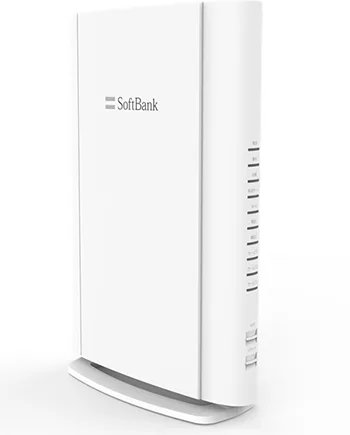
The 光BBユニット (E-WMTA2.4) is the router SoftBank rents out with SoftBank 光 for Wi-Fi and its phone services; SoftBank 光・10ギガ gets the Wi-Fi 7 ホームゲートウェイ(S) instead. Both are run from a browser page called the セットアップメニュー (Setup menu).
- Sign in
172.16.255.254or192.168.3.1/ (ホームゲートウェイ(S))- Password
- On the 光BBユニット the login is
userwith the passworduser. On the ホームゲートウェイ(S), the 初回ログインID/パスワード (first login ID and password) are on the label on its side; the password is six characters unique to the unit. The Wi-Fi name and key are on the same side label. - Models
- E-WMTA2.4, 10G E-WMTA1.0, E-WMTA2.3
Sign in to the 光BBユニット / ホームゲートウェイ(S)
Factory default. User name user, password user (光BBユニット E-WMTA2.3 and 2.4). Change it under ログインパスワード変更.
Connect your Mac by Ethernet, or by Wi-Fi on SSID1 using WPA2/WPA (AES).
Open
http://172.16.255.254/, orhttp://192.168.3.1/on the ホームゲートウェイ(S).Click the menu you need, such as ルーター機能の設定 (Router settings).
Enter the user name and password when asked, then click OK or ログイン (Log in).
To change the password, click ログインパスワード変更 (Change login password) at the top of the page.
Some pages, such as the Wi-Fi signal level, open without a login. Forgotten the password? Hold the リセット (Reset) button for over 10 seconds. That erases every setting; the 回線 (Line) light turns green when it’s done.
Restart it properly
Open the セットアップメニュー.
Click 再起動 (Restart) at the top right of セットアップ(トップページ) (Setup top page).
Sign in if asked. A restarting page appears, then the top page returns.
Almost every settings change in the セットアップメニュー ends with a restart, which cuts the internet and BBフォン or ひかり電話 calls for a moment.
With the button
On the 光BBユニット E-WMTA2.4, press リセット (Reset) for between 1 and 10 seconds.
Holding it for 10 seconds or more resets the unit to factory settings instead.
Schedule a restart
There is no scheduled restart. SoftBank says the unit may restart itself to maintain quality.
Update the firmware
Open the セットアップメニュー.
Read バージョン情報 (Version) at the bottom right of the top page.
During a software update every light on the 光BBユニット comes on at once. SoftBank says this is normal: wait 5 to 10 minutes and don’t unplug it.
Install an update yourself
SoftBank documents no firmware page or manual update. The unit updates its own software.
See connected devices
Open the セットアップメニュー and click 設定/接続情報 (Settings and connection info).
Click DHCPクライアント一覧 (DHCP client list) and sign in if asked.
The DHCPv4 list shows each device’s IP address and MAC address, wired and Wi-Fi together.
For Wi-Fi devices only, click 電波受信レベルを見る (See signal level) on the top page.
The list has no device names, so match devices by MAC address.
UPnP and port forwarding
Open the セットアップメニュー and click ルーター機能の設定 (Router settings).
Click UPnP設定 (UPnP settings).
Choose 有効 (On) or 無効 (Off), then click 設定を保存する (Save settings).
Click 再起動 (Restart) to apply it.
UPnP lets any app on your network open ports to the internet without asking, and malware can use it too. Turn it off if nothing you use needs it. SoftBank documents no separate switch for sharing status information over UPnP.
See the ports apps have opened
Click ルーター機能の設定 › ポート転送設定 (Port forwarding).
Set UPnPで使用中のポートを表示する (Show ports in use by UPnP) to 表示する (Show).
NAT-PMP
SoftBank documents no NAT-PMP setting.
Prioritise calls and gaming
Only the ホームゲートウェイ(S) has this. The 光BBユニット E-WMTA2.4 has no QoS or device priority setting.
Open
http://192.168.3.1/and click ルーター機能の設定 (Router settings).Click QoS設定 (QoS settings).
Set 通信優先制御 (Traffic priority) to 有効 (On).
Enter the MAC addresses of the devices to favour, set each to 有効, and click 設定を保存する.
Click 再起動 (Restart).
Devices higher up the list get higher priority.
2.4 and 5 GHz, and the channel
The 光BBユニット E-WMTA2.4 gives 2.4 GHz and 5 GHz separate names, ending in -2G and -5G. The ホームゲートウェイ(S) joins 2.4 and 5 GHz under one name with バンドステアリング機能 (Band steering) and adds a separate 6 GHz name. Wi-Fi on the 光BBユニット needs SoftBank’s Wi-Fi option.
Open the セットアップメニュー and click Wi-Fi(無線LAN)の設定 (Wi-Fi settings).
Under SSID1設定 (SSID1 settings), click 通信規格設定 (Wi-Fi standard settings).
Set 無線チャンネル (Channel) for each band, then click 設定を保存する (Save settings).
Click 再起動 (Restart). Wi-Fi devices drop and reconnect.
The channel settings apply to SSID1 and SSID2 alike. On the ホームゲートウェイ(S), including 6 GHz in band steering or turning on マルチリンクオペレーション機能 (Multi-link operation) needs WPA3.
An older device can’t see the network
On the same page, set 5GHz to 自動(IEEE802.11ac/n/a) and 2.4GHz to 自動(IEEE802.11n/g/b).
Click 設定を保存する, then 再起動.
This turns off Wi-Fi 6 (11ax), which some older devices can’t join.
Mesh: which node a device uses
Mesh needs SoftBank’s paid メッシュWi-Fi option. The ホームゲートウェイ(S) can act as the main mesh unit; the 光BBユニット E-WMTA2.4 and 2.3 can’t, so they need a two-router mesh set wired to them.
Place the メッシュWi-Fi router near the ホームゲートウェイ(S) and switch it on. Wait for a blinking blue light.
Hold the gateway’s WPS button for about 2 seconds, until its Wi-Fi light blinks green.
While it blinks, hold the mesh router’s WPS button for over a second, then let go.
After about two minutes, the gateway’s Wi-Fi light turns blue and the mesh router’s green.
Holding the gateway’s WPS button for 5 seconds or more makes pairing fail. メッシュWi-Fi under 通信規格設定 turns the gateway’s mesh role on or off, and only with the option.
Guest network
There is no guest network as such, but SSID2 (the second network) is cut off from wired devices, and its devices can’t see each other.
Open the セットアップメニュー and click Wi-Fi(無線LAN)の設定 (Wi-Fi settings).
Under SSID2設定 (SSID2 settings), click 有効/無効設定 (On/off), choose 有効 (On) and click 設定を保存する.
Click 暗号化設定 (Security settings) under SSID2 to set its name and a WPA2 key.
Click 再起動 (Restart).
SoftBank meant SSID2 for older devices that only support weak security such as WEP. Pick WPA2 or better for guests.
DNS settings
SoftBank documents no way to choose the DNS servers the unit hands out. IPアドレス/DHCPサーバの設定 only sets the unit’s address, the address range and fixed addresses. Set DNS on the Mac instead.
Connection status and logs
Open the セットアップメニュー and click 設定/接続情報 (Settings and connection info) for the current settings and connection details.
Click システムログ (System log) in the left menu for the unit’s event log.
On the 光BBユニット, PPPoEの設定 › 接続情報 (Connection info) shows each PPPoE session’s state.
With IPv6 IPoE + IPv4, the session 1 details aren’t shown. On the 光BBユニット a green 回線 (Line) light means the internet is available; a red 警告 (Warning) light means a fault.
Manuals and downloads
- SoftBank: 光BBユニット(E-WMTA2.4) setup menu guide
- SoftBank: ホームゲートウェイ(S)(10G EWMTA1.0) setup menu guide
- SoftBank: 光BBユニット E-WMTA2.4 接続ガイド (connection guide, PDF)
Links go to the maker’s own pages.
Questions
Is the 光BBユニット password really user and user?
Yes, on the E-WMTA2.3 and E-WMTA2.4 SoftBank publishes user / user. Change it under ログインパスワード変更. The ホームゲートウェイ(S) has a unique password on its side label instead.
Why can’t I open 172.16.255.254 over Wi-Fi?
Over Wi-Fi, the セットアップメニュー only opens from SSID1 with WPA2/WPA (AES) security. Otherwise use an Ethernet cable.
Which box do I have?
The label on the side gives the model: E-WMTA2.3, E-WMTA2.4 or 10G EWMTA1.0. A pink port on the back means the ホームゲートウェイ(S).
Sources
- SoftBank: 光BBユニット(E-WMTA2.4) セットアップメニュー
- SoftBank: 光BBユニット(E-WMTA2.4) くわしい設定, Wi-Fi
- SoftBank: 光BBユニット(E-WMTA2.4) くわしい設定, router and UPnP
- SoftBank: 光BBユニット(E-WMTA2.4) 設定情報の確認 (status and logs)
- SoftBank: 光BBユニット / ホームゲートウェイ(S) その他 (restart, password, Wi-Fi 6)
- SoftBank: ホームゲートウェイ(S)(10G EWMTA1.0) セットアップメニュー
- SoftBank: ホームゲートウェイ(S) くわしい設定, Wi-Fi and mesh
- SoftBank: ホームゲートウェイ(S) くわしい設定, QoS
- SoftBank FAQ: 光BBユニット/ホームゲートウェイ(S)の初期化方法
- SoftBank FAQ: メッシュWi-Fiルーターの接続方法
- SoftBank: メッシュWi-Fiルーターの接続
- SoftBank: 光BBユニット E-WMTA2.4 接続ガイド (PDF)
- SoftBank press release: ホームゲートウェイ(S) for SoftBank 光・10ギガ (2025)
Checked on 1 November 2026.
See what your router can’t tell you
Kilobat is a Mac menu-bar app that watches the network from your side: which app is using it, whether the Wi-Fi, the router or the provider is slow, and why a call froze.
brew install seifip/kilobat/kilobat