Router · Buffalo
Buffalo AirStation login, restart, firmware and UPnP
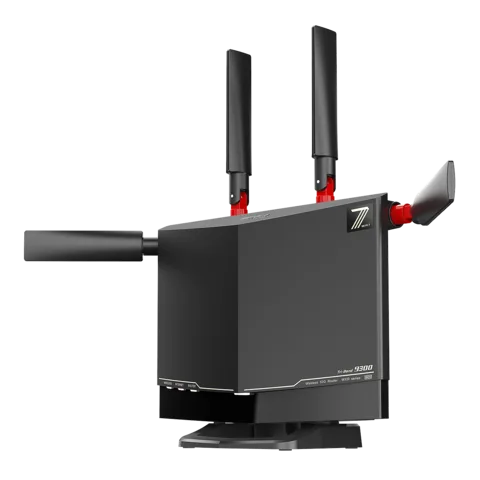
AirStation is Buffalo’s range of home Wi-Fi routers, the WSR and WXR series sold across Japan. You manage it in a browser at 192.168.11.1, or from a phone with the AirStationアプリ (AirStation app), formerly StationRadar.
- Sign in
192.168.11.1- App
- AirStationアプリ (iOS and Android) finds the router and opens its settings
- Password
- The user name is
admin. Current models ship with a unique admin password, the 本機ログイン用パスワード (login password), printed on the label on the router and on the setup card. It is not the Wi-Fi key. - Models
- WXR9300BE6P, WSR-3200AX4S, WSR series, WXR series
Sign in to the AirStation
Factory default. Buffalo’s FAQ lists older defaults: admin with password on some models with a setup card, and root with a blank password on models without one. Change any of these.
Join the router’s Wi-Fi or plug in with Ethernet.
Open Safari and type
192.168.11.1in the address bar.Enter the user name and password from the label or setup card, then click ログイン (Log in).
To change the password, click 詳細設定 › 管理 › システム設定 (Advanced settings › Management › System settings).
Type a new 管理パスワード (Admin password), up to eight letters, digits or underscores, and click 設定 (Save).
If the address doesn’t open, the router may be in bridge mode or the address was changed; the AirStation app shows it. With no DHCP server on the network, try 192.168.11.100. The settings log you out after five idle minutes. If you forget a changed password, hold RESET with a toothpick for about 10 seconds until the POWER light changes; this erases all settings.
Restart it properly
Sign in and click 詳細設定 (Advanced settings).
Click 管理 › 設定管理/再起動 (Management › Save settings/Restart).
Click 再起動 (Restart) and wait for the router to come back.
On the same page, 設定を初期化する (Reset settings) is a factory reset, not a restart.
From the AirStation app
Open the AirStation app and tap your router.
Tap 設定 (Settings) in the menu, then 再起動 (Restart).
Schedule a restart
The manuals describe no scheduled restart. アプリケーション › スケジュール (Applications › Schedule) only sets power-saving and sleep times.
Update the firmware
Sign in and click 詳細設定. The version shows as Version X.XX next to the product name.
Click 管理 › ファームウェア更新 (Management › Firmware update).
Choose オンラインバージョンアップ (Online update) and click 更新実行 (Run update).
Follow the prompts. Don’t power off while POWER flashes white and orange.
Under ファームウェア自動更新機能 (Automatic firmware update) you can pick 常に最新版に更新する (Always update to the latest) and a time window. The factory setting installs important updates only, daily between 4:00 and 4:59. The app can also update: 設定 › 新しいファームウェアを確認 (Settings › Check for new firmware).
See connected devices
Sign in. The デバイスコントロール (Device control) panel on the top page shows how many devices are connected.
Click it to see each device’s IP address, and switch to the link-rate view for its speeds.
Or open the AirStation app and tap 機器一覧 (Device list) in the menu.
The app lists devices found in the last 24 hours under 新しく検出した機器 (Newly detected devices).
For DHCP leases and fixed addresses, open 詳細設定 › LAN › DHCPリース (Advanced settings › LAN › DHCP leases).
UPnP and port forwarding
Sign in and click 詳細設定 (Advanced settings).
Click ルーターセキュリティー › UPnP (Router security › UPnP).
Tick or untick 使用する (Use) next to UPnP機能 (UPnP).
Click 設定 (Save).
UPnP is on from the factory and works only in router mode. It lets any app on your network open ports without asking, which malware can use too. Models with ネット脅威ブロッカー2 can block risky UPnP port openings, set in the app. In transix, クロスパス and v6 コネクト modes the manual says port forwarding doesn’t work.
NAT-PMP
Buffalo documents no NAT-PMP setting.
Prioritise calls and gaming
On models that have it, such as the WSR-3200AX4S, click 詳細設定 › アプリケーション › QoS.
Tick インターネットへの送信用QoS (Upload QoS) and enter your upload speed in kbps.
Add a rule with the protocol, port and 優先度 (Priority) of 高, 中 or 低 (High, Medium, Low).
Click 設定 (Save).
This prioritises uploads only. The WXR9300BE6P manual lists no QoS page.
2.4 and 5 GHz, and the channel
Band steering moves devices to a less busy band. It is off from the factory and can’t run while EasyMesh is on, which it is by default. The WXR9300BE6P also offers one MLO network name for 2.4, 5 and 6 GHz.
Sign in and click 詳細設定 › Wi-Fi設定 › バンドステアリング (Advanced settings › Wi-Fi settings › Band steering).
Tick 有効 (Enable) for バンドステアリング機能 (Band steering).
Pick a ステアリング設定 (Steering setting), such as using 5 GHz when 2.4 GHz is busy.
Click 設定 (Save).
Change the channel
Click 詳細設定 › Wi-Fi設定, then the 2.4 GHz, 5 GHz or 6 GHz page.
With Wi-Fiチャンネル (Wi-Fi channel) on 自動 (Auto), click チャンネルを再選出する (Pick channel again).
Or choose a fixed channel and click 設定 (Save).
Buffalo recommends 1, 6 or 11 on 2.4 GHz. On 5 GHz channels 52 and up, radar detection moves the router to another channel for about a minute.
Mesh: which node a device uses
Sign in on the main router and click 詳細設定 › Wi-Fi設定 › EasyMesh.
Click 接続機器一覧の表示 (Show connected devices).
Each agent shows its 接続先 (Upstream node), band and 電波状態 (Signal level).
AirStation mesh uses Wi-Fi EasyMesh: the router is the controller and EasyMesh repeaters or routers are agents. To add an agent, click プッシュボタンによるWPSを開始する (Start push-button WPS) on this page.
Guest network
Sign in and switch ゲストポート (Guest port) on the top page to On.
It starts as Guest-XXXX, open, for three hours.
Click the ゲストポート panel to set encryption and the time limit.
For user log-ins, open 詳細設定 › Wi-Fi設定 › ゲストポート (Advanced settings › Wi-Fi settings › Guest port).
Guests reach the internet only, not your devices, and get no IPv6. In an EasyMesh network only the main router broadcasts the guest port.
DNS settings
Sign in and click 詳細設定 › Internet › Internet.
Enter the servers under DNS(ネーム)サーバーアドレス (DNS server address).
Click 設定 (Save).
By default the router hands out its own address as DNS. To give devices a different server directly, use LAN › LAN, show 拡張設定 (Extended settings) and set DNSサーバーの通知 (DNS server to announce).
Connection status and logs
Sign in. The top page shows whether the router is connected to the internet.
Click 詳細設定 › ステータス › システム (Status › System) for the connection mode, internet, LAN, IPv6 and Wi-Fi details.
Open ステータス › ログ (Status › Log) for the router’s log.
Use ステータス › 診断 (Status › Diagnostics) to ping an address from the router.
Manuals and downloads
- Buffalo WXR9300BE6P user manual (PDF)
- Buffalo WSR-3200AX4S user manual (PDF)
- Buffalo WXR9300BE6P manuals
- Buffalo FAQ
- Firmware downloads
Links go to the maker’s own pages.
Questions
Which password opens 192.168.11.1?
The 本機ログイン用パスワード on the router’s label or setup card, with user name admin. The Wi-Fi key printed next to it is a different password.
Why can’t I see QoS or the channel options I expected?
Menus vary by model and mode. Many pages, including UPnP and QoS, appear only in router mode, with the ROUTER switch set.
Sources
- Buffalo WXR9300BE6P user manual (PDF)
- Buffalo WSR-3200AX4S user manual (PDF)
- Buffalo: AirStationアプリ (formerly StationRadar) help (PDF)
- Buffalo FAQ: Open the Wi-Fi router settings from a Mac
- Buffalo FAQ: Open the Wi-Fi router settings from Windows
- Buffalo FAQ: Turn on the router’s UPnP
- Buffalo: WSR-3200AX4S automatic firmware update notice
Checked on 1 November 2026.
See what your router can’t tell you
Kilobat is a Mac menu-bar app that watches the network from your side: which app is using it, whether the Wi-Fi, the router or the provider is slow, and why a call froze.
brew install seifip/kilobat/kilobat