Provider box · NTT East
NTT home gateway login, restart, firmware and UPnP
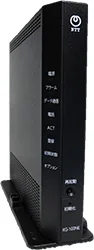
The ホームゲートウェイ (home gateway) is the router NTT East and NTT West rent out with フレッツ光 and ひかり電話. You manage it in a browser through Web設定 (Web settings); there is no app.
- Sign in
ntt.setupor192.168.1.1- Password
- There is no factory password. The first time you open Web設定 you choose a 機器設定用パスワード (device settings password); the user name is always
user. The Wi-Fi name and key are on the label on the side. - Models
- PR-600MI, PR-600KI, RX-600MI, RX-600KI, XG-100NE
Sign in to the ホームゲートウェイ
Connect your Mac to the gateway by Ethernet or Wi-Fi.
Open
http://ntt.setup/in the browser, orhttp://192.168.1.1/.The first time, type a new 機器設定用パスワード twice and click 設定 (Save).
Enter
userand that password, then click OK or サインイン (Sign in).To change the password later, open メンテナンス › 機器設定用パスワードの変更 (Maintenance › Change device password).
Forgotten the password? The only way back is a factory reset, which also clears the ひかり電話 settings; they set themselves up again on restart. Hold the 初期化 (Reset) switch, press and release 再起動 (Restart), and keep holding until the 初期状態 (Initial state) light goes off and turns orange again.
Restart it properly
Sign in to Web設定.
Click メンテナンス › 機器再起動 (Maintenance › Restart device).
Click 再起動 (Restart), then OK if asked.
When the alarm light goes out, click 再表示 (Reload).
A restart cuts ひかり電話 calls and the internet. If a downloaded update is waiting, the restart installs it. Don’t press the 初期化 switch: that is a factory reset.
With the button
Press the 再起動 (Restart) switch on the gateway.
Schedule a restart
There is no scheduled restart. Automatic firmware updates restart the gateway at night when one installs.
Update the firmware
Sign in and click メンテナンス › ファームウェア更新 (Maintenance › Firmware update).
The page shows 現在のファームウェアバージョン (Current firmware version).
Click 更新確認 (Check for updates).
If it says 新しい更新があります (An update is available), click ファームウェア更新 (Update firmware), then OK.
Updates install automatically by default, at an hour between 01:00 and 05:00 that you can change under 自動更新時間 (Automatic update time). Urgent updates install regardless of your setting. An update takes about three minutes, during which phone and internet are down. Don’t switch the gateway off.
See connected devices
Sign in and click 情報 › DHCPv4サーバ払い出し状況 (Information › DHCPv4 lease status).
The table lists each device’s IP address, MAC address and lease time.
For Wi-Fi devices, open 情報 › 無線LAN情報 (Wireless LAN information) and click 電波強度測定 (Measure signal strength).
On the XG-100NE, 情報 › 端末接続ログ (Device connection log) lists wired and Wi-Fi devices with connection times.
UPnP and port forwarding
Sign in and click 詳細設定 › 高度な設定 (Advanced settings). On the XG-100NE, it’s ルータ設定 › 高度な設定.
Under UPnP設定 (UPnP settings), tick or untick 使用する (Use).
Click 設定 (Save).
To see the ports apps have opened, check 情報 › UPnP NAT設定情報 (UPnP NAT information) on the PR-600 and RX-600.
UPnP is on from the factory. It lets any app on your network open ports without asking, which malware can use too. With several PPPoE sessions, UPnP uses the one marked UPnP優先 (UPnP priority), the main session by default. メンテナンス › UPnP NAT情報消去 clears all UPnP port mappings.
NAT-PMP
NTT documents no NAT-PMP setting.
Prioritise calls and gaming
The home gateway has no QoS or device priority setting.
2.4 and 5 GHz, and the channel
There is no band steering. 2.4 GHz uses SSID-1 and SSID-2, 5 GHz uses SSID-3, each with its own name. On the PR-600 and RX-600, Wi-Fi needs the SC-40NE「2」 wireless card; on the XG models, Wi-Fi with a ひかり電話 contract needs a separate application.
Sign in and click 無線LAN設定 (Wireless LAN settings).
Open the 5GHz or 2.4GHz page, such as IEEE802.11ac/n/a設定(5GHz).
Set 使用チャネル (Channel) to a fixed channel instead of 自動設定 (Auto).
Click 設定 (Save). Wi-Fi devices drop and reconnect.
Let it pick again
With the channel on 自動設定, click 自動無線チャネル再設定 (Reselect channel automatically).
情報 › 無線LAN情報 has 周辺電波環境測定 (Survey nearby networks) for each band. On 5 GHz W53 and W56 channels, the gateway checks for radar for a minute first and may switch channel.
Mesh: which node a device uses
The PR-600, RX-600 and XG-100NE have no mesh. The newer XG-200KI supports mesh Wi-Fi with a repeater, set up as its mesh manual describes.
Guest network
There is no guest network. ポートセパレート (Port separation) isolates an SSID only when it uses WEP, WPA/TKIP or no encryption, which isn’t safe for guests.
DNS settings
You can’t choose the DNS servers the gateway uses or hands to devices. DNS設定 only offers a proxy timeout and per-domain IPv6 servers. Set DNS on the Mac instead.
Connection status and logs
Sign in and click 情報 › 現在の状態 (Information › Current status) for each session’s connection state, WAN address and DNS servers.
情報 › 障害ログ (Fault log) lists faults and events, such as update checks.
メンテナンス › PINGテスト (Ping test) checks whether an address answers from the gateway.
The lights help too: the PPP light is green or orange while a PPPoE session is up. On the XG-100NE, a blue データ通信 (Data) light means IPv4 over IPv6 (DS-Lite or MAP-E) is working.
Manuals and downloads
- NTT East XG-100NE 取扱説明書 (manual, PDF)
- NTT East XG-100NE support
- NTT West 600-series 取扱説明書 (manual, PDF)
- NTT West PR-600MI 機能詳細ガイド (feature guide)
- Firmware downloads
Links go to the maker’s own pages.
Questions
Is there a default password for ntt.setup?
No. You set the 機器設定用パスワード on the first visit, and the user name is user. If nobody remembers it, reset the gateway.
Can I use my own router instead?
Yes, behind the gateway. Its PPPoE bridge is on by default, so a router plugged into a LAN port can connect with your provider’s PPPoE details.
Sources
- NTT East: XG-100NE 機能詳細ガイド (feature guide), Web設定
- NTT East: XG-100NE 機能詳細ガイド, 高度な設定 (UPnP, updates)
- NTT East: XG-100NE 機能詳細ガイド, ファームウェア更新
- NTT East: XG-100NE 機能詳細ガイド, 現在の状態
- NTT East: XG-100NE 機能詳細ガイド, ポートセパレート
- NTT East: XG-100NE 取扱説明書 (manual, PDF)
- NTT West: PR-600MI 機能詳細ガイド (feature guide)
- NTT West: PR-600MI downloads and 600-series manual
- NTT East: XG-200KI 取扱説明書 (manual, PDF)
Checked on 1 November 2026.
See what your router can’t tell you
Kilobat is a Mac menu-bar app that watches the network from your side: which app is using it, whether the Wi-Fi, the router or the provider is slow, and why a call froze.
brew install seifip/kilobat/kilobat