Router · Keenetic
Keenetic login, KeeneticOS updates, UPnP and Wi-Fi settings
Keenetic routers, such as the Titan, Hero and Hopper, are sold in shops across Europe and run KeeneticOS. You manage them in a browser at my.keenetic.net, or with the Keenetic app.
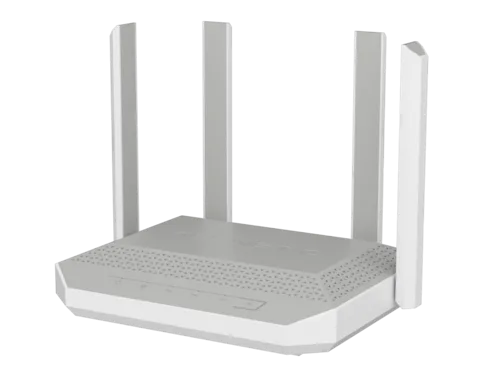
- Sign in
my.keenetic.netor192.168.1.1- App
- Keenetic app (iOS and Android)
- Password
- The user name is
admin. There is no factory admin password: you set one in the Initial Setup Wizard. The Wi-Fi name and password are on the label underneath. - Models
- Keenetic Titan, Keenetic Hero, Keenetic Hopper, Keenetic Sprinter, Keenetic Challenger, Keenetic Stellar
Sign in to the Keenetic
Connect your Mac to the Keenetic by Ethernet or over the Wi-Fi network on the label.
Open
my.keenetic.netor192.168.1.1in your browser.On a new router, click Run Wizard, accept the licence and set the admin password.
Otherwise, sign in as
adminwith the password you set.
Forgotten the admin password? If the router is in the Keenetic app, change it there. Otherwise hold the Reset button for 10 to 12 seconds, until the Status light flashes quickly. That erases all settings, including the internet connection.
Change the admin password
Open the Device User Management page.
Under User Accounts, click the
adminentry.Enter a new password, or click Generate password, then click Save.
Restart it properly
Keenetic’s manual documents restarts only as part of an update or reset, and on a schedule set from the command line.
Holding Reset for more than 30 seconds puts the router into emergency recovery mode, so don’t use it as a restart button.
Schedule a restart
In the command-line interface (Telnet or SSH as admin), a one-minute schedule triggers the reboot. Check the router’s clock on the System dashboard first.
Create a schedule, for example
schedule rebootrouter, thenaction start 57 23 *andaction stop 58 23 *.Type
exit, thensystem reboot schedule rebootrouter.Save with
system configuration save.
To cancel it, run no system reboot schedule and save again.
Update the firmware
On the System dashboard, look at About the system for the KeeneticOS version.
If it says Update available, click it.
Click Update KeeneticOS, save the suggested backups, then click Confirm.
Wait for the automatic restart; don’t switch the router off meanwhile.
Automatic updates is on by default under General System Settings › KeeneticOS Update and Component Options, with an optional time window. Keenetic releases reach auto-update 1–2 weeks after release. The router keeps a backup OS image, so internet only drops briefly.
See connected devices
Open the Client lists page.
Look under Registered Clients; from KeeneticOS 4.2.1, new home devices are registered automatically.
Click a device to rename it, block its internet access, set a schedule or a speed limit.
In the same window, give it a permanent IP address if needed.
A phone with private (random) Wi-Fi addresses can show up as a new device each time it connects.
UPnP and port forwarding
Keenetic routers support UPnP. The UPnP service component is installed and on by default, and creates NAT and firewall rules for apps on request.
Open General System Settings and click Component options.
Check that the UPnP service component is installed.
To see ports opened for one device, open Client lists, click it and look at UPnP Port Forwarding Table.
For all devices, open the Port Forwarding page.
UPnP rules last only for the app’s session and work in one network segment (by default the Home one). Any app or malware on your network can use it to open ports. To turn UPnP off, remove the UPnP service component, or run no service upnp in the command line.
NAT-PMP
Keenetic’s manual documents UPnP, not NAT-PMP.
Prioritise calls and gaming
KeeneticOS has seven traffic priority levels, from Top to Low; home devices default to Normal. IntelliQoS can also prioritise categories of apps.
Open the Client lists page and click a registered device.
Under Basic Settings, find Traffic priority.
Pick a higher level for a games console or work laptop, or Low for downloads.
Save the device settings.
The priority applies to all traffic between that device and the internet. Only registered devices have this setting.
2.4 and 5 GHz, and the channel
Dual-band Keenetic routers use one network name for 2.4 and 5 GHz, with Band Steering on. Separate names switch Band Steering off for those networks.
Open My Networks and Wi-Fi › Access Points.
In the Bands column, untick 5 GHz for your existing network.
Click + Add Network, enter a new Name (SSID) and choose 5 GHz only.
Turn on network security, set a password and click Add.
Change the channel
On the Access Points page, click General Wi-Fi settings.
On the Wi-Fi tab, change Channel from Auto to a number.
Optionally, set Choosing the optimal channel to every 6, 12 or 24 hours, or Dynamically.
Keenetic recommends leaving the channel on Auto. In 5 GHz, it suggests lower channels between 36 and 64 for better reach.
Mesh: which node a device uses
Keenetic’s Mesh Wi-Fi System joins extra Keenetic devices as extenders, managed by the main router as Wi-Fi System Controller. Every current model from Starter to Titan can be a controller.
On the main router, check that the Wi-Fi System controller component is installed under Component options.
Set roaming first; Keenetic suggests 802.11r, 802.11k/v and Band Steering on Prefer 5 GHz.
Switch the other Keenetic to Extender mode with its switch or in its web interface.
Connect it by Ethernet to a Home port on the main router and power it up.
Ethernet links give the best performance; wireless links between extenders use 5 GHz only. Keep the same KeeneticOS version on all devices. The System dashboard has a Mesh Wi-Fi System panel.
Guest network
Open the Guest segment page and set the switch to Enabled.
Change the Network name (SSID) if you like.
Set protection to WPA2-PSK or WPA3-PSK and enter a password of at least 8 characters.
Optionally add a Work schedule, then save.
The guest network is off by default and gives internet access only. Its default protection is Unsecured, so always set a password.
DNS settings
Open the Internet Safety page and the DNS Configuration tab.
Click + Add server, enter the server address and click Save.
To stop using your provider’s DNS, tick Ignore DNSv4 from ISP in IPv4 Settings on Ethernet Cable Connections to Internet.
Keenetic sends each query to all its DNS servers and uses the fastest answer, so add servers alongside the provider’s or ignore the provider’s. Ignoring them reconnects the internet, and can break PPPoE, PPTP or L2TP logins that use a server name.
Connection status and logs
Open the System dashboard and check the Internet panel for status, session time and WAN IP.
Read the DNS servers line on that panel for the servers in use.
Open Diagnostics, go to the General tab and click Show log under System Log.
Click Download to save
log.txt.
The system log keeps up to 3,000 entries. To keep more, turn on Use Syslog and enter a syslog server’s address.
Manuals and downloads
Links go to the maker’s own pages.
Questions
What is the default Keenetic admin password?
There isn’t one. You choose it in the Initial Setup Wizard; the user name is always admin. A factory reset brings back the wizard.
How do I turn UPnP off on a Keenetic?
Remove the UPnP service component under General System Settings › Component options, or run no service upnp in the command line.
Sources
- Keenetic Support: Initial Setup Wizard
- Keenetic Support: Reset the admin password
- Keenetic Support: Device user management (changing the admin password)
- Keenetic Support: Resetting the system settings and admin password
- Keenetic Support: Rebooting a router on schedule
- Keenetic Support: Updating KeeneticOS online
- Keenetic Support: KeeneticOS automatic updates
- Keenetic Support: Connected devices registration
- Keenetic Support: UPnP service
- Keenetic Support: Prioritising the traffic of home network devices
- Keenetic Support: Changing Wi-Fi network name and password
- Keenetic Support: Access points (for OS 5.1 and later)
- Keenetic Support: Band Steering
- Keenetic Support: Setting up Mesh Wi-Fi System
- Keenetic Support: Mesh Wi-Fi System
- Keenetic Support: Guest network
- Keenetic Support: Additional DNS servers
- Keenetic Support: How to ignore your ISP’s DNS
- Keenetic Support: System dashboard
- Keenetic Support: System log
Checked on 1 November 2026.
See what your router can’t tell you
Kilobat is a Mac menu-bar app that watches the network from your side: which app is using it, whether the Wi-Fi, the router or the provider is slow, and why a call froze.
brew install seifip/kilobat/kilobat