Mesh system · Ubiquiti
AmpliFi login, restart, updates and UPnP
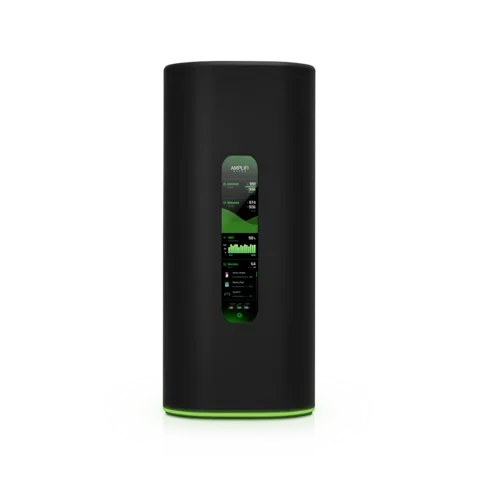
AmpliFi is Ubiquiti’s consumer mesh Wi-Fi line, with a touchscreen router and MeshPoints. You manage it mainly in the AmpliFi app; a web interface at amplifi.lan covers setup and a few advanced options.
- Sign in
amplifi.lan- App
- The AmpliFi app (iOS and Android)
- Password
- There is no password on a label. You set the admin password during setup. By default it is the same as the Wi-Fi password, and you can change it separately.
- Models
- AmpliFi Alien, AmpliFi HD, AmpliFi HD Mesh Router, AmpliFi Instant, AmpliFi HD Gamer’s Edition, AmpliFi MeshPoint HD
Sign in to the AmpliFi
The app is the main tool. The web interface works from a Mac or Windows PC on the AmpliFi network.
Join the AmpliFi Wi-Fi or plug the Mac into the router.
Open
http://amplifi.lanin a browser, or the router’s IP address.To find the IP address, tap the router’s touchscreen until it appears.
Click the router in the middle of the page and enter the admin password.
To change that password, open the app, tap the router icon, then General › Change password.
There is no password recovery. Try the Wi-Fi password first. Otherwise, press the Reset button under the router with a paperclip for about 5 seconds (10 on the Alien) until the screen shows “Rebooting”. This erases all settings, so reset MeshPoints first if you have a kit.
Restart it properly
Open the AmpliFi app and tap the router icon.
Tap General and scroll down to Actions.
Tap Reboot. The network drops until the router is back up.
Don’t use the reset button to restart: holding it is a factory reset. Unplugging the router, waiting a few seconds and plugging it back in is AmpliFi’s own advice when it loses the modem.
Restart a MeshPoint
In the app, tap the MeshPoint you want to restart.
Under Actions, tap Reboot.
Schedule a restart
AmpliFi’s help centre documents no scheduled restart.
Update the firmware
Open the AmpliFi app and tap the router icon.
Under the Information section, tap Update.
If a newer version exists, the app offers it; tap Update All to update the router and MeshPoints.
To see the installed version, open About and read Device Information.
The router reboots during an update. In the web interface, Support offers a roll-back to the previous version and manual uploads at http://amplifi.lan/sysupdate.php. The Alien cannot roll back.
See connected devices
Open the AmpliFi app and tap the Family tab (Devices in some app versions).
The list shows each device’s name, band and live traffic.
Tap a device, then Client Details, for its IP address, MAC address, signal and the router or MeshPoint it uses.
Tap the pause button next to a device to cut its internet access.
UPnP and port forwarding
AmpliFi supports UPnP, and it is on by default.
Open the AmpliFi app and tap the router icon.
Under Settings, tap Internet.
Turn UPnP on or off, then tap ✓ to save.
UPnP lets any app or device on your network open ports in the firewall without asking. Turn it off if nothing you use needs it. In bridge mode, UPnP, port forwarding, QoS and DNS settings all disappear.
NAT-PMP
AmpliFi’s help centre and user guide don’t mention NAT-PMP; only UPnP and port forwarding are documented.
Port forwarding instead
Tap the router icon, then Port Forwarding under Advanced.
Tap +, enter the device’s IP address, ports and protocol, then tap ✓.
Prioritise calls and gaming
AmpliFi QoS gives a Wi-Fi device one of three priorities. Wired devices already get priority over wireless ones.
Open the AmpliFi app and tap the Devices (or Family) tab.
Tap the wireless device you want to change.
Choose Gaming (highest), Streaming or Normal (no priority).
Tap ✓ to save. A small icon under the name confirms the setting.
On the Alien and Gamer’s Edition, Latency Optimization in the web interface caps each device’s speed to reduce lag spikes. QoS is not available in bridge mode.
2.4 and 5 GHz, and the channel
The main network uses one name for 2.4 and 5 GHz, with Band Steering on by default.
Open the AmpliFi app, tap the router icon, then Wireless.
On an Alien, turn off Common SSID Name to give each band its own name.
On HD, Instant or Gamer’s Edition, turn on a band under Router Additional SSID instead.
Add the same extra SSID to each MeshPoint, or it only works near the router.
Tap ✓ to save. Extra SSIDs use the main Wi-Fi password.
Change the channel
Tap the router icon, then Wireless.
Scroll down and tap Advanced.
Turn off Automatic for 2.4 or 5 GHz and pick a channel and width.
Tap ✓ to save.
Channels can only be changed in the app, not in the web interface.
Mesh: which node a device uses
You can’t pin a device to one MeshPoint on the main network. AmpliFi moves devices itself.
To favour the router, tap the router icon, then Wireless, and turn on Router Steering.
To see where a device is connected, open its Client Details and read Access Point.
To change a MeshPoint’s link to the router, tap the MeshPoint and choose 2.4 or 5 GHz from the drop-down.
Tap ✓ to save.
AmpliFi suggests 2.4 GHz for MeshPoints far from the router. Router steering is off by default; turn it off again if speeds get worse.
Guest network
Open the AmpliFi app and tap the Guest tab.
Set how many guests may join and for how long.
Tap Start, or Always on to leave it running.
To name it or add a password, tap the guest network bar and edit the Guest section, then tap ✓.
The guest network has no password by default; choose WPA2 PSK. Guests can’t reach your main network but are not isolated from each other. For smart-home gear, the IoT Network switch under Wireless creates a separate isolated SSID.
DNS settings
Open the AmpliFi app and tap the router icon.
Under Settings, tap Internet.
Enter the primary and secondary DNS addresses. They look greyed out but can be edited.
Tap ✓ to save, then reconnect your devices to pick up the change.
DNS can’t be changed in bridge mode. The web interface adds Bypass DNS cache and a DNS-based Ad Blocker.
Connection status and logs
Open the AmpliFi app. The dashboard shows network status, connected devices and live speeds.
Open Diagnose to check the modem link, IP address, gateway, DNS, internet and MeshPoints.
Tap Speed Test to test the line between your provider and the router.
Tap the router, then the Health icon, for seven days of traffic and past speed tests.
The router’s touchscreen also shows live speeds and usage. AmpliFi has no event log you can read; Support Info only builds an encrypted file for Ubiquiti support.
Manuals and downloads
Links go to the maker’s own pages.
Questions
Is AmpliFi still getting updates?
Ubiquiti’s release notes list firmware 4.0.3 (May 2024) for HD, Instant and Gamer’s Edition, and 4.0.6 (January 2025) for the Alien. The UK Alien’s stated support period ran until 31 January 2026.
Should AmpliFi sit behind my provider’s router?
Only if the provider box is in bridge mode. If it still routes, AmpliFi suggests putting AmpliFi in bridge mode instead, which turns off UPnP, QoS, DNS and port forwarding on AmpliFi.
Sources
- AmpliFi Help Center: Does AmpliFi have a web interface?
- AmpliFi Help Center: Changing the Admin Password
- AmpliFi Help Center: Troubleshooting: Lost Password
- AmpliFi Help Center: How to Reset your Devices to Factory Default Settings
- AmpliFi User Guide: Chapter 6, System
- AmpliFi User Guide: Chapter 9, Family
- AmpliFi User Guide: Chapter 10, Diagnose
- AmpliFi Help Center: Updating or Rolling Back the AmpliFi Firmware
- AmpliFi Help Center: Firmware Release Notes
- AmpliFi Help Center: Configuring the DHCP Server Settings
- AmpliFi Help Center: Does AmpliFi have a firewall?
- AmpliFi Help Center: Configuring Port Forwarding
- AmpliFi Help Center: Enabling QoS
- AmpliFi Help Center: Advanced Settings in the Web UI
- AmpliFi Help Center: Configuring SSIDs
- AmpliFi Help Center: Changing Wireless Broadcast Channels
- AmpliFi Help Center: Configuring Band and Router Steering
- AmpliFi Help Center: Changing the MeshPoint’s Backhaul Frequency
- AmpliFi Help Center: Enabling a Guest Network
- AmpliFi Help Center: Configuring a Guest Network
- AmpliFi Help Center: AmpliFi IoT Network and Device Isolation
- AmpliFi Help Center: Changing the Network’s DNS Address
- AmpliFi Help Center: Viewing AmpliFi’s Performance Statistics
- AmpliFi Help Center: Enabling Bridge Mode
- AmpliFi Help Center: UK PSTI Support Period
Checked on 1 November 2026.
See what your router can’t tell you
Kilobat is a Mac menu-bar app that watches the network from your side: which app is using it, whether the Wi-Fi, the router or the provider is slow, and why a call froze.
brew install seifip/kilobat/kilobat