Router · MikroTik
MikroTik hAP login, restart, updates and UPnP
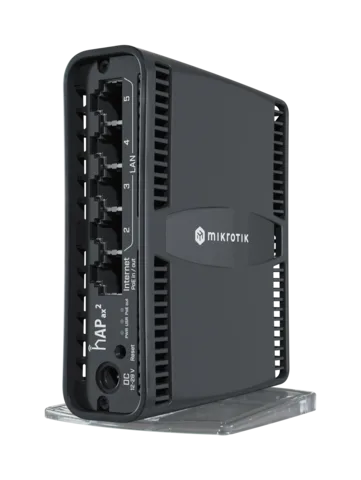
MikroTik’s hAP routers run RouterOS, a full professional router system. You manage them in a browser (WebFig), the WinBox app for Mac and PC, or the MikroTik phone app. QuickSet gathers the home settings on one page.
- Sign in
192.168.88.1- App
- The MikroTik app (iOS and Android), or WinBox for macOS, Windows and Linux
- Password
- Newer models have a unique password on the serial-number sticker, on the box and on the printed Quick Guide. On the hAP ax³, pull out the card holder next to the product information to find it.
- Models
- hAP ax², hAP ax³, hAP ax lite, hAP ax S, hAP be lite, hAP ac², hAP ac³
Sign in to the MikroTik hAP
Factory default. The username is admin. Older models have no password; newer ones use the sticker password. Set your own in QuickSet straight away.
Plug the Mac into any port except ether1, or join the
MikroTik-…Wi-Fi.Open
http://192.168.88.1in a browser.Sign in as
adminwith the sticker password, or a blank one on older models.In WinBox, if the address doesn’t answer, open Neighbors and double-click the router’s MAC address.
In the MikroTik app, the address and username are filled in: tap Connect, then Quick setup.
A lost password can’t be recovered. Unplug the router, hold Reset, plug it back in and release when the LED starts flashing. This restores the factory configuration and the sticker password.
Restart it properly
In WebFig or WinBox, open System › Reboot.
Confirm the restart. From the terminal, the command is
/system/reboot.
Don’t hold the reset button while powering on just to restart. Depending on how long you hold it, it resets the configuration, starts CAPs mode or waits for Netinstall.
Schedule a restart
Home routers ship in the home device mode, which turns off the scheduler. Turning it on needs physical access to the router.
In the terminal, run
/system/device-mode/update scheduler=yes.Within five minutes, press the reset or mode button, or unplug the power, to confirm.
Open System › Scheduler and click New.
Set Start Time, for example
04:00:00, and Interval to1d.Enter
/system/rebootin On Event and click OK.
Update the firmware
Open QuickSet and click Check For Updates, or use System › Packages › Check For Updates.
Keep Channel on
stable, orlong-termfor fewer changes.Click Download&Install. The router reboots when the download finishes.
Then open System › RouterBOARD, click Upgrade and reboot again to update the bootloader.
The router itself must reach MikroTik’s server over HTTPS. Very old releases may need an intermediate version first; check for updates again after each step.
See connected devices
Open QuickSet. The Wireless clients table lists Wi-Fi devices with their MAC address, last IP address, uptime and signal.
For every device with an address, open IP › DHCP Server and the Leases tab (
/ip/dhcp-server/lease/print).Select a lease and click Make Static (
make-static) to keep its address.
Connect it to Kilobat
Kilobat Pro reads RouterOS 7’s local REST API. Per-device counters depend on the accounting already configured on the router.
Enable
www-sslwith a certificate and a dedicated user whose group has onlyreadandrest-apipolicies.At home, open Kilobat’s Tools › Devices › Connect your router and choose MikroTik.
Enter its local HTTPS address and that user’s credentials.
Compare the fingerprint with the
www-sslcertificate in System › Certificates before choosing Trust and Connect.
Per-device bytes come from the Kid Control device list when available, or simple queues with one target address each. Queue counters may include local transfers and exclude traffic that bypasses queues, including FastTracked traffic. They are not complete internet-only totals. Otherwise Kilobat shows whole-home counters only. Kilobat changes no router setting and keeps the password in this Mac’s Keychain. Connection details and limits.
UPnP and port forwarding
RouterOS implements the UPnP Internet Gateway Device (IGD) profile for IPv4. It is off by default.
In QuickSet, tick UPnP under Local Network, then click Apply.
Or open IP › UPnP and tick Enabled.
Under Interfaces, add ether1 as
externaland the LAN bridge asinternal.
UPnP has no authentication. Any device on an internal interface can open ports, even for another device’s address. MikroTik advises enabling it only on trusted networks and keeping it off otherwise. NAT-PMP only maps ports to the device that asks.
NAT-PMP
RouterOS also supports NAT-PMP, which Apple devices use. It is off by default.
Open IP › NAT-PMP and tick Enabled.
Add ether1 as
externaland the LAN bridge asinternal.
Prioritise calls and gaming
RouterOS shapes traffic with queues. For calls and games on a busy line, MikroTik documents CAKE, which keeps latency low and shares the line fairly.
Open Queues › Queue Types and add a type with Kind
cake.Open Simple Queues and add a queue with Target
192.168.88.0/24.Set Max Limit just below your real upload and download speeds.
Choose the cake type as the queue type for both directions and click OK.
The default configuration FastTracks most traffic, and FastTracked traffic skips Simple Queues. Disable FastTrack for the traffic the queue must handle, or the queue does nothing.
2.4 and 5 GHz, and the channel
In QuickSet, the HomeAP dual mode gives 2.4 GHz and 5 GHz their own Network Name fields.
Open QuickSet and choose HomeAP dual mode.
Use the same name for both bands, or different names to pin devices to 5 GHz.
Set WiFi Password, which is separate from the router password.
Click Apply. Wi-Fi devices disconnect and rejoin.
Change the channel
In QuickSet, change Frequency from Auto to a specific channel.
For finer control, open the WiFi interface and set the channel frequency and width.
Auto scans once and picks the least busy channel, so it doesn’t keep adjusting.
Mesh: which node a device uses
MikroTik’s home mesh uses CAPsMAN: one router controls other MikroTik access points.
On the main router, open QuickSet and choose Home Mesh mode.
Unplug the second access point, hold its reset button and power it on.
Keep holding about 5 seconds after the LED starts flashing, until it goes solid, then release.
It starts in CAPs mode and joins the main router’s network.
Check the other device’s Quick Guide; the button steps differ slightly between models.
Guest network
Open QuickSet in HomeAP or HomeAP dual mode.
Under Wireless, turn on Guest network.
Give it its own password, then click Apply.
Guests can’t reach your other devices or each other; QuickSet adds bridge filters for this.
DNS settings
Open IP › DNS.
Enter the resolvers you want in Servers, for example
1.1.1.1.Click OK. The router tries these before the ones it gets from your provider.
In the default configuration, devices use the router as their DNS server, so they follow this change. The same menu offers DNS over HTTPS and adlists for blocking ads.
Connection status and logs
Open QuickSet. Internet shows the address the router got from your provider.
For details, open IP › DHCP Client. The status should read
bound.Open Log to read events such as logins, interfaces going up or down, and DHCP.
The log keeps the newest 1,000 entries in memory and loses them on reboot. Log to a disk or syslog server to keep them.
Manuals and downloads
- MikroTik hAP ax² user manual
- MikroTik hAP ax³ user manual
- MikroTik RouterOS: First Time Configuration
- Firmware downloads
Links go to the maker’s own pages.
Questions
Should I use QuickSet or the full menus?
MikroTik says to use one or the other. QuickSet can overwrite settings you changed in the other WebFig or WinBox menus.
Why do my queues have no effect?
FastTracked connections bypass Simple Queues. Disable the FastTrack rule for the traffic you want to shape.
Sources
- MikroTik Documentation: Default Configuration Passwords
- MikroTik Documentation: hAP ax³ user manual
- MikroTik Documentation: hAP ax² user manual
- MikroTik Documentation: First Time Configuration
- MikroTik Documentation: WebFig
- MikroTik Documentation: WinBox
- MikroTik Documentation: MikroTik mobile app
- MikroTik Documentation: Quick Set
- MikroTik Documentation: RouterOS configuration reset
- MikroTik Documentation: Device mode
- MikroTik Documentation: Scheduler
- MikroTik Documentation: Upgrade
- MikroTik Documentation: DHCP Server
- MikroTik Documentation: UPnP
- MikroTik Documentation: NAT-PMP
- MikroTik Documentation: Queues
- MikroTik Documentation: CAKE
- MikroTik Documentation: Wi-Fi
- MikroTik Documentation: DNS
- MikroTik Documentation: Log
Checked on 1 November 2026.
See what your router can’t tell you
Kilobat is a Mac menu-bar app that watches the network from your side: which app is using it, whether the Wi-Fi, the router or the provider is slow, and why a call froze.
brew install seifip/kilobat/kilobat