Router · DrayTek
DrayTek Vigor login, reboot, firmware upgrades and UPnP
DrayTek Vigor routers are business-grade DSL, fibre and Wi-Fi routers, popular with small offices and enthusiasts, especially in the UK and Europe. You manage them in a browser at 192.168.1.1.
- Sign in
192.168.1.1- App
- DrayTek Router app
- Password
- Retail Vigor routers use the factory credentials below until you change them. On a router supplied by an internet provider the credentials may differ, so ask the provider.
- Models
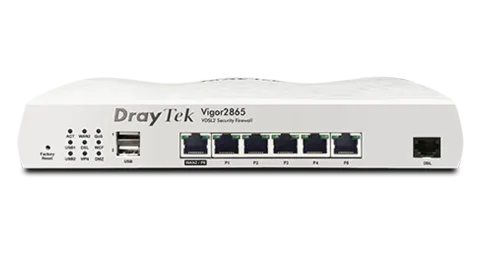
- Vigor2865 series, Vigor2927 series, Vigor2136 series, Vigor2766 series, Vigor2862 series
Sign in to the DrayTek Vigor
Factory default. User name admin, password admin. DrayTek says older models may use admin with a blank password, both blank, or draytek / 1234. Change the password straight after signing in.
Connect your Mac to a LAN port on the router with an Ethernet cable.
Make sure the Mac gets its address automatically (DHCP), or uses one in
192.168.1.0/24.Open
192.168.1.1in your browser.Enter the user name and password, and sign in.
If the page doesn’t open, check that the LAN port light flashes and that 192.168.1.1 is still your router address. If someone changed the web port under System Maintenance › Management, add it after a colon, such as http://192.168.1.1:8000.
Restart it properly
Sign in and open System Maintenance › Reboot System.
Leave Using factory default configuration unselected, so your settings are kept.
Click Reboot Now and wait for the router to come back.
A rebooted router clears its uptime counter, shown under Online Status › Physical Connection.
Schedule a restart
Check the clock under System Maintenance › Time and Date.
Open Applications › Schedule, pick an index and tick Enable Schedule Setup.
Set the start date and time, set Duration Time to
0:0, and pick the days.In System Maintenance › Reboot System, apply that schedule under Auto Reboot Time Schedule and click OK.
On DrayOS 5 models, create the profile under Configuration › Objects › Schedule. Then turn on Enable Auto Reboot Schedule under System Maintenance › System Reboot.
Update the firmware
Download the firmware for your exact model; DSL models offer STD and VECTOR versions and modem codes.
Sign in and open System Maintenance › Firmware Upgrade.
Select the
.allfile (keeps your settings) and click Upgrade.When it finishes, click Restart.
An .rst file upgrades and resets the router to factory settings, so back up your configuration first. Don’t use .ota files by hand: they are for the router’s automatic upgrade.
See connected devices
Sign in and open Diagnostics › DHCP Table.
Read the IP address handed to each device and its MAC address.
To reserve an address, open LAN › Bind IP to MAC, select Enable and add the device to the IP Bind List.
UPnP and port forwarding
Vigor routers support UPnP. With it on, the router accepts port requests from LAN devices and opens the ports automatically.
Sign in and open Applications › UPnP.
Tick Enable UPnP Service.
Select the WAN interface for UPnP.
Tick Enable Connection Control Service if devices need ports opened through NAT.
Click OK.
UPnP lets any program on your LAN open ports to the internet without asking, which malware can abuse too. Turn on only what you need: without Connection Control the service runs for the LAN only. You can list the ports UPnP opened with the upnp nat command over Telnet.
NAT-PMP
DrayTek’s knowledge base documents UPnP, port redirection and open ports, not NAT-PMP.
Prioritise calls and gaming
Vigor routers have class-based QoS with three classes plus “Other”; DrayOS 5 models have four and can sort traffic by application.
Run a speed test to find your real download and upload speeds.
Open Bandwidth Management › Quality of Service, select the WAN and enter Inbound and Outbound speeds.
Click Add, tick Enable and set a class rule, for example by IP address or port.
Enter the percentage of bandwidth for each class and click OK.
QoS can’t work well if the bandwidth you enter is wrong. On DrayOS 5, the settings are under Configuration › Bandwidth Management › QoS Setup. Click Status to see each class’s usage.
2.4 and 5 GHz, and the channel
On Wi-Fi models, giving the 2.4 and 5 GHz networks the same name and password lets band steering move capable devices to 5 GHz.
Open Wireless LAN (2.4GHz) and Wireless LAN (5GHz) and set the SSIDs you want.
For one name, use the same SSID and password on both bands.
Then tick Enable Band Steering under Wireless LAN (2.4GHz) › Band Steering.
Change the channel
Run AP Discovery and check Statistics for the recommended channel.
Open Wireless LAN › General Setup and choose the channel.
If interference is heavy, set Channel Bandwidth to 20 MHz under Wireless LAN › Advanced Setting.
Clients on differently named 2.4 and 5 GHz networks can’t reach each other unless you untick Isolate 2.4GHz and 5GHz bands under Wireless LAN › Advanced Setup.
Mesh: which node a device uses
Some Vigor Wi-Fi routers, such as the Vigor2865ac (firmware 4.3.0 and later), can act as mesh root for compatible VigorAP access points.
Check Mesh › Support list for compatible VigorAP models.
Open Mesh › Mesh Setup and click Enable Mesh.
Under Add Mesh Node, click Searching, name the VigorAP found and click Apply.
Open Mesh Status; a yellow light means a node is still synchronising.
Guest network
DrayTek builds a guest network from a second LAN subnet and a second SSID, kept apart with a VLAN.
Open LAN › VLAN, tick Enable and put SSID 2 in a VLAN with subnet LAN 2.
Open LAN › General Setup and enable LAN 2.
Open Wireless LAN › General Setup and enable SSID 2 with a guest name.
Set the guest password under Wireless LAN › Security.
Check from a guest device that it gets a LAN 2 address and can’t ping devices on your main network.
DNS settings
Open LAN › General Setup and click Details for LAN 1.
In the DHCP server settings, enter the DNS Server addresses to hand out.
Click OK; devices get them when they renew their address.
Without a LAN setting, the router hands out the DNS servers from the primary WAN. DrayTek’s own fallback DNS servers are 8.8.8.8 and 8.8.4.4.
Connection status and logs
Open Online Status › Physical Connection for WAN status and system uptime.
Open Diagnostics › Syslog Explorer, tick Enable Web Syslog and choose a Syslog Type.
Click Export to save the log to your Mac.
On DrayOS 5 models, uptime is on the Dashboard and logs are under Monitoring › Log Center. The ACT light blinks about once a second when the router runs normally.
Manuals and downloads
Links go to the maker’s own pages.
Questions
What is the default DrayTek password?
On current retail models, admin / admin. Change it after signing in. A router from your provider may use different credentials.
Which firmware file should I use?
Use the .all file to keep your settings. The .rst file resets the router to factory settings, which DrayTek suggests for recovery or big version jumps.
Sources
- DrayTek Knowledge Base: How to login my Vigor Router
- DrayTek Knowledge Base: Why can’t I access my Vigor Router?
- DrayTek Knowledge Base: Reset Vigor Router To Factory Default Settings
- DrayTek Knowledge Base: Schedule a Router Reboot
- DrayTek Knowledge Base: Troubleshoot an unexpected router reboot
- DrayTek Knowledge Base: Difference between firmware files
- DrayTek Knowledge Base: How to set up UPnP
- DrayTek Knowledge Base: How to set up Quality of Service (QoS)
- DrayTek Knowledge Base: 7 Tips to Improve Wi-Fi Performance
- DrayTek Knowledge Base: Use different SSIDs for 2.4G and 5G WLAN but allow access to each other
- DrayTek Knowledge Base: How to set up a Vigor Wireless Router as a Mesh Root
- DrayTek Knowledge Base: Add a Separate Wireless Network for Guests
- DrayTek Knowledge Base: Local Network Setup and Management
- DrayTek Knowledge Base: Collecting router’s Syslog
Checked on 1 November 2026.
See what your router can’t tell you
Kilobat is a Mac menu-bar app that watches the network from your side: which app is using it, whether the Wi-Fi, the router or the provider is slow, and why a call froze.
brew install seifip/kilobat/kilobat