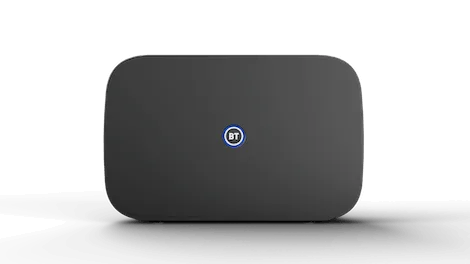
Provider box · BT
BT Smart Hub login, restart, Hub Manager and port forwarding
The Smart Hub is the router BT supplies; EE also hands out the Smart Hub 2. You manage it in a browser at 192.168.1.254 (Hub Manager), or in the Hub Manager section of the My BT app.
- Sign in
192.168.1.254- App
- The My BT app (iOS and Android), under Broadband › View details › Hub Manager
- Password
- The admin password is printed on the pull-out settings card on the back of the hub, below the Wi-Fi name and password. It is a separate password from the Wi-Fi one.
- Models
- BT Smart Hub 3, BT Smart Hub 2
Sign in to the BT Smart Hub
Connect your Mac to the hub by Wi-Fi or Ethernet.
Open
192.168.1.254in your browser. This opens Hub Manager.If asked to switch to HTTPS, follow the prompt. At Safari’s certificate warning, select Show Details › Visit this website.
Select Advanced Settings and enter the admin password from the settings card.
The first time, Hub Manager asks you to change the password. On a Smart Hub 2, change it later under Advanced Settings › System.
The warning appears because the hub uses a self-signed certificate; BT says it is safe to continue. Forgotten a password you changed? BT says Smart Hub 2 and later may need a factory reset: hold the reset button for 5 seconds (Smart Hub 2) or 10 seconds (Smart Hub 3). This erases your Wi-Fi name, passwords and settings.
Restart it properly
BT documents a restart with the power button only.
Press the Power button on the back of the hub and check all front lights go off.
Wait 10 seconds on a Smart Hub 2, or a few minutes on a Smart Hub 3.
Press the Power button again.
Wait for the light on the front to turn steady blue.
Don’t use the pinhole Reset button to restart: it returns the hub to factory settings. Digital Voice customers also lose contacts saved on a BT Digital Voice handset.
Schedule a restart
BT’s help pages describe no scheduled restart for the Smart Hub 2 or 3.
Update the firmware
Leave the hub switched on and connected; BT sends software upgrades to it automatically over the internet.
BT says the upgrades add features and security fixes, and its Wi-Fi Care service checks the hub software is current after installation. BT documents no manual update button for the Smart Hub 2 or 3.
See connected devices
Open the My BT app and select View details on the Broadband tab.
Select the Hub Manager tile and pair the app with the hub if asked.
Open the WiFi Security tab to group devices and set access controls.
BT’s help pages don’t describe a separate connected-devices page for the Smart Hub 2 or 3, only these access-control groups.
UPnP and port forwarding
BT documents port forwarding in Hub Manager but not the UPnP switch on the Smart Hub 2 or 3.
Sign in at
192.168.1.254and select Advanced Settings › Firewall.Select Create a new port forwarding rule and give it a name.
Choose the device, then enter the external and internal port range and protocol.
Select the + button to add the rule, then Save.
BT says most VPN clients work without port forwarding. A forwarded port is open to the whole internet, so remove rules you no longer need. The hub’s firewall is on by default.
NAT-PMP
BT’s help pages don’t mention NAT-PMP.
Prioritise calls and gaming
BT’s help pages document no QoS or device-priority setting for the Smart Hub 2 or 3. Access controls only limit when a device can go online.
2.4 and 5 GHz, and the channel
Both hubs broadcast one network name for 2.4 and 5 GHz. BT says the Smart Hub 2 can’t split them, as it is designed for Complete Wi-Fi.
On a Smart Hub 3, sign in at
192.168.1.254and select Advanced Settings › Wireless.Select Compatible Wi-Fi and switch it on.
Keep or change the network name, create a password and select Save.
Join older 2.4 GHz-only devices to the Compatible Wi-Fi network.
Change the channel
BT advises against fixed channels: Smart Wireless picks the least congested one, and manual choice turns it off.
Open the My BT app and select View details on the Broadband tab.
Select the Hub Manager tile.
Choose the network to change and follow the on-screen steps.
To nudge the hub off a busy channel, BT suggests the one-tap Wi-Fi optimisation in My BT instead.
Mesh: which node a device uses
BT Complete Wi-Fi uses BT Wi-Fi Discs that pair with the Smart Hub 2.
Open the My BT app and select Set up new disc.
Follow the on-screen steps, or press WPS on the hub, then on the disc within 2 minutes.
Wait for a solid blue light on the disc.
Place it halfway between the hub and the weak spot, and check the signal in My BT.
A flashing red disc light means it isn’t connected to the hub. BT’s spec lists Complete Wi-Fi Plus as the extender system for the Smart Hub 3.
Guest network
BT lists a guest network for the Smart Hub 3 only on select models and software, and its help pages give no steps. The Smart Hub 2 has no documented guest network.
DNS settings
BT documents no way to change the DNS servers the hub hands out. BT Parental Controls rely on BT’s DNS, so changing DNS on a device bypasses them.
Connection status and logs
Check the hub light. Solid blue means connected; flashing orange means still connecting.
In Hub Manager at
192.168.1.254, read Connection Status on the home page.In the My BT app, select Check service status on the home screen to look for outages.
To test the line itself, log in on bt.com and run Test your broadband.
BT’s line check can restart the hub remotely or book an engineer. A solid white light on a Smart Hub 3 means it is on mobile backup through Hybrid Connect.
Manuals and downloads
- BT Smart Hub 3 user guide (PDF)
- BT Smart Hub 3 device guide
- BT Smart Hub 2 user guide (PDF)
- BT Smart Hub 2 device guide
Links go to the maker’s own pages.
Questions
Why does Hub Manager say the connection isn’t private?
The hub uses a self-signed certificate. BT says it is safe to continue: choose Advanced or Show Details and proceed to 192.168.1.254.
Can I split 2.4 and 5 GHz on a Smart Hub 2?
BT says no. On a Smart Hub 3, turn on Compatible Wi-Fi for devices that need a 2.4 GHz network.
Can EE customers use this guide?
Yes, if EE supplied a BT Smart Hub 2. EE’s own Smart Hubs use different menus.
Sources
- BT Help: Set up or change BT Hub password
- BT Help: Access and use your BT Hub Manager
- BT Help: Security warning when accessing the Hub Manager
- BT Help: BT Smart Hub 2 device guide
- BT Help: BT Smart Hub 3 device guide
- BT Help: Restart my BT Hub
- BT Help: How do I reset my BT Hub to its factory settings
- BT Help: Security on your BT Hub
- BT Help: BT Wi-Fi Care
- BT Help: How do I use BT Wi-Fi access controls?
- BT Help: How do I set up port forwarding on my BT Hub?
- BT Help: How do I split my BT Hub’s SSID?
- BT Help: Connect all your devices with Compatible Wi-Fi
- BT Help: How to change the Wi-Fi channel on your BT Hub
- BT Help: How do I set up Complete Wi-Fi?
- BT Help: How to check your DNS settings
- BT Help: I’ve got no broadband connection
- EE Help: Manage your EE Hub
Checked on 1 November 2026.
See what your router can’t tell you
Kilobat is a Mac menu-bar app that watches the network from your side: which app is using it, whether the Wi-Fi, the router or the provider is slow, and why a call froze.
brew install seifip/kilobat/kilobat