Provider box · GFiber
GFiber router restart, UPnP, port forwarding and custom DNS
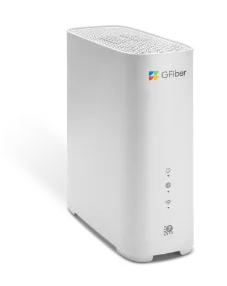
GFiber, formerly Google Fiber, supplies its own Wi-Fi routers with fibre internet. You manage them in the gFiber app or the web portal at gfiber.com, signed in with your GFiber account; there is no local admin page in GFiber’s help.
- Sign in
- The gFiber app or
gfiber.com/signin - App
- gFiber app (iOS and Android), signed in with your GFiber email and password
- Password
- You set the Wi-Fi name and password yourself in the gFiber app during setup. There is no router admin password: the app and web portal use your GFiber account.
- Models
- gFiber Wi-Fi 7 Router (GRBE331C), gFiber Wi-Fi 6E Router (GR6EXX0C), gFiber Wi-Fi 6 Router (GRAX210T), gFiber Multi-Gig Router (GFRG300), Wi-Fi 7 Mesh Extender (GEBE320C)
Sign in to the GFiber router
Install the gFiber app and sign in with your GFiber email and password.
The app finds your service and opens your network dashboard.
To see the Wi-Fi password, tap Network, scroll down and tap Show Password.
To change it, tap Network › Network settings › Primary network settings, edit it and tap Save.
In the web portal, sign in, click Network and use Show password or Edit network settings. GFiber support can’t see or change your Wi-Fi password for you.
Restart it properly
In the gFiber app, tap Network, then Router details.
Tap Restart router, then Confirm.
Wait up to 5 minutes until the status light is solid green (Wi-Fi 7 and 6E) or solid blue (Wi-Fi 6 and Multi-Gig).
A restart keeps your Wi-Fi name, password and settings. Reset Router Settings in the app restores IP addresses, DNS and port forwarding to defaults but keeps the Wi-Fi name. Holding the reset button for 10 seconds erases everything.
Restart by hand
Unplug the power cable from the back of the router.
Wait at least 10 seconds, then plug it back in.
Wait 3 to 5 minutes for the light to turn solid.
If the internet stays down after a power cut, also restart the Fiber Jack: unplug it, wait 30 seconds and reconnect it. Never disconnect the glass fibre line at the wall plate.
Schedule a restart
GFiber documents no scheduled restart.
Update the firmware
GFiber routers update their software automatically. GFiber mentions this mainly for mesh setup: the router may install an update before it pairs an extender.
Leave the router plugged in and online.
If an update is running, follow its progress in the Home tab of the gFiber app.
Wait for it to finish before you pair an extender or restart the router.
GFiber’s help offers no way to check the firmware version or install an update yourself.
See connected devices
In the gFiber app, tap Network, scroll to Connected devices and tap Manage devices.
Tap a device and scroll to Connection details.
Check the connection type, signal strength (RSSI), band, IP addresses and which router or extender it uses.
To group devices, tap + on the Manage devices screen, name the group and tick its devices.
Pausing, blocking and schedules work only with the Wi-Fi 6E and Wi-Fi 7 routers. GFiber suggests turning off private Wi-Fi addresses on your own devices so the app recognises them.
UPnP and port forwarding
GFiber routers support UPnP, which lets consoles and apps open the ports they need. GFiber’s help doesn’t say whether it is on by default.
In the gFiber app, tap Network.
Tap Network settings › Advanced network settings › Ports.
Find Universal plug and play and turn it on.
Tap Save.
GFiber points out that port forwarding changes your network’s security baseline. With UPnP on, any app or device on your network, including malware, can open ports itself. Delete rules for games and servers you no longer use.
Port forwarding
On the same Ports screen, tap Add a new rule.
Pick the Device, a Service or Custom, the Protocol and the Port Range.
Tap Save, then Confirm.
To delete a rule later, tap it, then Remove rule.
NAT-PMP
GFiber’s help doesn’t mention NAT-PMP.
Prioritise calls and gaming
GFiber documents no QoS or device priority setting for its routers.
2.4 and 5 GHz, and the channel
GFiber recommends one name for all bands so devices can roam. Splitting helps older 2.4 GHz smart home devices connect.
In the gFiber app, tap Network › Network settings › Advanced network settings › Wi-Fi.
Turn on Use a unique SSID per band.
Enter a name for 2.4, 5 and 6 GHz; names are 1 to 32 characters.
Tap Save. Devices disconnect briefly.
All bands keep the same password when split. GFiber suggests keeping 5 and 6 GHz under one name and giving only 2.4 GHz its own.
Change the channel
Current gFiber routers choose channels automatically. GFiber says manual channels exist only on the retired Network Box.
Mesh: which node a device uses
The gFiber Wi-Fi 7 Mesh Extender pairs with the Wi-Fi 7 Router over WPS.
Place the extender within 5 feet of the router and turn it on; the light turns solid white.
Press the WPS button on the router, then on the bottom of the extender.
Wait for the extender light to turn solid green.
Unplug it, move it halfway to where you need coverage and turn it back on.
At its new spot, solid green means a good connection; red means move it closer. Device details in the app show which router or extender each device uses.
Guest network
The guest network is a separate, isolated Wi-Fi network on the Wi-Fi 6, Multi-Gig, Wi-Fi 6E and Wi-Fi 7 routers.
In the gFiber app, tap Network.
Under Guest network, tap Manage.
Turn the guest network on.
Give it a name different from your main network, set a password and tap Save.
To share it later, tap Show password under Guest network.
DNS settings
In the gFiber app, tap Network › Network settings › Advanced network settings › DNS.
Turn DNS servers on.
Enter up to 3 IPv4 DNS server addresses in order of preference.
Tap Save.
In the web portal it is Network › Edit network › Advanced network settings › Edit › DNS, then Use custom DNS servers. Dynamic DNS is set on the same screen, in the app only.
Connection status and logs
Open the gFiber app and look at Network for your connection status and outage alerts.
Without the app, enter your address at
gfiber.com/outage/check.On supported routers, run Network Health from the app’s home screen and tap Show details for a score and tips.
To get outage texts, text
STARTto434237.
A solid red light on the Wi-Fi 7 Router means no internet connection. GFiber’s help describes no event or system log.
Manuals and downloads
- GFiber: Set up your gFiber Wi-Fi 7 Router
- GFiber: gFiber app features and network management guide
- GFiber Help Center
Links go to the maker’s own pages.
Questions
Is there a 192.168.1.1 admin page?
GFiber’s help documents none for its current routers. Use the gFiber app or the web portal at gfiber.com.
Can I use my own router?
Usually you can plug it straight into the Fiber Jack. If you have no separate Fiber Jack, connect it to the gFiber router’s 10 Gbps LAN port and turn on Bridge mode under Advanced network settings › Edit router settings.
Why can’t I pause a device?
Pausing and blocking need the gFiber Wi-Fi 6E or Wi-Fi 7 Router.
Sources
- GFiber Help: gFiber app features and network management guide
- GFiber Help: Restart your gFiber router with the gFiber app
- GFiber Help: Restart a gFiber device
- GFiber Help: Manage your router with the gFiber app
- GFiber Help: Manage UPnP with the gFiber app
- GFiber Help: Set up manual port forwarding with the gFiber app
- GFiber Help: Configure advanced Wi-Fi settings and split SSIDs
- GFiber Help: Configure custom DNS and Dynamic DNS settings
- GFiber Help: Set up and manage your guest network
- GFiber Help: Set up your gFiber Wi-Fi 7 Mesh Extender
- GFiber Help: View device connection details in the gFiber app
- GFiber Help: Pause and block devices in the gFiber app
- GFiber Help: Check for a gFiber service outage
- GFiber Help: Factory reset a gFiber device
- GFiber Help: Set up bridge mode with the gFiber app
- GFiber Help: Find your gFiber Wi-Fi password
- GFiber Help: Set up your gFiber Wi-Fi 6E Router
Checked on 1 November 2026.
See what your router can’t tell you
Kilobat is a Mac menu-bar app that watches the network from your side: which app is using it, whether the Wi-Fi, the router or the provider is slow, and why a call froze.
brew install seifip/kilobat/kilobat