Provider box · Verizon
Verizon Fios router (CR1000A, CR1000B, G3100) login, restart, UPnP and port forwarding
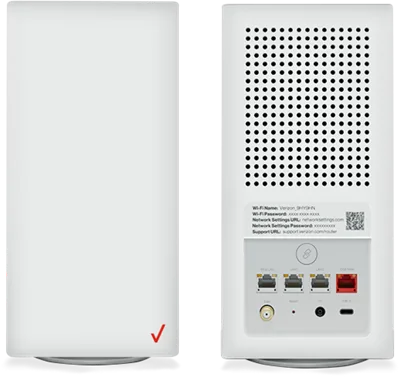
The Verizon Router (CR1000A, CR1000B) and the older Fios Router (G3100) are the routers Verizon supplies for Fios. They have a full browser admin site at 192.168.1.1; the Verizon Home app and My Verizon cover Wi-Fi, devices and restarts.
- Sign in
192.168.1.1ormynetworksettings.com- App
- The Verizon Home app (iOS and Android), signed in with your My Verizon login
- Password
- The admin password is printed on the label on the back of the router: Network Settings Password on a CR1000A or CR1000B, Admin password on a G3100. On a G3100 the username is
admin. - Models
- Verizon Router CR1000A, Verizon Router CR1000B, Fios Router G3100
Sign in to the Verizon Router
Connect your Mac to the router’s Wi-Fi or plug it in with Ethernet.
Open
http://mynetworksettings.comorhttps://192.168.1.1.If the browser warns that the connection isn’t private, choose to proceed to 192.168.1.1.
Enter the password from the label and click Log In.
The warning appears because the router uses its own certificate. On a G3100, myfiosgateway.com also works. If you changed the password and forgot it, hold the rear reset button for 15 seconds. That factory reset erases your Wi-Fi name, password and other settings.
Restart it properly
Open the Verizon Home app.
On the Home screen under Quick actions, tap Restart router.
Restart in the browser
Sign in to the admin site and click Advanced.
In the left menu, click Utilities › Reboot Router.
Click Reboot Device and wait about a minute.
In the 2025 CR1000A guide, Reboot Router sits under System instead. Verizon advises using it only when its support asks.
Restart with the reset button
On a CR1000A, press and hold the rear reset button for at least three seconds.
Let go before ten seconds; holding longer resets the router to factory settings.
Schedule a restart
Verizon’s docs describe no scheduled restart.
Update the firmware
Leave the router on; Verizon sends firmware to it over the air.
To see the installed version, sign in and open System › System Status (on a G3100, Status).
A fast-blinking white light means a firmware update is installing. During setup, Verizon says an update can take up to 10 minutes. Its docs offer no manual update for these routers.
See connected devices
Sign in to the admin site and select Devices from the left pane.
Check each device’s name, connection type and network.
Click Block/Allow to cut a device’s internet access or restore it.
Click the Settings icon to rename a device or see its MAC and IP address.
The Verizon Home app also lists connected devices. Its Device groups can pause a group’s internet on a schedule.
UPnP and port forwarding
Sign in to the admin site and click Advanced.
On a CR1000A or CR1000B, select Devices › Universal Plug & Play.
On a G3100, select Network Settings › Universal Plug & Play.
Tick or untick UPnP Enabled, then click Apply Changes.
UPnP lets any app or device on your network open ports without asking. The option Enable Automatic Cleanup of Old Unused UPnP Services removes stale rules every five minutes. Turn UPnP off if nothing needs it.
Port forwarding
Click Advanced, then Security & Firewall › Port Forwarding (on a G3100, Firewall › Port Forwarding).
Enter the application name, ports, destination device and protocol.
Choose Always under Schedule and click Add to list.
Click Apply Changes.
Port Forwarding Rules is a separate page that edits the service definitions, not the forwards themselves.
NAT-PMP
Verizon’s guides don’t mention NAT-PMP.
Prioritise calls and gaming
There’s no per-device priority or QoS page. The only related option is Wi-Fi QoS (WMM), which prioritises voice and video traffic over Wi-Fi.
2.4 and 5 GHz, and the channel
By default the Self-Organizing Network (SON) gives 2.4 and 5 GHz one Wi-Fi name and moves devices between them. On a CR1000A or CR1000B, 6 GHz (Wi-Fi 6E) is off for your devices until you turn it on.
Sign in and click Advanced, then Wi-Fi › Primary Network.
Turn SON off to give each band its own name and password.
Click Apply Changes.
Change the channel
Click Advanced, then Wi-Fi › Radio Management (on a G3100, Channel Settings).
Click Scan (Perform Scan on a G3100) to find the best channels.
On a CR1000A or CR1000B, a higher Channel Score means less congestion.
Under Channel Settings, pick a channel instead of Auto.
Click Settings and tick Keep my channel selection during power cycle.
Some streaming devices can’t use the 5 GHz DFS channels. Untick Enable DFS channels during channel scan if they can’t connect.
Mesh: which node a device uses
Verizon’s Wi-Fi Extender Mini pairs over Wi-Fi; the Fios Extender connects over coax or Ethernet. Both use the router’s Wi-Fi name and password.
Plug the Extender Mini in next to the router and wait for a solid yellow light.
Press the pair button on the router and then on the extender.
When it blinks yellow, unplug it and move it between the router and the weak spot.
Wait for a solid white light.
System Status in the admin site lists connected extenders and their IP settings.
Guest network
Sign in to the admin site and select Wi-Fi › Guest Network.
Move the selector to on.
Keep or change the name and password.
Click Apply Changes.
Guest Wi-Fi is off from the factory and is kept apart from your main network by a firewall. The separate IoT network is not isolated from your main network.
DNS settings
Verizon’s guides don’t document custom IPv4 DNS servers. The DNS Server page only manages local host names and DNS rebind protection. Set DNS on the Mac instead.
Connection status and logs
Sign in and open System › System Status for the internet (WAN) and local network status.
For logs, click Advanced, then Diagnostics & Monitoring › System Logging.
Use the links at the top for the WAN, security or firewall logs.
In the Verizon Home app, tap Speed test under Quick actions to test the router’s speed.
To check for a Fios outage, sign in on Verizon’s service outage page, verizon.com/support/residential/service-outage.
Manuals and downloads
- Verizon Router CR1000A user guide (PDF)
- Verizon Router CR1000B user guide (PDF)
- Fios Router G3100 user guide (PDF)
- Verizon Router support
Links go to the maker’s own pages.
Questions
Which password does 192.168.1.1 want?
The one printed on the router’s back label next to Network Settings Password (CR1000A, CR1000B) or Admin password (G3100). It isn’t your Wi-Fi password.
Where is UPnP on a CR1000A?
Under Advanced › Devices › Universal Plug & Play, not under Network Settings as on the older G3100.
Why does my browser say the connection isn’t private?
The router’s admin site uses its own certificate. Verizon’s guides say to click Advanced, then proceed to 192.168.1.1.
Sources
- Verizon: Verizon Router CR1000A user guide (PDF, 2025)
- Verizon: Verizon Router CR1000B user guide (PDF)
- Verizon: Fios Router G3100 user guide (PDF)
- Verizon Support: Verizon Router FAQs
- Verizon Support: Fios Router FAQs
- Verizon Support: Verizon Router – Sign in to the Admin WebGUI
- Verizon Support: Verizon Router – Restart Device
- Verizon Support: Verizon Home app FAQs
- Verizon Support: Service outage information
Checked on 1 November 2026.
See what your router can’t tell you
Kilobat is a Mac menu-bar app that watches the network from your side: which app is using it, whether the Wi-Fi, the router or the provider is slow, and why a call froze.
brew install seifip/kilobat/kilobat