Provider box · Three
Three 5G Hub login, restart, guest Wi-Fi and Wi-Fi bands
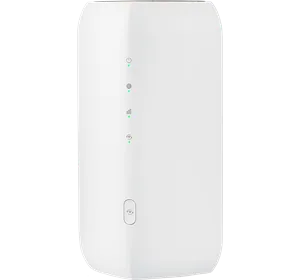
The 5G Hub is the home broadband router Three supplies in the UK, a Zyxel NR5103E V2 that runs on a SIM. Three manages it mainly through the Three app; the web interface is at http://192.168.1.1.
- Sign in
192.168.1.1- App
- Three app (iOS and Android)
- Password
- The admin login details are on the label on the back of the hub, with a login QR code on the bottom for the app. The admin password is not the Wi-Fi password, which is on the label too.
- Models
- Three 5G Hub NR5103E V2 (Zyxel), Three 5G Hub NR5103E
Sign in to the Three 5G Hub
Connect your Mac to the hub by Wi-Fi or Ethernet.
Open
http://192.168.1.1in your browser.Enter the admin login details from the back of the hub and click Login.
Or open the Three app, which asks you to scan the login QR code the first time.
During set-up the Three app offers to change the login password. To change it later, tap the Settings tab, then Router management, and enter the current and new password. Forgotten it? A factory reset restores the label password and erases your settings.
Restart it properly
Open the Three app and tap the Settings tab.
Tap Restart hub.
Wait several minutes, until the power light is solid green again.
The reset button on the bottom restores factory settings when pushed in for more than 5 seconds with a thin object. Don’t use it to restart.
With the power button
Press the ON/OFF button on the back panel to switch the hub off.
Press it again to switch the hub on.
Wait until the power light is solid green.
Schedule a restart
Three’s device guides document no scheduled restart.
Update the firmware
Three’s device guides don’t describe checking or installing software updates for the 5G Hub.
See connected devices
Open the Three app and tap the Network tab.
Read the list of everything connected to the hub.
UPnP and port forwarding
Three’s device guides document no UPnP, NAT-PMP or port forwarding setting for the 5G Hub.
Prioritise calls and gaming
Three’s device guides document no QoS or device-priority setting for the 5G Hub.
2.4 and 5 GHz, and the channel
By default the hub merges both bands under one network name. Unmerging them gives the 5 GHz band its own settings. The 2.4 GHz band can’t be switched off.
In the Three app, tap the Network tab, then the Wi-Fi tab.
Tap Configure Wi-Fi.
Turn off Merge 2.4 and 5GHz bands. You may be disconnected for a few minutes.
Once you are back, tap 5GHz to change its name or switch it off, then tap Save changes.
Change the Wi-Fi name and password
Tap Network › Wi-Fi › Configure Wi-Fi.
Tap 2.4GHz and 5GHz bands.
Change the name or password and tap Save changes.
Change the channel
Three’s device guides document no channel setting for the 5G Hub.
Mesh: which node a device uses
Three’s device guides document no mesh system or extenders for the 5G Hub.
Guest network
In the Three app, tap the Network tab, then the Wi-Fi tab.
Tap Configure Wi-Fi, then the Guest tab.
Tap 2.4GHz and 5GHz bands and turn the switch on.
Change the guest network’s name and password if you want, then tap Save changes.
DNS settings
Three’s device guides document no DNS setting for the 5G Hub. Set DNS on the Mac instead.
Connection status and logs
Three says where you put a 5G hub matters most: a better signal gives better speeds. The app shows the signal so you can find the best spot.
Open the Three app; the home screen shows the hub’s signal strength.
Move the hub and watch the signal to find the best place for it.
For data usage, sign in at
http://192.168.1.1with the admin password and select Tools.For an outage, check Three’s Coverage Checker or Network Status Checker.
The hub has lights for power and system, internet, signal strength and Wi-Fi/WPS. Three’s guides only describe the power light: solid green when the hub is ready.
Manuals and downloads
Links go to the maker’s own pages.
Questions
Why can’t I switch off the 2.4 GHz band?
Three says the 5G Hub doesn’t allow it. You can only switch off 5 GHz, after unmerging the bands in the Three app.
Which password opens the hub’s settings?
The admin password on the label on the back, unless you changed it during set-up. It is different from the Wi-Fi password.
Sources
- Three Device Support: Login to the Router Management Interface
- Three Device Support: Configure the device
- Three Device Support: Complete the initial startup
- Three Device Support: Change the admin password
- Three Device Support: Reboot your device
- Three Device Support: Turn the device on and off
- Three Device Support: Perform a factory reset
- Three Device Support: Check connected devices
- Three Device Support: Enable or disable 5GHz
- Three Device Support: Enable or disable 2.4GHz
- Three Device Support: Change the Wi-Fi password
- Three Device Support: Enable or disable guest Wi-Fi
- Three Device Support: Check signal strength
- Three Device Support: Check data usage
Checked on 1 November 2026.
See what your router can’t tell you
Kilobat is a Mac menu-bar app that watches the network from your side: which app is using it, whether the Wi-Fi, the router or the provider is slow, and why a call froze.
brew install seifip/kilobat/kilobat