Provider box · TalkTalk
TalkTalk Wi-Fi Hub login, restart, port forwarding and DNS
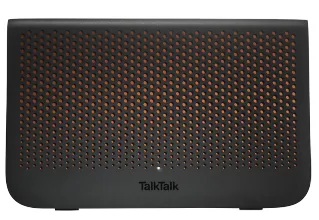
The Wi-Fi Hub is the router TalkTalk supplies with its broadband; the Wi-Fi Hub (Sagemcom) and the Wi-Fi Hub Black (Huawei) are the most common. You manage both in a browser at 192.168.1.1.
- Sign in
192.168.1.1- App
- TalkTalk Wi-Fi Assist
- Password
- The user name is
admin, in lower case. The admin password is on the sticker underneath the removable Wi-Fi settings card on the back of the hub. It is not the same as your Wi-Fi password, which is on the card itself. - Models
- Wi-Fi Hub (Sagemcom), Wi-Fi Hub Black (Huawei), Wi-Fi Hub 2, Wi-Fi Hub 3
Sign in to the TalkTalk Wi-Fi Hub
Connect your Mac to the hub by Wi-Fi or Ethernet.
Open a browser and type
192.168.1.1in the address bar.Enter
adminand the admin password from the sticker, then select OK.The Dashboard opens.
To change the admin password on a Wi-Fi Hub, open the Maintenance or Administration settings and choose Password Management. On a Wi-Fi Hub Black, choose System Settings › Modify Login Password. Forgotten a password you set? Only a factory reset restores the one on the sticker, and it wipes your settings and port forwarding rules.
Restart it properly
TalkTalk sends software updates to the hub day and night, so it asks you to leave it switched on. A one-off restart can clear a connection problem, but don’t restart it more than twice in 24 hours.
Switch the hub off with its power button.
Switch it back on with the same button.
Leave it alone for up to 15 minutes while the light blinks orange, then orange and white.
The light turns solid white when the hub is back online.
Don’t use the reset pinhole to restart. Holding a pin in it for 30 seconds restores factory settings and erases your Wi-Fi name, password and other changes.
Schedule a restart
TalkTalk’s help pages document no scheduled restart.
Update the firmware
There is no manual update. TalkTalk updates the hub’s software automatically, at any time of day, so keep it switched on. The light may turn orange while an update runs.
See connected devices
TalkTalk’s help pages don’t describe a connected-devices list in the Wi-Fi Hub’s settings. Its Wi-Fi Assist app scans your network with TalkTalk’s support team.
UPnP and port forwarding
TalkTalk’s help pages document no UPnP or NAT-PMP setting for the Wi-Fi Hub or Wi-Fi Hub Black, so you can’t check or change it from their instructions.
An open port lets other computers on the internet reach a device at home. Forward only what a game or device needs, and give a camera or console a reserved IP address first so the rule keeps pointing at it.
Forward a port on a Wi-Fi Hub
Sign in and select See internet settings on the Dashboard.
Choose Manage advanced settings, then Access Control.
Open the Add Rule tab and enter the details under Add Rules Manually.
Or open the Games & Applications tab and pick a preconfigured rule.
Select Add, then Apply.
Forward a port on a Wi-Fi Hub Black
Sign in and select See internet settings, then Manage advanced settings.
Select Continue on the warning, then Advanced Configuration in the menu.
Choose Forward Rules › IPv4 Port Mapping and select New.
Choose a preset under Application, or type the port details yourself.
Select Apply.
Prioritise calls and gaming
TalkTalk’s help pages document no QoS or device-priority setting on the Wi-Fi Hub.
2.4 and 5 GHz, and the channel
TalkTalk’s help pages don’t describe splitting the 2.4 and 5 GHz bands into separate networks on the Wi-Fi Hub, or choosing a channel. They do show how to rename the network and let older devices connect.
Sign in and select See Wi-Fi settings on the Dashboard.
Click Change network name, type the new name and click Save Wi-Fi name.
For a new key, click Change Wi-Fi password, enter it twice and click Save Wi-Fi password.
Reconnect each device with the new details.
Let older devices connect
The hub uses WPA2. Some older devices only support WPA, so you can allow both.
On a Wi-Fi Hub, select See Wi-Fi settings › Manage advanced settings.
Click the blue cog in the 2.4 GHz section and choose WPA2/WPA Personal, then Apply.
On a Wi-Fi Hub Black, open Advanced Configuration › WLAN.
Set Authentication Mode to WPA/WPA2 PreSharedKey and select Apply. Repeat under 5G Basic Network Settings.
Mesh: which node a device uses
TalkTalk’s Total Home Wi-Fi adds eeros or Wi-Fi Boosters for wall-to-wall coverage. Its help pages don’t describe pairing them with a Wi-Fi Hub. The older Wi-Fi Extender Kit is documented.
Plug an extra Wi-Fi Extender in close to your Network Connector.
Press the Simple Connect button on the Network Connector for 3 seconds.
Within 2 minutes, press Simple Connect on the extra Wi-Fi Extender for 3 seconds.
When the Powerline lights on both turn solid green, switch the extender off and move it where you need Wi-Fi.
The Wi-Fi Extender Kit is no longer sold. It doesn’t work with powerline equipment from other makers.
Guest network
TalkTalk’s help pages document no guest Wi-Fi network on the Wi-Fi Hub or Wi-Fi Hub Black.
DNS settings
The hub uses TalkTalk’s DNS, which its HomeSafe filtering relies on. Changing it turns HomeSafe off for your home.
On a Wi-Fi Hub, sign in and select See internet settings › Manage advanced settings.
Select TalkTalk WiFi Hub, then the DNS tab.
Make sure ON is selected and enter a primary and secondary DNS server.
Select Apply.
On a Wi-Fi Hub Black
Select See internet settings › Manage advanced settings.
Choose the two-cogs icon on the left, then LAN › DHCP.
Scroll to DNS settings, enter the addresses and select Apply.
Connection status and logs
Sign in at
192.168.1.1.On the Dashboard, look at the My Internet Connection section.
Read your line’s upload and download sync speeds under Current speed.
For a line test, sign in to My Connection in your TalkTalk account and select Run a connection test.
Current speed isn’t shown to Faster 150 Fibre customers. The sync speed is always higher than your real download speed.
What the light means
Blinking orange: starting up. Blinking orange and white: connecting to the internet. Solid white: connected. Solid orange: checking the connection, or updating. If it isn’t solid white after 15 minutes, check TalkTalk’s service status, then restart the hub.
Manuals and downloads
- TalkTalk Help: The Wi-Fi Hub
- TalkTalk Help: Set up your Wi-Fi Hub or Wi-Fi Hub Black
- TalkTalk Help: Wi-Fi Hub support
Links go to the maker’s own pages.
Questions
Why is the light on my TalkTalk hub orange?
Usually the hub is updating or reconnecting, and it sorts itself out within 15 minutes. If it doesn’t, check the service status page, run a connection test, then restart the hub.
Is the admin password the same as my Wi-Fi password?
No. The Wi-Fi password connects devices to your network. The admin password opens the hub’s settings and is on the sticker under the removable card.
Sources
- TalkTalk Help: Login to your router settings
- TalkTalk Help: The Wi-Fi Hub
- TalkTalk Help: Set up your Wi-Fi Hub or Wi-Fi Hub Black
- TalkTalk Help: Boost your Wi-Fi speed
- TalkTalk Help: Restore your router to factory settings
- TalkTalk Help: Set up port forwarding
- TalkTalk Help: Change your Wi-Fi Hub’s security settings
- TalkTalk Help: How do I view or change my Wi-Fi name and password?
- TalkTalk Help: About the Wi-Fi Extender Kit
- TalkTalk Help: Using 3rd Party DNS
- TalkTalk Help: Check your sync speed
- TalkTalk Help: Why is my TalkTalk router light flashing orange?
- TalkTalk Help: TalkTalk Wi-Fi Assist
Checked on 1 November 2026.
See what your router can’t tell you
Kilobat is a Mac menu-bar app that watches the network from your side: which app is using it, whether the Wi-Fi, the router or the provider is slow, and why a call froze.
brew install seifip/kilobat/kilobat