Provider box · Plusnet
Plusnet Hub login, restart, Hub Manager and port forwarding
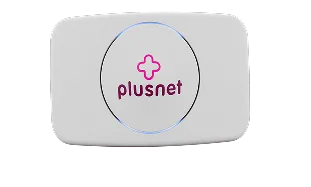
The Hub Two is the router Plusnet supplies with its broadband, replacing the older Hub One. You manage it in a browser through Hub Manager at 192.168.1.254.
- Sign in
192.168.1.254- Password
- The hub admin password is on the back of the hub, on the removable settings card, and on the password sticker Plusnet sends. The Wi-Fi name starts with
PLUSNET-and its 10-character, case-sensitive key is printed on the same card. - Models
- Plusnet Hub Two (GRV9517UAC34-A), Plusnet Hub One
Sign in to the Plusnet Hub
Connect your Mac to the hub by Wi-Fi or with the yellow Ethernet cable.
Open a browser and enter
192.168.1.254in the address bar.If the browser warns that the connection isn’t private, continue to the page. Plusnet says this is expected.
Hub Manager opens. Enter the admin password when a page asks for it.
The warning appears because the hub uses a self-signed certificate. Forgotten an admin password you changed? Only a factory reset brings back the one on the card, and it erases every setting you made.
Restart it properly
A restart keeps your settings. The hub takes around three minutes to start; the light is green while it does and turns blue when it is connected.
Sign in at
192.168.1.254.On the Hub Manager home page, click the Restart the hub tile.
Wait until the light on the front turns blue again.
Don’t use the reset pinhole to restart. Holding it for 20 seconds restores the factory settings: the light turns green, then blue when the reset is done.
With the power button
Press the Power button on the hub to switch it off.
Wait 30 seconds, then press it again to switch the hub back on.
Wait about three minutes for the light to turn blue.
Schedule a restart
Plusnet’s guides document no scheduled restart.
Update the firmware
Plusnet’s help pages don’t describe how the hub’s software is updated, and Hub Manager has no documented update page.
See connected devices
Sign in at
192.168.1.254.Click the My devices tile on the Hub Manager home page to see what is connected.
To pause a device, click Advanced settings, then Access control, and enter your admin password.
Put the device in an access control group, set a schedule if you want one, and click Save.
On a Hub One, the Hub Manager Home page itself lists the devices currently connected.
UPnP and port forwarding
Plusnet says the hub supports UPnP, so compatible games and apps open the ports they need automatically, without you doing anything.
Plusnet’s help pages document no switch to turn UPnP on or off, and no NAT-PMP setting.
UPnP lets any program on your network open ports in the hub’s firewall without asking, and malware can use that too. A forwarded port only works while the device it points to is switched on and listening.
Forward a port by hand
For a game or app that doesn’t use UPnP, add a rule yourself.
Sign in to Hub Manager and click Advanced settings.
Enter your admin password, then click Firewall.
Click Create a new port forwarding rule and enter the rule’s details.
Click the + icon, then Save.
On a Hub One, click Settings › Port Forwarding, pick the game or application and the device, then click Add.
Prioritise calls and gaming
Plusnet’s help pages document no QoS or device-priority setting on the Hub Two or Hub One.
2.4 and 5 GHz, and the channel
The Hub Two broadcasts one network name for both bands and can’t split them; Plusnet’s comparison lists split bands only for the Hub One. Devices choose the band themselves, preferring 5 GHz near the hub.
Sign in and click the Wireless tile to see the bands the hub is broadcasting.
Click Change settings and enter your admin password.
Click the i icon beside any option for an explanation of what it does.
Make your change and click Save, then reconnect devices if the network name or password changed.
Split the bands on a Hub One
In Hub Manager, click Advanced Settings, then Wireless, and choose the 5 GHz band.
Change Sync with 2.4Ghz so the 5 GHz band can have its own settings.
Set a different Wireless SSID and click Apply.
Change the channel
The hub picks the best channel for each band by itself. Plusnet advises against a fixed channel, because your wireless surroundings change from day to day.
On a Hub One, open Advanced Settings › Wireless and choose the band.
Change Channel selection and click Apply.
Plusnet’s guides don’t name a channel setting on the Hub Two. On 2.4 GHz, channels 1, 6 and 11 don’t overlap.
Mesh: which node a device uses
Plusnet’s help pages document no mesh system or Wi-Fi extenders for the Hub Two or Hub One.
Guest network
Plusnet’s help pages document no guest Wi-Fi network on the Hub Two or Hub One.
DNS settings
Plusnet’s help pages document no setting for the DNS servers the hub hands out. Set DNS on the Mac instead.
Connection status and logs
Sign in and click the Status tile to see the state of your connection.
Click Broadband performance test to test the speed from the hub itself.
If the connection is down, click the Help tile and follow the steps.
On a Hub One, click Troubleshooting for the Helpdesk details and the hub’s event log.
What the light means
Blue: connected. Green: starting up, for about three minutes. Orange: on but not connected to the internet. Flashing orange: the red-ended Ethernet cable to the fibre box (ONT) isn’t connected. Red: a connection problem, so switch the hub off and on. Pink: Bridge Mode, which Full Fibre doesn’t support. No light: no power, or the lights are switched off in Hub light control.
Manuals and downloads
- Plusnet Help: How to use your Plusnet router – Hub Two
- Plusnet Help: Hub Two router help (set-up, lights and reset)
- Plusnet Help: How to use your Plusnet router – Hub One
Links go to the maker’s own pages.
Questions
Why does my browser warn me when I open 192.168.1.254?
The hub encrypts Hub Manager with a self-signed certificate, which browsers don’t recognise. Plusnet says it is safe to continue to the page.
Can I give the 2.4 and 5 GHz bands separate names on a Hub Two?
No. Plusnet lists split bands only for the older Hub One. On the Hub Two, devices pick the band themselves.
Sources
- Plusnet Help: How to use your Plusnet router – Hub Two
- Plusnet Help: Hub Two router help (Full Fibre set-up, lights and factory reset)
- Plusnet Help: Changing your Hub Two wireless settings (video transcript, PDF)
- Plusnet Help: Security warning when accessing the Hub Manager
- Plusnet Help: How to use your Plusnet router – Hub One
- Plusnet Help: Information about your Plusnet router
- Plusnet Help: Getting the best WiFi signal
- Plusnet Help: Understanding Plusnet router light indicators
Checked on 1 November 2026.
See what your router can’t tell you
Kilobat is a Mac menu-bar app that watches the network from your side: which app is using it, whether the Wi-Fi, the router or the provider is slow, and why a call froze.
brew install seifip/kilobat/kilobat