Router · Tenda
Tenda router login, restart, firmware and UPnP
Tenda’s Wi-Fi 6 routers, such as the RX12 Pro and RX2 Pro, share one web interface at tendawifi.com. Most settings are also in the Tenda WiFi app.
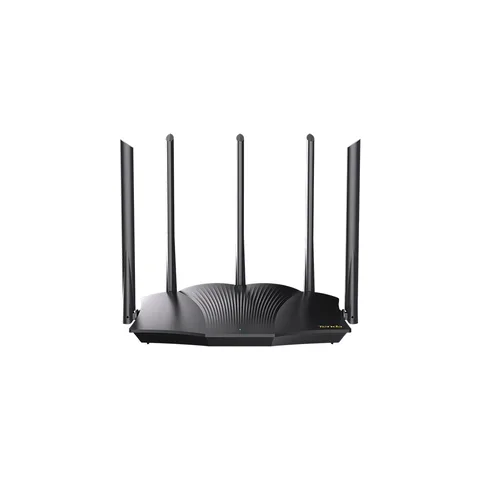
- Sign in
tendawifi.comor192.168.0.1- App
- The Tenda WiFi app (iOS and Android)
- Password
- There is no login password out of the box. You set one in the quick setup wizard, which by default makes the Wi-Fi password the login password too. The Wi-Fi name is on the label underneath.
- Models
- RX12 Pro, TX12 Pro, RX27 Pro, RX2 Pro, TX2 Pro, RX2, RX1 Pro, Nova MW6
Sign in to the Tenda Wi-Fi router
Plug the Mac into one of the router’s LAN ports, or join its Wi-Fi.
Type
tendawifi.comin the browser’s address bar.Enter your login password and click Login. It is case-sensitive.
If the page doesn’t load, try
192.168.0.1instead.
tendawifi.com only works from the router’s own network, so turn off any VPN first. The router signs you out after 5 minutes idle. Forgot the password? Hold RST (or WPS/RST) for about 8 seconds with a pin. That erases all settings.
Restart it properly
Sign in and open Network Status.
Click the reboot button under Network Topology.
Click Reboot to confirm, and wait until all nodes restart.
A restart keeps your settings but clears the system log. On a mesh network the button restarts every node.
Schedule a restart
Tenda calls this Auto System Maintenance. It is on by default, restarting the router at 02:00 each day.
Go to More › System Settings › Auto System Maintenance.
Turn it on and set Reboot At to a quiet time.
Tick Delay Reboot to postpone it while the line is busy.
Click Save.
Update the firmware
Go to More › System Settings › Firmware Upgrade.
Click Detect New Version if the router hasn’t already found one.
Click One-click Upgrade to update every node, or Online Upgrade on one node’s line.
For a manual update, download the file from Tenda’s site, click Local Upgrade and pick the
.binfile.
Don’t power off the router during an update, and only use firmware for your exact model and hardware version. Tenda recommends a factory reset and fresh setup afterwards, so save your settings first under More › System Settings › Backup & Restore.
See connected devices
Sign in and choose Client Management.
Online clients show their IP and MAC address, band, and current speed.
Use Add to blacklist to block a device you don’t recognise.
Check the Guest Device, Offline Device and Blacklist tabs for the rest.
A wireless device moves to Offline Device after 5 minutes away, and drops off the list after 3 days.
UPnP and port forwarding
Tenda routers support UPnP, and it is on by default. The UPnP page also lists the ports that apps have opened.
Sign in to the web interface.
Go to More › Advanced › UPnP.
Turn UPnP on or off.
UPnP has no password: any app or malware on your network can open ports to the internet. Check the mapping list for entries you don’t recognise, and turn UPnP off if nothing needs it. Forward ports by hand under More › Advanced › Port Mapping instead.
NAT-PMP
Tenda’s user guides don’t mention NAT-PMP. UPnP is the only automatic port-opening switch.
Prioritise calls and gaming
Tenda’s guides describe no QoS or priority setting. You can cap a busy device’s speed instead.
Open Client Management.
Find the device and open its Bandwidth Control menu.
Pick 128 KB/s, 256 KB/s or Custom (KB/s) to set a maximum speed.
The guest network has its own Shared Bandwidth limit, which keeps visitors from slowing your devices.
2.4 and 5 GHz, and the channel
The 2.4 GHz and 5 GHz networks are separate by default, with _5G added to the 5 GHz name.
Choose WiFi Settings.
Turn on Unify 2.4 GHz & 5 GHz to give both bands one name and password.
Turn it off to set each band’s WiFi Name and WiFi Password separately.
Click Save.
Don’t unify the bands if you have a device that only works on 2.4 GHz.
Change the channel
Go to More › WiFi Settings › Channel & Bandwidth.
Pick a Channel for the band instead of Auto.
Leave Bandwidth at its default unless you have a reason to change it.
Click Save.
Tenda recommends keeping the defaults on this page. One-click optimization under Network Status re-tunes the Wi-Fi instead, after briefly turning it off.
Mesh: which node a device uses
Newer Tenda routers form a mesh with other compatible Tenda routers. The RX12 Pro works with another RX12 Pro, TX12 Pro, RX27 Pro, TX27 Pro, Mesh6X or Mesh12X.
Reset the new router if it has been used, then place it within 3 metres of the existing one.
Power it on and wait until its light blinks green slowly.
Press the existing router’s WPS (or WPS/MESH) button for 1 to 3 seconds.
Within 2 minutes, press the new router’s button the same way.
When its light turns solid green, move it to where you need coverage.
Check it under Network Status › Network Topology.
You can also connect the new router to a LAN port by cable, or add it by scanning in the app or web UI. Solid yellow or red means a fair or poor link: move it closer. The button method can be turned off under WiFi Settings › MESH Button. Nova kits such as the MW6 add units in the Tenda WiFi app instead.
Guest network
Go to More › Guest WiFi.
Turn on Guest WiFi and set the 2.4 GHz and 5 GHz names.
Set a WiFi Password. It is optional, but leave it blank only if you must.
Choose a Validity period and a Shared Bandwidth limit.
Click Save.
The guest network is isolated from your main network. It turns itself off when the validity period ends.
DNS settings
Tenda documents DNS in the LAN settings, which set the DNS server the router hands to your devices.
Go to More › Network Settings › LAN Settings.
Turn on DNS.
Enter a Primary DNS and, optionally, a Secondary DNS.
Click Save.
With DNS off, devices use the router itself, which forwards queries to your provider’s DNS. A wrong primary address stops websites loading.
Connection status and logs
Open Network Status to see whether the router is Connected and the live speeds.
Go to More › Router Info for the WAN IP, gateway, DNS servers and firmware version.
On the RX12 Pro, run More › Network Diagnosis, click Diagnose, then Optimize to fix faults.
Go to More › System Settings › System Log and click Export to Local to save the log.
If Network Status shows a message such as no cable in the WAN port, click it for Tenda’s troubleshooting tips.
Manuals and downloads
- Tenda RX12 Pro user guide, web UI (PDF)
- Tenda Dual-Band Wi-Fi 6 Router user guide, RX2 Pro/TX2 Pro/RX1 Pro (PDF)
- Tenda RX12 Pro support and downloads
- Firmware downloads
Links go to the maker’s own pages.
Questions
Is the Tenda login password the same as the Wi-Fi password?
Often, yes. The quick setup uses the Wi-Fi password as the login password unless you untick that option and set a separate one.
Why does my Tenda router restart in the night?
Auto System Maintenance is on by default and reboots it at 02:00 each day. Change or turn it off under More › System Settings.
Sources
- Tenda: RX12 Pro AX3000 Dual Band Gigabit Wi-Fi 6 Router user guide V1.1 (PDF)
- Tenda: Dual-Band Wi-Fi 6 Router user guide V1.2, RX2 Pro/TX2 Pro (PDF)
- Tenda FAQ: Why Do I Fail to Access tendawifi.com?
- Tenda FAQ: How to login to the web management page
- Tenda FAQ: MW6, how to add a new nova in a mesh network
- Tenda: RX12 Pro support and firmware
Checked on 1 November 2026.
See what your router can’t tell you
Kilobat is a Mac menu-bar app that watches the network from your side: which app is using it, whether the Wi-Fi, the router or the provider is slow, and why a call froze.
brew install seifip/kilobat/kilobat