Router · Cudy
Cudy router login, restart, firmware and UPnP
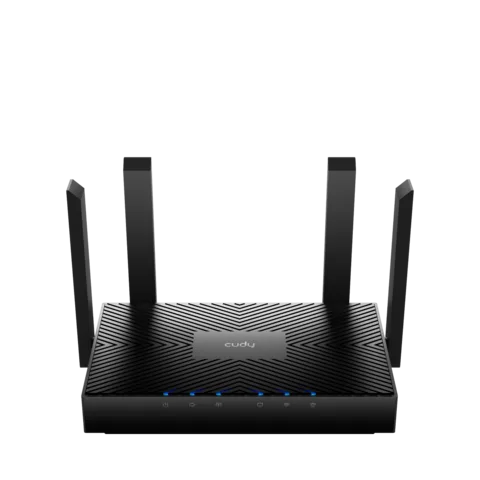
Cudy’s Wi-Fi routers and mesh systems, such as the WR3000 and M3000, share one web interface at cudy.net. Most of them can also be managed in the Cudy app.
- Sign in
cudy.netor192.168.10.1- App
- The Cudy app (iOS and Android)
- Password
- There is no preset admin password. You create one, 8 to 64 characters long, the first time you open the web page or app. The Wi-Fi name and password on the label are only for joining the network.
- Models
- WR3000, WR3000E, WR3000H, WR3000S, WR3600, WR3600H, WR6500, WR1300, WR1200, M3000, M3600
Sign in to the Cudy Wi-Fi router
Join the router’s Wi-Fi (named like
Cudy-XXXX) or plug the Mac into a LAN port.Type
cudy.netor192.168.10.1in the browser’s address bar.Enter your administrator password and log in. On first use, create one instead.
If the page won’t open, turn off any VPN or proxy and try another browser. Forgot the password? Hold the Reset button for about 3 seconds, until the light flashes. That erases all settings.
Restart it properly
Sign in to the web interface.
Go to Advanced Settings › System › Reboot.
Click OK and wait a few minutes. Your settings are kept.
On a mesh, you can restart a single unit from System Status › Mesh › More Details.
Schedule a restart
Go to Advanced Settings › System › Timed Reboot.
Turn on Timed Reboot.
Pick the Week Day, then the Hour and Minute.
Click Save & Apply.
The schedule follows the router’s clock. Check the time zone under Advanced Settings › System › System Time.
Update the firmware
Go to General Settings › Firmware.
Click Check for update, then Update if a new version is found.
To update by itself, turn on Auto Update, set an Update Time and click Save & Apply.
For a manual update, download the file from Cudy, click Browse... and upload it.
Back up your settings first under Advanced Settings › System › Backup/Restore, and don’t turn off the router during an update. The router also offers new firmware when you log in.
See connected devices
Open System Status and find the Devices panel.
Click More Details to list devices on Ethernet, 2.4G and 5G Wi-Fi.
Use the Internet switch to cut a device off.
Click Operation to rename a device or limit its download and upload rate.
UPnP and port forwarding
Cudy routers support UPnP, and it is on by default.
Sign in to the web interface.
Go to Advanced Settings › Network › UPnP.
Turn UPnP on or off and click Save & Apply.
UPnP has no password: any app on your network can open ports to the internet, including malware. Turn it off if nothing needs it. For a game console, Cudy suggests forwarding its ports by hand under Advanced Settings › Network › Port Forwards.
NAT-PMP
Cudy’s user guide doesn’t mention NAT-PMP. UPnP is the only automatic port-opening switch it documents.
Prioritise calls and gaming
Cudy’s QoS page sets download and upload rates for each device, so busy devices can’t crowd out the rest.
Go to Advanced Settings › Network › QoS.
Click Add to create an entry.
Select the device’s MAC-Address and add a comment to recognise it.
Set its Download and Upload rate, then click Save & Apply.
2.4 and 5 GHz, and the channel
With Smart Connect on, 2.4 GHz and 5 GHz share one Wi-Fi name and devices switch to the faster band.
Go to General Settings › Wireless.
Turn on Smart Connect to merge the bands.
Turn it off to give 2.4G and 5G their own SSID and password.
Click Save & Apply.
Wi-Fi 7 models also offer an MLO Network that uses several bands at once for compatible devices.
Change the channel
Go to General Settings › Wireless.
Pick a Channel and Channel Width for the band.
Click Save & Apply.
Mesh: which node a device uses
Cudy’s mesh routers, such as the WR3000, and its mesh kits can join one mesh. Units from the same box pair on their own.
Place the new unit near the main one and wait for its light to stay on.
Press the WPS buttons on both units, or connect them with an Ethernet cable.
Or, on the main unit, go to System Status › Mesh › More Details and click the add icon to scan.
Select the unit, wait for it to connect, then follow the relocation advice.
Move it halfway to the dead zone, where your phone shows at least two bars.
The Mesh page shows each unit’s Backhaul (wired, 2.4G or 5G Wi-Fi) and its connected devices. You can also add units in the Cudy app.
Guest network
Go to Advanced Settings › Network › Guest Network.
Turn on the 2.4G or 5G guest network and set its SSID.
Choose an Encryption type and a password.
Turn on Access Filter if your filters and parental controls should apply to guests.
Click Save & Apply.
DNS settings
Go to Advanced Settings › Network › Custom DNS.
Set DNS Settings to Manual.
Enter a Preferred DNS and an Alternate DNS.
Click Save & Apply.
Override All Clients’ DNS also catches devices with hard-coded DNS, such as TV boxes. Cudy warns that Rebind protection can break private lookups and captive portals.
Connection status and logs
Open System Status to see whether the router is online, plus the WAN details.
Click More Details under System for firmware, uptime and traffic statistics.
Under Diagnostic Tools, run Diagnosis with GO to check internet, Wi-Fi and devices.
Open Diagnostic Tools › System Log and click Download to save the log.
The same section has PING, TRACEROUTE and NSLOOKUP to test the line and DNS.
Manuals and downloads
Links go to the maker’s own pages.
Questions
Is there a default Cudy admin password?
No. Current firmware asks you to create an administrator password on first login. After a reset you create a new one.
Can I manage a Cudy router without the app?
Yes. Everything in this guide is in the web interface at cudy.net. The Cudy app covers setup and the common settings.
Sources
- Cudy Docs: WR3000 user guide
- Cudy Docs: Quick Setup
- Cudy Docs: System Status
- Cudy Docs: Wireless
- Cudy Docs: Firmware
- Cudy Docs: Network (guest network, QoS, custom DNS, UPnP)
- Cudy Docs: System (timed reboot, reboot, reset)
- Cudy Docs: Diagnostic Tools
- Cudy Docs: Mesh
- Cudy Docs: Mesh system quick installation guide
- Cudy Docs FAQ: What can I do if I can’t login to the web page of Cudy routers?
- Cudy Docs FAQ: How to change the NAT type on the Cudy router for game console?
Checked on 1 November 2026.
See what your router can’t tell you
Kilobat is a Mac menu-bar app that watches the network from your side: which app is using it, whether the Wi-Fi, the router or the provider is slow, and why a call froze.
brew install seifip/kilobat/kilobat