Provider box · Quantum Fiber
Quantum Fiber and CenturyLink modem login, restart, firmware and UPnP
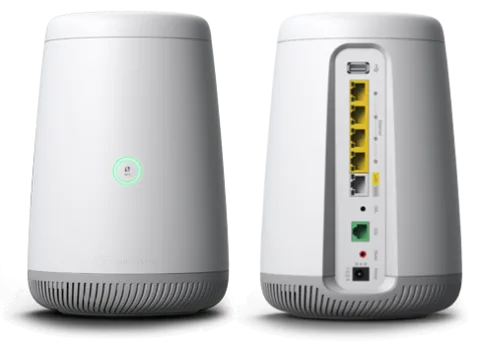
Quantum Fiber and CenturyLink supply the same family of modem-routers, such as the C4000. You manage them in a browser at 192.168.0.1, and restart them from the Quantum Fiber app.
- Sign in
192.168.0.1- App
- Quantum Fiber app (iOS and Android)
- Password
- The Admin Username and Admin Password are printed on the sticker on the side, back or bottom of the modem. They differ from the Wi-Fi name and password on the same sticker.
- Models
- C4000XG, C4000, C3000, C2100, C844, C424, C3510, 360 WiFi pods
Sign in to the Quantum Fiber and CenturyLink modem
Connect your Mac to the Quantum Fiber or CenturyLink network by Wi-Fi or cable.
Open
http://192.168.0.1in a browser. If it warns that the site isn’t secure, continue.Sign in with the Admin Username and Password from the modem sticker.
The menu shows Modem Status, Quick Setup, Wireless Setup, Utilities and Advanced Setup.
Don’t remove the sticker: CenturyLink warns the default admin credentials can’t be retrieved if lost. You can change them under Advanced Setup › Security › Administrator Password.
Restart it properly
Open the Quantum Fiber app and select Network Information.
Tap Restart modem, then Restart to confirm.
Wait up to 5 minutes for the success message, then tap Close.
With a wall-mounted SmartNID, never unplug the green fibre wires underneath it, and contact support before any reset. A factory reset (Utilities › Restore Defaults) erases your Wi-Fi name and password.
Restart by hand
Unplug the power cord from the back of the modem.
Plug it back in and wait 2 to 3 minutes.
On a C4000, the light ring turns green when it is connected.
In the modem settings
Sign in at
192.168.0.1and select Utilities.Select Reboot.
Schedule a restart
Neither Quantum Fiber nor CenturyLink documents a scheduled restart.
Update the firmware
Firmware updates arrive automatically over the network, and they don’t reset your settings. You can check by hand.
Sign in and select Utilities › Upgrade Firmware.
If Upgrade Status says Firmware is up to date or N/A, you’re done.
Otherwise select Download and save the file to your Mac.
Select Browse, pick the file, then select Upgrade Firmware.
Wait about 5 minutes while it installs and the modem restarts.
A C4000 light ring blinking amber-green or amber-white means a firmware update is running. Don’t unplug it then.
See connected devices
Sign in and select Modem Status.
Open the Device Table to see every device on your network.
For Wi-Fi details, select Utilities › Wireless Diagnostics and choose Client Table or Client Diagnostics.
Wireless diagnostics isn’t on every model. With 360 WiFi, the Quantum Fiber app can set device schedules that pause, block or allow access.
UPnP and port forwarding
The modems support UPnP. CenturyLink documents a UPnP switch and a separate UPnP NAT-T state, with a list of current mappings.
Sign in and select Advanced Setup.
Under Security, select UPnP in the left sidebar.
Enable UPnP, and set the UPnP NAT-T state.
Click Apply.
With UPnP on, any device on your network, including malware, can open ports through the modem. Keep NAT enabled: CenturyLink warns that turning it off opens the modem to intrusion.
Port forwarding
Select Advanced Setup › Security › Port Forwarding.
Choose the device from the list or enter its IP address.
Enter the start and end ports and select the protocol.
Choose All IP Addresses or a specific remote address, then click Apply.
Application Forwarding on the same menu forwards ports by application name instead.
NAT-PMP
Neither Quantum Fiber nor CenturyLink mentions NAT-PMP.
Prioritise calls and gaming
On a C4000, QoS switches on automatically when you add a priority rule.
Sign in and select Advanced Setup › QoS.
Choose the device from the list or enter its IP address.
Select the traffic direction to control: upstream, downstream or both.
Select high, medium or low priority, then click Apply.
On older models, tick Enable QoS first and pick a QoS type or a custom rule. The C4000XG also has Dynamic QoS for smoother streaming.
2.4 and 5 GHz, and the channel
The C4000XG uses Smart Connect: one Wi-Fi name, with the modem choosing the faster band for each device. Other models let you set 2.4 and 5 GHz separately.
Sign in and select Wireless Setup.
If offered, pick 2.4 GHz or 5 GHz in the left sidebar.
Select SSID Setup to name each band’s network.
Click Apply.
Change the channel
Under Wireless Setup, pick the band, then Radio Setup.
Select a channel, the channel width and the power level.
Click Apply.
The modem picks the channel automatically, and CenturyLink advises changing it only when your provider tells you to. Utilities › Wireless Diagnostics › Channel Analysis ranks channels by noise.
Mesh: which node a device uses
Quantum Fiber 360 WiFi uses pods managed in the Quantum Fiber app.
Open the Quantum Fiber app and tap 360 WiFi Pods.
Tap Add Wireless Pod, then Ready to scan QR Code.
Scan the QR code on the back of the pod, or type its serial number in capitals.
Wait for the success screen showing your network and all pods.
To move a pod, unplug it, move it and plug it back in; it reconnects on its own. Restarting the SmartNID restarts the pods too.
Guest network
There is no labelled guest network in the modem settings. CenturyLink documents up to four Wi-Fi networks under SSID Setup, which you can use for guests.
Sign in and select Wireless Setup › SSID Setup.
Pick an unused network from the drop-down list.
Select Enable SSID and give it a name.
Set its password under Wireless Security and click Apply.
CenturyLink doesn’t say whether extra networks are kept apart from your main one. With 360 WiFi, guests can join by scanning the QR code in the Quantum Fiber app.
DNS settings
CenturyLink documents entering your own primary and secondary DNS only for static IP setups, under Advanced Setup › WAN Settings. On a normal dynamic connection, set DNS on the Mac instead.
Connection status and logs
Sign in and select Modem Status › Connection Status for the firmware, connection and IPv4 address.
Check Internet Status for authentication failures and session time.
Select Utilities › System Log for a timed list of system actions, or Firewall Log where offered.
Run Utilities › Diagnostic Test to check the WAN, PPP and DNS.
On a C4000, solid green means connected, solid red a network failure. Quantum Fiber also has an outage checker at quantumfiber.com/outagetool.
Manuals and downloads
- Quantum Fiber: C4000XG modem user guide
- Quantum Fiber: Modem GUI settings guide
- Quantum Fiber: C4000 data sheet (PDF)
Links go to the maker’s own pages.
Questions
What is the admin password for 192.168.0.1?
It is on the sticker on the side, back or bottom of the modem, next to the Admin Username. It isn’t your Wi-Fi password.
Do I need to update the firmware myself?
Usually not. Updates are installed automatically through the network, but you can check under Utilities › Upgrade Firmware.
Can I reset a SmartNID?
Quantum Fiber says not to; contact its support first. Reset only modem-router gateways such as the C4000.
Sources
- Quantum Fiber Support: Modem settings in the GUI
- Quantum Fiber Support: C4000XG modem user guide
- Quantum Fiber Support: How to restart your SmartNID or modem
- Quantum Fiber Support: How (and when) to reset your modem
- Quantum Fiber Support: How to install a 360 WiFi pod
- Quantum Fiber Support: 360 WiFi FAQs
- CenturyLink Help: Security settings (port forwarding, UPnP, NAT)
- CenturyLink Help: Configure QoS on your modem
- CenturyLink Help: Wireless setup
- CenturyLink Help: Utilities menu
- CenturyLink Help: How to check your modem firmware version
- CenturyLink Help: Modem status menu
- CenturyLink Help: WAN settings
- CenturyLink Help: Advanced setup in the modem settings
Checked on 1 November 2026.
See what your router can’t tell you
Kilobat is a Mac menu-bar app that watches the network from your side: which app is using it, whether the Wi-Fi, the router or the provider is slow, and why a call froze.
brew install seifip/kilobat/kilobat