Mesh system · Linksys
Linksys Velop login, restart, firmware and UPnP
Linksys Velop mesh systems and Smart Wi-Fi routers share one web interface at myrouter.local and the Linksys app. The app covers everyday jobs; the web interface has every setting, including UPnP.
- Sign in
myrouter.localor192.168.1.1- App
- The Linksys app (iOS and Android)
- Password
- Both the app and the web interface use the router password. If you never set one, or forgot it, you reset it with the Recovery Key printed on the label on the bottom or back of the parent node. The Wi-Fi password is a different password.
- Models
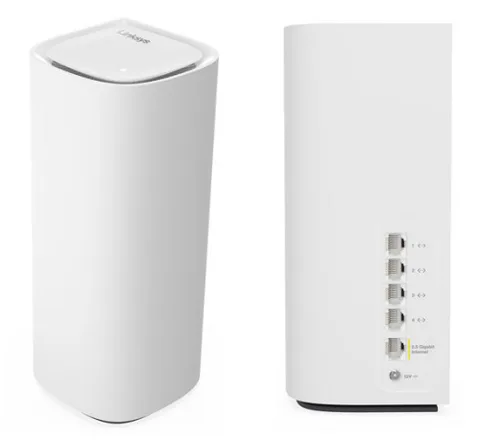
- Velop Pro 7 (MBE7000), Velop Pro 6E (MX6200), Velop MX4200, Velop MX4300, Velop MX5500, Velop WHW03, Velop WHW01, Linksys Smart Wi-Fi routers (EA series)
Sign in to the Linksys Velop and Smart Wi-Fi routers
Factory default. Linksys gives admin as the default password of an unconfigured router. Velop systems set up with the app replace it, and ask for the recovery key so you can create your own.
Connect your Mac to the Linksys Wi-Fi or a node’s Ethernet port.
Open
myrouter.localorhttps://192.168.1.1in a browser.Click past any mobile page or browser security warning.
If you see a cloud sign-in, click For local access.
Enter the router password and click Sign In.
In the app, tap Router Password (iOS) or Use Router Password (Android) and enter the same password. To factory reset a Velop node, hold the reset button for 10 seconds until the light flashes red. That erases all settings.
Restart it properly
Open the Linksys app and tap the menu icon in the top-left corner.
Tap Network Administration.
Tap Restart Network, then Restart. Devices reconnect when it’s back.
A restart keeps your settings. To restart one node, unplug it and plug it back in.
Restart in a browser
Sign in to the web interface.
Under Router Settings, click Troubleshooting.
On the Diagnostics tab, click the restart link, then Restart.
Schedule a restart
Only the MX4200, WHW03 and WHW01 have Scheduled Restart.
In the app, go to Network Administration › Scheduled Restart.
Choose Weekly (every Saturday night) or Monthly (first Saturday).
WHW03 and WHW01 also offer it in the web interface under Troubleshooting › Scheduled Restart.
Update the firmware
Automatic firmware updates are on by default and update every node in the mesh.
In the app, open Network Administration and check Automatic Firmware Update is on.
Tap Nodes, then a node, to see its Firmware Version.
In a browser, go to Connectivity. On the Basic tab, keep Automatic ticked.
To update now, click Check for Updates, then Update.
Don’t unplug or restart any node during an update. Wait until each node’s light is solid blue or white again. Some provider-supplied Velop units only take updates from the provider.
See connected devices
Open the Linksys app, tap the menu icon and tap Devices.
The list shows Connected Devices, Connected Guest Devices and Offline Devices, with the node and band each one uses.
Tap a device to rename it or see its IP and MAC address.
In a browser, use Troubleshooting › Status › Devices or Device List.
Phones with private (random) Wi-Fi addresses can appear twice. Delete the old copy under Offline Devices.
UPnP and port forwarding
Linksys routers and Velop systems support UPnP, and it is on by default. The setting is in the web interface, not the app.
Sign in to the web interface.
Under Router Settings, click Connectivity.
Open the Administration tab.
Tick or untick UPnP, then click Apply.
The same section has two extra options: whether UPnP devices may change router settings, and whether they may turn off your internet connection. Unticked, neither is allowed. UPnP lets any app or malware on your network open ports. If nothing needs it, turn it off and use Port Settings in the app’s Advanced Settings to forward ports by hand.
NAT-PMP
Linksys support doesn’t mention NAT-PMP. UPnP is the only automatic port-opening setting.
Prioritise calls and gaming
Priority moves up to three devices, wired or wireless, to the front of the queue. The rest share the remaining bandwidth.
Open the Linksys app, tap the menu icon and tap Priority.
Choose up to three devices to prioritise.
On some models, choose Video Calls or By Device; only one can be on at a time.
In the web interface of some models, click Priority, turn it on and drag devices to High Priority.
Priority, Devices and parental controls don’t work when the system is in bridge mode.
2.4 and 5 GHz, and the channel
You can use one Wi-Fi name for every band, or give each band its own name in the web interface.
Sign in and click Wi-Fi Settings under Router Settings.
On the Wireless tab, click Show more to see each band.
Set a name and password per band and click Apply.
Click Use different names, then Yes. The router restarts.
Change the channel
In a browser, go to Wi-Fi Settings and pick a Channel from the drop-down.
Or, in the app, tap Wi-Fi Settings › Advanced Wi-Fi Settings › Channel Finder.
Tap Scan Channels. Wi-Fi drops briefly, then the best channels are applied.
Linksys recommends leaving channel and width on Auto unless you are troubleshooting. Newer models such as the MBE7000 and MX6200 run Channel Finder automatically every five days.
Mesh: which node a device uses
The node connected to your modem is the parent. The others are child nodes, linked by Wi-Fi or Ethernet.
In the app, go to Network Administration › Nodes.
Tap a child node to see its signal from the parent and which node it is Connected to.
To add a node, open the menu and tap Set up a New Product.
Each node’s light should be solid blue or white. If a child node shows offline, tap it in the app for help, or unplug it and plug it back in.
Guest network
Open the Linksys app and tap the menu icon.
Tap Guest Network (iOS) or Guest Access (Android).
Turn the switch on and set the Wi-Fi Name and Wi-Fi Password.
Tap Save, then the share icon to send the details by message.
Guests get internet but can’t reach your computers, printers or shared files. On some models the default guest password is BeMyGuest on every node, so change it.
DNS settings
Open the Linksys app, tap the menu icon and tap Advanced Settings › Local Network Settings.
Scroll down and tap the arrow under DNS Settings.
Choose Manual, enter your DNS servers and tap Save.
In a browser, use Connectivity › Local Network, where Static DNS 1–3 take up to three servers.
Manual DNS turns off Safe Browsing, because only one set of DNS servers can be used.
Connection status and logs
In a browser, go to Troubleshooting › Status and open Report for the router and connection details.
On the Logs tab, enable logging first, then view incoming and outgoing traffic.
On the Diagnostics tab, use Ping IPv4 or Trace route to test the line.
In the app, Network Administration › IP Details shows the connection type and WAN IP.
Send network logs in the app’s Network Administration only sends logs to Linksys support.
Manuals and downloads
- Linksys MBE7000 Velop Pro 7 support
- Linksys MBE7000 Velop Pro 7 FAQs
- Linksys MBE7000 web interface overview
Links go to the maker’s own pages.
Questions
Why can’t I find a setting in the Linksys app?
Linksys says the app and the web interface have slightly different features. UPnP, logs and per-band Wi-Fi names are in the web interface at myrouter.local.
Where is the recovery key?
On the product label, on the bottom or back of the node connected to your modem.
Sources
- Linksys Support: How to log in to the Linksys Mesh router’s web interface
- Linksys Support: How to access Linksys router’s web interface through a web browser
- Linksys Support: Passwords and Access
- Linksys Support: How to restart your Linksys Mesh system
- Linksys Support: Overview of the Network Administration feature of the Linksys app
- Linksys Support: Overview of the Troubleshooting tool in the router’s web interface
- Linksys Support: Upgrading the firmware of your Linksys Mesh system
- Linksys Support: Overview of the Devices section of the Linksys app for Linksys Mesh systems
- Linksys Support: Overview of the Connectivity Tool tabs in the web interface
- Linksys Support: Overview of the Linksys Mesh app menu
- Linksys Support: Customizing the different WiFi bands of your Linksys router
- Linksys Support: How to use the Channel Finder feature of your Linksys Mesh WiFi system
- Linksys Support: Configuring the Guest Access feature on the Linksys app for Linksys Mesh routers
- Linksys Support: Configuring the DNS Settings of your Linksys Mesh system
- Linksys Support: Resetting the Linksys mesh router to factory default settings
- Linksys Support: Linksys app FAQs
Checked on 1 November 2026.
See what your router can’t tell you
Kilobat is a Mac menu-bar app that watches the network from your side: which app is using it, whether the Wi-Fi, the router or the provider is slow, and why a call froze.
brew install seifip/kilobat/kilobat