Mesh system · Google
Google Nest Wifi restart, updates, UPnP and DNS
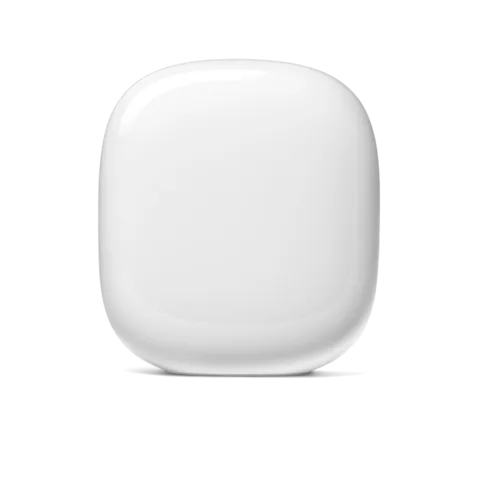
Nest Wifi Pro, Nest Wifi and the older Google Wifi are Google’s mesh Wi-Fi systems. There is no web page to sign in to: you manage them in the Google Home app on a phone or tablet.
- Sign in
- The Google Home app
- App
- The Google Home app (iOS and Android)
- Password
- There is no router admin password. You sign in to the Google Home app with the Google Account that set the network up, or one invited as a home member.
- Models
- Nest Wifi Pro, Nest Wifi router, Nest Wifi point, Google Wifi
Sign in to the Google Nest Wifi
Install the Google Home app on an iPhone, iPad or Android device.
Sign in with the Google Account used to set up the network.
On the Favourites tab, tap Wi-Fi to open the network.
Home members get the same control you have. The old Google Wifi app is read-only: import the network with Add device or service › Import Google Wifi network. Only the owner can, and it can’t be undone.
Restart it properly
Google suggests the power cable first: unplug the router or point, wait 10–20 seconds, plug it back in and give it one to two minutes.
Open the Google Home app and tap Favourites.
Tap Wi-Fi, then Settings.
Tap Restart network. Every router and point restarts.
The reset button is not a restart. Holding it for 10–12 seconds (until the light goes solid yellow on Nest Wifi, or solid blue on Google Wifi) erases the device and you must set it up again.
Restart a single point
Tap Home › All, then touch and hold the point’s tile.
Tap Settings › Restart Wifi point.
Only points can be restarted on their own.
Schedule a restart
Google’s help pages describe no scheduled restart. Restarts are done by hand in the app or at the plug.
Update the firmware
Software updates install automatically when Google releases them, rolling out over days or weeks. There is no button to check for or install an update.
Open the Google Home app and tap Home › All devices.
Touch and hold the router or point’s tile.
Tap Settings and find the software version under Wi-Fi information.
Compare it with Google’s Wi-Fi software versions page.
Google Wifi has had no new release since September 2022; Nest Wifi and Nest Wifi Pro were still being updated in 2026.
See connected devices
Open the Google Home app and tap Favourites › Wi-Fi.
At the top, tap Devices. The list covers Wi-Fi and wired devices seen in the last 30 days.
Tap a device for its connection status, IP address, MAC address and, for wireless devices, its band.
To keep an unknown device off, pause its internet or change the Wi-Fi password. Changing the password disconnects every device.
Get told about new devices
Tap your profile picture or initial at the top right.
Tap Home settings › Notifications › Wi-Fi notifications.
Turn on New device notifications.
UPnP and port forwarding
Nest Wifi and Google Wifi support UPnP, and it is on by default.
Open the Google Home app and tap Favourites › Wi-Fi.
Tap Settings › Advanced networking.
Turn UPnP on or off.
With UPnP on, you can’t see which devices asked for open ports, and each open port is a way in. For full control, turn UPnP off and forward ports by hand.
NAT-PMP
Google’s help pages don’t mention NAT-PMP, and the app has no setting for it.
Port forwarding instead
Go to Settings › Advanced networking › Port management and tap Add.
Choose IPv4 or IPv6, pick the device, enter the ports and protocol, then tap Save.
Prioritise calls and gaming
There is no full QoS menu. Google offers two simpler tools: a priority device and preferred activities.
Open the Google Home app and tap Favourites › Wi-Fi.
Tap Devices, choose the device and tap Prioritise device.
At the bottom, choose how long to prioritise it, then tap Save.
Only one device can be prioritised at a time, and it gets 70% of the available bandwidth. Everything else shares the rest.
Preferred activities
In the network’s Network settings, tap Preferred activities.
Tick the activities to favour, such as Video conferencing.
Preferred activities are on by default and only act while a device is doing one of them.
2.4 and 5 GHz, and the channel
Nest Wifi and Google Wifi use 2.4 and 5 GHz; Nest Wifi Pro adds 6 GHz. All bands share one Wi-Fi name, and Google’s band steering guides each device to the best one. There is no way to split them into separate networks.
For a 2.4 GHz-only smart-home device, set your phone to the 2.4 GHz band if it lets you.
If it can’t, move away from the router and points until your phone drops to 2.4 GHz.
Set up the smart-home device from there.
To check a device’s band, open Wi-Fi › Devices, tap the device and its Info tab.
Turning WPA3 on or off restarts the network. Some older WPA2 devices have trouble with it; turn it off if they do.
Change the channel
Google’s help pages describe no way to choose a Wi-Fi channel or channel width. The only related switch is Use Wi-Fi Protected Access 3 under Settings › Advanced networking, which helps 6 GHz devices move between bands.
Mesh: which node a device uses
Every extra Nest Wifi or Google Wifi device joins as a point. The mesh test checks how well each point reaches the router or primary point.
Open the Google Home app and tap Favourites › Wi-Fi.
Tap Points › Test mesh.
If a point shows a weak connection, move it closer to the router, out in the open.
Run the test again after moving it.
The test only appears with two or more devices. Bridge mode on the router only works with a single device, so it rules out a mesh.
Guest network
Open the Google Home app and tap Favourites › Wi-Fi.
Tap Network settings › Guest network, then turn on the guest network.
Enter a name and password that differ from your main network.
Under Shared devices, pick any speakers, TVs or printers guests may use, then tap Save.
To share it, tap Wi-Fi › Share password and swipe to the guest network.
A password is required. Guest Wi-Fi is not available when the router is in bridge mode.
DNS settings
Open the Google Home app and tap Favourites › Wi-Fi › Network settings.
Tap Advanced networking › DNS.
Choose Automatic, ISP’s DNS or Custom.
For Custom, enter a primary and secondary server for IPv4, and for IPv6 if you use it.
Tap Save.
Automatic, the default, uses Google Public DNS or your provider’s DNS. The router acts as a DNS proxy for your devices. If a custom server stops working, devices relying on it may be unable to resolve names until it works again or you change it.
Connection status and logs
Open the Google Home app and tap Home › Wifi › Network preference.
Tap Run speed test. It measures the router’s own internet download and upload.
Swipe to the bottom for earlier results.
To see the WAN IP and connection type, go to Network settings › Advanced networking › WAN.
Turn off any priority device before testing, as it skews results. Google’s help pages describe no event log you can read.
Manuals and downloads
Links go to the maker’s own pages.
Questions
Can I still use the Google Wifi app?
Only to look. It is read-only now. Import the network into the Google Home app to change settings, run speed tests or factory reset.
Can I give a smart plug its own 2.4 GHz network?
No. All bands share one name. Set the device up with your phone on 2.4 GHz, or further from the router so it drops to 2.4 GHz.
Sources
- Google Home and Nest Help: Restart Google Nest or Google Wifi devices
- Google Home and Nest Help: Factory reset your Wifi device
- Google Home and Nest Help: Change who can manage your Wi-Fi network
- Google Home and Nest Help: Migrate Google Wifi to the Google Home app
- Google Home and Nest Help: Wi-Fi software versions and release notes
- Google Home and Nest Help: Security features for Google Nest Wifi and Google Wifi
- Google Home and Nest Help: View devices connected to your network and review data usage
- Google Home and Nest Help: Receive new device notifications
- Google Home and Nest Help: Universal Plug and Play (UPnP)
- Google Home and Nest Help: Port forwarding or port opening
- Google Home and Nest Help: Prioritise a device on your Wi-Fi network
- Google Home and Nest Help: Set preferred activities to improve Wi-Fi performance
- Google Home and Nest Help: How Nest Wifi, Nest Wifi Pro and Google Wifi 2.4, 5 GHz and 6 GHz bands work
- Google Home and Nest Help: Mesh test guide
- Google Home and Nest Help: Create, edit and share a Guest Wi-Fi network
- Google Home and Nest Help: Change your DNS server
- Google Home and Nest Help: Test Internet speed
- Google Home and Nest Help: WAN settings
- Google Home and Nest Help: Bridge mode
Checked on 1 November 2026.
See what your router can’t tell you
Kilobat is a Mac menu-bar app that watches the network from your side: which app is using it, whether the Wi-Fi, the router or the provider is slow, and why a call froze.
brew install seifip/kilobat/kilobat