Mesh system · eero (Amazon)
eero login, restart, updates and UPnP
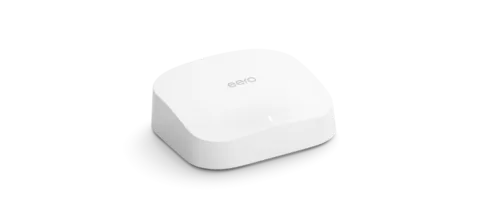
eero is Amazon’s mesh Wi-Fi system. It has no web page to sign in to: you manage everything in the eero app on a phone, tablet or Apple silicon Mac.
- Sign in
- The eero app
- App
- The eero app (iOS, Android, Amazon Appstore; the iPad version runs on Apple silicon Macs)
- Password
- There is no admin password. You sign in to the eero app with the phone number or email address you verified at setup, and a one-time code. You can also sign in with your Amazon account.
- Models
- eero 6, eero 6+, eero Pro 6, eero Pro 6E, eero 7, eero Pro 7, eero Max 7, eero PoE 7, eero Outdoor 7, eero Pro, eero Beacon
Sign in to the eero
eero can only be managed in the app. There is no address to type into a browser.
Install the eero app from the App Store, Google Play or Amazon Appstore.
Enter the phone number or email address on the eero account.
Type in the verification code eero sends you, then tap Next.
Check both contacts under Settings › Account settings, so you have a backup way in.
Codes can take a minute or two to arrive; tap Resend verification code if needed. Five failed attempts can lock the account, and then only eero support can help.
Restart it properly
eero suggests the simple fix first: unplug the eero, wait 30 seconds and plug it back in. In the app you can restart one eero or the whole network.
Open the eero app and tap Settings in the bottom-right corner.
Tap Advanced networking.
At the top, tap the more options icon, then Restart Network, and confirm.
Pressing the reset button once just reboots that eero. Holding it until the light flashes yellow (up to 8 seconds) is a soft reset that keeps your settings. Holding it about 15 seconds, until it flashes red, is a hard reset: it erases the eero and removes it from your network.
Restart a single eero
On the Home tab, tap the eero you want to restart.
Tap the more options icon in the top-right corner, then Restart.
Restarting the gateway eero, the one plugged into your modem, takes the whole network offline for a moment.
Schedule a restart
eero’s help pages describe no scheduled restart. Restarts are done by hand in the app or at the plug.
Update the firmware
eeroOS updates roll out automatically within a few weeks of release and install at your preferred time. Updates apply to the whole network and every eero reboots.
Open the eero app and tap Settings in the bottom-right corner.
Tap Software updates.
If you see “An update is available”, tap Install now.
To choose when updates run, tap Preferred update time and pick a window, including AM or PM.
All eeros must be online to update. One that is unplugged or offline is skipped. To see one eero’s version, tap it on the Home tab and look under Software updates.
See connected devices
Open the eero app and tap the Devices tab.
Use the filters to narrow the list by guest or main network, by eero, by connection type or by maker.
Tap a device to see its IP addresses, MAC address, manufacturer and live download and upload speeds.
Tap the device’s name or symbol to give it a nickname you’ll recognise.
UPnP and port forwarding
eero supports UPnP and turns it on by default.
Open the eero app and tap Settings.
Tap Advanced networking, then UPnP.
Turn UPnP on or off.
UPnP lets apps and consoles on your network open ports in the router without asking you. That helps games and calls, but malware on any device can use it too. If nothing you use needs it, switch it off. In bridge mode, UPnP is not available on eero: the router in front of it handles it.
NAT-PMP
eero’s help pages don’t mention NAT-PMP, and the app has no setting for it.
Port forwarding instead
Go to Settings › Advanced networking › Reservations & port forwarding to open a port for one device by hand.
Prioritise calls and gaming
eero has no per-device priority list. Its traffic shaping is Smart Queue Management (SQM), which cuts lag for calls and games when the line is busy.
Open the eero app and tap Settings.
Tap Advanced networking.
Under Network services, tap SQM.
Tap the toggle. It turns blue when SQM is on.
With SQM on, some devices and speed tests may show slower results. SQM is not available in bridge mode.
2.4 and 5 GHz, and the channel
eero uses one Wi-Fi name for 2.4, 5 and 6 GHz. There is no way to split the bands into separate networks permanently.
Open the eero app and tap Settings.
Scroll down and tap Troubleshooting › My device won’t connect › My device is 2.4 GHz only.
Tap Pause 5 GHz and 6 GHz, then set up the smart-home device.
Wait 30 minutes for the bands to return, or tap Cancel to bring them back sooner.
Devices that joined while 5 and 6 GHz were paused stay connected afterwards.
Change the channel
eero picks channels itself, and its help pages give no way to choose one. A soft reset returns an eero to its default channel. Settings › Advanced networking has the related Client steering and DFS settings.
Mesh: which node a device uses
eero’s Client steering nudges devices that support 5 GHz off 2.4 GHz and towards the nearest eero. On eero Pro 6E, Pro 7, Max 7 and PoE 7 it also favours 6 GHz. It is on by default.
To see which eero a device uses, open the Devices tab and tap the device.
Read Connected to, which shows the eero and the band (2.4, 5 or 6 GHz).
To change steering, go to Settings › Advanced networking › Client steering and use the toggle.
eero says steering favours, but can’t guarantee, the closest eero and the faster band. Turning it off can help a device that keeps dropping.
Guest network
Open the eero app and tap Settings › Guest wifi network.
Turn on Enable guest network.
Change the name and password if you like, then tap Save.
To share it, tap Share wifi details or Share QR code.
Guests get a separate subnet and can’t reach your main devices or each other. The guest name must differ from your main Wi-Fi name. Turning it off disconnects everyone on it.
DNS settings
Open the eero app and tap Settings.
Tap Advanced networking › DNS.
Turn on Custom DNS and enter IPv4 and/or IPv6 server addresses.
Tap Save. The network restarts to apply it.
If the DNS setting is greyed out, eero Plus filtering is on. Turn off Advanced Security, Ad Blocking and any content filters first. With Local DNS caching or HomeKit on, devices see the gateway eero as their DNS server, which then forwards to yours.
Connection status and logs
Open the eero app. The top of the Home tab shows whether the internet and each eero are online.
Tap Internet to see the connection status and the latest speed test.
Run a new speed test from that page.
For the public IP, go to Settings › Advanced networking and read WAN IP address under Internet.
eero’s speed test measures the connection between the gateway eero and the internet, not the Wi-Fi speed of a particular device. eero’s cited help pages do not describe an event log in the app.
Manuals and downloads
Links go to the maker’s own pages.
Questions
Which settings stop working in bridge mode?
Port forwarding, UPnP, SQM, custom DNS, Local DNS caching, device blocking and most eero Plus features. The router in front of the eero takes over those jobs.
Why can’t I see a 2.4 GHz network for my smart plug?
eero broadcasts all bands under one name. Use the 2.4 GHz-only troubleshooter to pause 5 and 6 GHz for 30 minutes while you set the device up.
Sources
- eero Support: What is the eero App?
- eero Support: How do I verify my eero account?
- eero Support: How do I reboot or reset my eero?
- eero Support: How do eeroOS updates work?
- eero Support: How do I check my eeroOS version?
- eero Support: What advanced features does eero support?
- eero Support: What are the Advanced networking settings?
- eero Support: What is Smart Queue Management (SQM)?
- eero Support: Can I set my eeros to use the 2.4, 5, or 6 GHz frequency?
- eero Support: What device information can I see with eero?
- eero Support: What is the Devices tab in the eero App?
- eero Support: How do I share my eero network with guests?
- eero Support: How do I set up custom DNS servers with eero?
- eero Support: What is the Home tab in the eero App?
- eero Support: What features do I lose if I put my eeros in bridge mode?
Checked on 1 November 2026.
See what your router can’t tell you
Kilobat is a Mac menu-bar app that watches the network from your side: which app is using it, whether the Wi-Fi, the router or the provider is slow, and why a call froze.
brew install seifip/kilobat/kilobat