Router · Xiaomi
Xiaomi router login, restart, updates and mesh
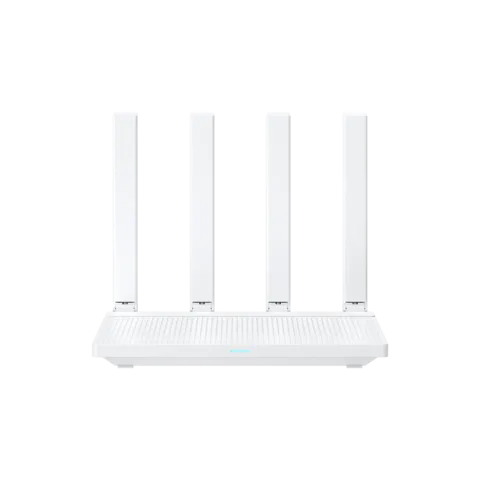
Xiaomi routers such as the AX3000T and BE3600 are managed in the Xiaomi Home (Mi Home) app or on a web page at miwifi.com. Xiaomi’s English help is thin, so some menu paths aren’t documented.
- Sign in
miwifi.comor192.168.31.1- App
- The Xiaomi Home app (Mi Home), for iOS and Android
- Password
- There is no admin password on the label. You set the management password during setup, or tick the box to reuse the Wi-Fi password. If you never changed it, try the Wi-Fi password.
- Models
- Xiaomi Router AX3000T, Xiaomi Router BE3600, Xiaomi Router AX1500, Xiaomi Mesh System AX3000 NE, Xiaomi Mesh System BE3600 Pro, Mi AIoT Router AX3600
Sign in to the Xiaomi Router
Join the router’s Wi-Fi or plug the Mac into one of its ports.
The default Wi-Fi name is on the label under the router.
Open
http://miwifi.comorhttp://192.168.31.1in a browser.Enter the management password.
On a phone, tap Go to PC Version once and wait about 15 seconds; tapping again can freeze the router.
A lost password can’t be recovered. With the router on, hold the reset button for 5 seconds, until the light turns orange on the AX3000T. This erases all settings, including both passwords.
Restart it properly
Disconnect the router’s power supply.
Plug it back in. The router switches on by itself.
Wait for the light to turn blue, which means it’s working normally.
Don’t use the reset button to restart: holding it for 5 seconds returns the router to factory settings.
Schedule a restart
Xiaomi lists scheduled restarts among the Xiaomi Home app’s router features, for example on the AX1500 and Mesh System AX3000 NE. Its English help gives no steps.
Update the firmware
In the Xiaomi Home app, open the router and scroll to Router settings.
Tap Upgrade Assistant, then One-click upgrade if a new version is offered.
Or log in at
miwifi.comand click Status under the Settings tab.Click Update if a new version is listed.
The app’s router plugin updates itself, but the router firmware only updates when you start it. For a file from Xiaomi, use Update manually on the same page, then Update now.
See connected devices
Open the router in the Xiaomi Home app and go to Device Management.
Tap a device for its details, such as Device Information.
Check its speed limit if one device is slow; Xiaomi suggests this first.
The web page also has a blacklist and whitelist. A blacklisted device can’t join the Wi-Fi.
UPnP and port forwarding
Xiaomi says its routers have UPnP, which lets devices open ports for games, voice chat and remote access. Its English help gives no menu path or default, and doesn’t mention NAT-PMP.
Any app on the network can use UPnP to open ports without asking you. Xiaomi warns that opening ports can expose devices to the internet.
Prioritise calls and gaming
Xiaomi lists QoS on some models, such as the AC1200 and Mesh System AX3000 NE, and gaming acceleration on the AX3000T. Its English help gives no steps for them.
2.4 and 5 GHz, and the channel
Xiaomi’s English help gives no menu path for splitting 2.4 and 5 GHz or for choosing a channel. Its troubleshooting does recommend 5 GHz where devices support it. For poor Wi-Fi, it suggests switching to the least congested channel and turning on Pass-wall performance.
Mesh: which node a device uses
Xiaomi Mesh links Wi-Fi 6 and Wi-Fi 7 Xiaomi routers. The BE3600 supports up to 10 routers in one mesh.
In the Xiaomi Home app, open the main router’s Mesh network devices page, tap + and follow the prompts.
To use the button instead, reset the satellite router if it was set up before.
Power it on near the main router, at least one metre away.
When the main router’s light breathes blue, press its mesh button.
After about two minutes, the satellite’s light turns blue. Then move it where you need coverage.
You can also link them with a cable: connect a port on the satellite to a LAN port on the main router.
Guest network
Open the router in the Xiaomi Home app and turn on Guest Wi-Fi.
Give it its own network name and password.
Set a bandwidth or time limit if you like.
The guest network is isolated from your main network, so guests can’t reach your devices or shared files.
DNS settings
Log in at
miwifi.com.Open the network settings, Common Settings › Internet Settings on the AX3000T and AX1500.
Check the Internet IP address is valid.
Set the primary and secondary DNS, for example
8.8.8.8and8.8.4.4as in Xiaomi’s own troubleshooting.
Xiaomi’s help shows this as a fix for a connection that won’t work, not as a full guide, so the field names may differ on your model.
Connection status and logs
Connect to the router’s Wi-Fi and open
miwifi.com.The page diagnoses the network status itself. Follow its results.
On the BE3600, open the network security protection feature in the Xiaomi Home app and turn on log management.
It records security events, device changes and device connections.
The AX3000T can’t show memory or CPU use, and its web page can’t be reached from outside your home, even with DDNS.
Manuals and downloads
Links go to the maker’s own pages.
Questions
Should I use the Xiaomi Home app or the Mi Wi-Fi app?
Xiaomi Home. Xiaomi says the Mi Wi-Fi app gets no new features, and newer routers such as the BE3600 can’t be added to it.
Why won’t the app add my router?
Join the router’s Wi-Fi first and pick the right model. If you set the router up in a browser, the country chosen there must match the one in the app.
Sources
- Xiaomi Support: How to install and configure the Xiaomi Router BE3600 for the first time?
- Xiaomi Support: How to configure the network of the Xiaomi Router AX3000T?
- Xiaomi Support: Xiaomi Router AX3000T FAQ
- Xiaomi Support: What to do if the Xiaomi Router AX1500’s management password is forgotten?
- Xiaomi Support: What to do if the management password or Wi-Fi password of the Xiaomi Router BE3600 is forgotten?
- Xiaomi Support: How to restore the Xiaomi Router AX3000T to its factory settings?
- Xiaomi Support: What to do if the web management interface of the Xiaomi Router AX1500 cannot be accessed?
- Xiaomi Support: How to upgrade firmware of the Xiaomi Router?
- Xiaomi Support: What functions are available when the Xiaomi Router AX1500 is bound to the Mi Home APP?
- Xiaomi Support: Xiaomi Mesh System AX3000 NE FAQ
- Xiaomi Support: Why can’t the Xiaomi router connect to 2.4GHz/5GHz WiFi?
- Xiaomi Support: Why is the network speed of the Xiaomi routers slow?
- Xiaomi Support: What to do if the Xiaomi Router has slow Internet speed?
- Xiaomi Support: What to do if both 2.4 GHz and 5 GHz Wi-Fi on the Xiaomi router are disconnecting simultaneously?
- Xiaomi Support: What is the UPnP on the Xiaomi router?
- Xiaomi Support: What is the Port forwarding on the Xiaomi router?
- Xiaomi Support: What is QoS?
- Xiaomi Support: How to use the Mesh networking of the Xiaomi Router BE3600?
- Xiaomi Support: How to connect the Xiaomi Mesh networking to the Xiaomi Router AX3000T?
- Xiaomi Support: What is the Guest Wi-Fi feature of the Xiaomi Router BE3600?
- Xiaomi Support: How to set the relay mode to expand the Wi-Fi of the existing router on the Xiaomi Router AX3000T?
- Xiaomi Support: How to use the network security protection function of the Xiaomi Router BE3600?
Checked on 1 November 2026.
See what your router can’t tell you
Kilobat is a Mac menu-bar app that watches the network from your side: which app is using it, whether the Wi-Fi, the router or the provider is slow, and why a call froze.
brew install seifip/kilobat/kilobat