Provider box · WINDTRE
WINDTRE HUB login, restart, UPnP and Wi-Fi settings
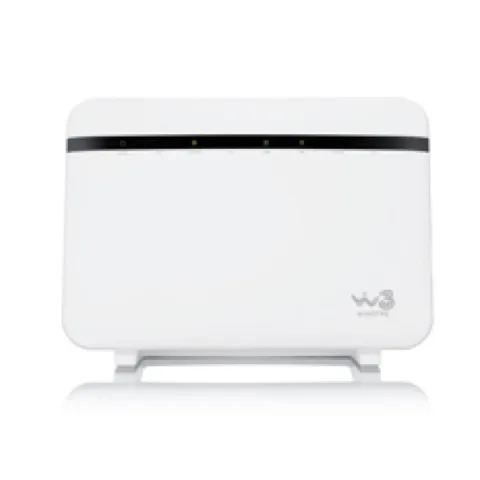
The WINDTRE HUB is the fibre and DSL modem router WINDTRE supplies in Italy under its own brand. You manage it in a browser at 192.168.1.1; WINDTRE also supplies ZTE, TP-Link and other modems with their own menus.
- Sign in
192.168.1.1- Password
- The user name is
admin. The password is printed on the label on the back of the modem, next to the Wi-Fi network nameWind3 HUB-xxxxxxand its Wi-Fi password. - Models
- WINDTRE HUB, Home&Life HUB
Sign in to the WINDTRE HUB
Connect your Mac to the HUB by Ethernet or over its Wi-Fi network.
Open
192.168.1.1in your browser’s address bar.Type
adminin Nome Utente (User name) and the label password in Password.Click Entra (Sign in). The home page shows four cards, including Connettività (Connectivity).
Forgotten a password you set? You have to reset the HUB to factory settings, which erases every change you made. If you can still sign in, save a backup first under Manutenzione › Salvataggio/Ripristino (Maintenance › Backup/Restore).
Change the admin password
Click the menu at the top right, hover over Manutenzione (Maintenance) and click Account Utente (User account).
Click the Modifica (Edit) icon.
Fill in Vecchia Password, Nuova Password and Verifica nuova password, then click OK.
The new password needs at least 8 characters, with an upper-case letter and a number. You are signed out afterwards.
Restart it properly
WINDTRE’s manual documents only the power button. If your phone line runs over the HUB (VoIP), calls stop while it is off.
Press the ON/OFF button on the back to switch the HUB off.
Wait a few seconds, then press it again.
Wait about 2 minutes until the POWER, LINK, INTERNET and Wi-Fi lights are on.
To switch only Wi-Fi off and on, hold the Wi-Fi button on the left side for about 5 seconds instead. Restoring factory settings is under Manutenzione › Salvataggio/Ripristino › Ripristino; don’t use it to restart.
Schedule a restart
WINDTRE documents no scheduled restart. The Wi-Fi schedule under Network › Wireless only switches Wi-Fi on and off.
Update the firmware
Sign in at
192.168.1.1.Read the installed firmware on the Informazioni di Sistema (System information) card on the home page.
WINDTRE’s manual describes no manual firmware update for the HUB; WINDTRE manages it remotely. Never switch the modem off while it restores settings or restarts on its own.
See connected devices
Sign in and look at the Connettività (Connectivity) card on the home page.
Check the devices connected over Wi-Fi and over LAN.
For fixed addresses, open the menu, then Network › Rete locale LAN (Local network) and the DHCP statico (Static DHCP) tab.
Click Configurazione DHCP statico, pick the device under Selezionare Informazioni dispositivo and click OK.
UPnP and port forwarding
The HUB supports UPnP, with a separate switch for UPnP NAT-T, and lists the port forwards apps have opened through it.
Sign in, open the menu at the top right and click Network › Rete locale LAN (Local network).
Open the UPnP tab at the top.
Turn the UPnP and UPnP NAT-T services on or off.
Check the port-forwarding rules UPnP has created automatically.
Click Applica (Apply).
UPnP lets any app on your network open ports in the HUB without asking, which malware can abuse too. Leave it on only if a game or app needs it, and review the automatic rules from time to time.
Open a port by hand
Open the menu and click Network › NAT, then Aggiungi nuova regola (Add new rule) on Inoltro Porta (Port forwarding).
Enable the rule, name it and choose your line type (VDSL for fibre or ADSL).
Enter the external and translated port ranges, the device’s IP address and the protocol.
Click OK and check the new rule in the list.
NAT-PMP
WINDTRE’s manual documents UPnP and UPnP NAT-T, not NAT-PMP.
Prioritise calls and gaming
WINDTRE documents no device or application priority on the HUB. Each Wi-Fi network has only a download and upload limit, under Network › Wireless.
2.4 and 5 GHz, and the channel
The 2.4 and 5 GHz networks share one name by default, with Band Steering and Mesh on. Splitting them needs Mesh off first.
Open the menu and click Network › Wireless.
On the MESH tab, turn the feature off and click Applica (Apply).
On the Generale (General) tab, untick Stesse impostazioni per le due reti 2.4G e 5G (Same settings for both networks).
Click Applica, then give each band its own name.
Band Steering needs both bands to share the same name, security and password. WINDTRE says some older devices disconnect often with it on.
Change the channel
In Network › Wireless, select the Banda (Band) to change.
Pick a channel instead of Auto, and set the channel width if needed.
Click Applica (Apply). Wi-Fi devices may drop briefly.
WINDTRE recommends Auto: the modem measures interference and picks the least disturbed channel.
Mesh: which node a device uses
The HUB has a MESH feature, on by default, that works with Band Steering and One Connect.
Open the menu and click Network › Wireless.
Open the MESH tab to see whether Mesh is on.
Turn it off only if you need separate band names or Parental Control.
Click Applica (Apply).
WINDTRE’s HUB manual doesn’t describe how to add extenders to the mesh or see which node a device uses.
Guest network
Open the menu, click Network › Wireless and open the Rete Ospite (Guest network) tab.
Click the edit icon next to a guest network and turn on Attiva nuova Rete Wireless (Enable new wireless network).
Set its name, tick Ospite WLAN and choose Ospite esterno (External guest) under Scenario di accesso.
Untick Password automatica and set a password of its own.
Click Applica (Apply).
With Ospite esterno guests can only browse the internet. The automatic password is the same as your main network’s, so always change it. Repeat for the other band if needed.
DNS settings
WINDTRE documents a static DNS option only inside the broadband connection settings, as part of moving the HUB to another provider, not for a WINDTRE line. Network › DNS only sets up dynamic DNS. Set DNS on the Mac instead.
Connection status and logs
Sign in and check the Connettività (Connectivity) card; red means no internet connection.
Read the Informazioni di Sistema (System information) card for fibre (FTTH) and VoIP status.
Click the button at the bottom right of that card for more connection detail.
On FTTC or ADSL, open System Monitor › Statistiche xDSL for Line Rate and Actual Net Data Rate.
WINDTRE says a line is healthy when the actual rate is close to the line rate. A big gap usually means interference on the copper line.
Manuals and downloads
- WINDTRE: Guida ai modem (manuals for every WINDTRE modem)
- WINDTRE HUB user manual (PDF, Italian)
- Home&Life HUB user manual (PDF, Italian)
- ZTE ZXHN F6746G manual for WINDTRE (PDF, Italian)
Links go to the maker’s own pages.
Questions
Which password opens the WINDTRE HUB?
User admin and the password on the label on the back of the modem, unless you changed it. If you changed it and lost it, only a factory reset brings the label password back.
Why can’t I give 2.4 and 5 GHz different names?
Mesh is on. Turn it off on the MESH tab under Network › Wireless, then untick the shared-settings box on the Generale tab.
Sources
- WINDTRE: Manuale utente WINDTRE HUB (PDF)
- WINDTRE: Configurazione modem, tutte le guide in base al modello
- WINDTRE: ZXHN F6746G guida alla gestione e alla manutenzione (PDF)
Checked on 1 November 2026.
See what your router can’t tell you
Kilobat is a Mac menu-bar app that watches the network from your side: which app is using it, whether the Wi-Fi, the router or the provider is slow, and why a call froze.
brew install seifip/kilobat/kilobat