Provider box · TIM
TIM HUB+ login, restart, UPnP and Wi-Fi settings
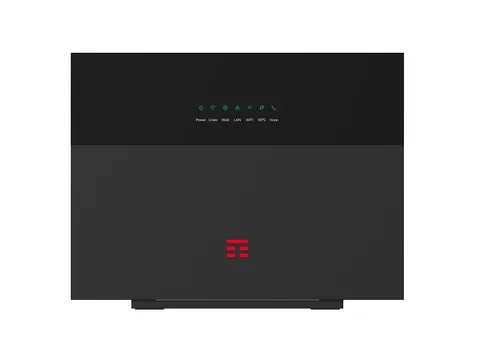
The TIM HUB+ is the Wi-Fi 6 modem TIM supplies for fibre and copper lines in Italy; the older TIM HUB came before it. You manage both in a browser at http://192.168.1.1, and with the TIM Modem app.
- Sign in
192.168.1.1- App
- TIM Modem (iOS and Android)
- Password
- TIM HUB+: the user name is
adminand the password is the alphanumeric one on the label on the back. It is not the 24-character Wi-Fi key printed on the same label. - Models
- TIM HUB+ ZTE H388X, TIM HUB+ ZTE H388XF Executive, TIM HUB+ ZTE H2740, TIM HUB (Technicolor DGA4132)
Sign in to the TIM HUB+
Factory default. TIM HUB (Technicolor): TIM gives the default password as admin, with the user name already filled in. Change it straight away under admin › Impostazioni profilo (Profile settings).
Connect your Mac to the modem by Wi-Fi or cable.
Open
http://192.168.1.1in your browser.Enter
adminand the password, then click Login. On the TIM HUB, click Registrati (Sign in).To change the password on the TIM HUB+, click Gestione & Diagnosi › Gestione account (Management and diagnostics › Account management) and click Applica (Apply).
Forgotten the password? Hold the reset button on the back for about 10 seconds while the modem is on. That restores factory settings: your Wi-Fi name, key and other changes are lost.
Restart it properly
Switch the modem off with the On/Off button on the back.
Wait a few seconds and switch it back on.
Allow a few minutes for internet and phone service to return.
Don’t hold the reset button to restart: about 10 seconds wipes all your settings.
TIM HUB from the browser
Sign in and click the Gateway card.
Use the restart option on the Gateway page.
Schedule a restart
TIM’s guides document no scheduled restart. The Wi-Fi scheduler (Wi-Fi Scheduler, or Wireless Control on the TIM HUB) only switches Wi-Fi on and off.
Update the firmware
TIM’s guides document no manual firmware update for these modems. On the TIM HUB, the Gateway card shows the current firmware version.
See connected devices
Open the TIM Modem app to see the devices connected to your modem and rename them so they are easier to recognise.
On the TIM HUB, sign in and open the Dispositivi Connessi (Devices) card for devices connected now or recently.
Click Aggiorna dati (Refresh data) to update the list.
For Wi-Fi details on the TIM HUB, open WiFi Nurse.
UPnP and port forwarding
Both modems support UPnP IGD, so apps and consoles can open ports themselves. TIM says to turn it on only if you need it.
Sign in and click Rete locale (Local network).
Click UPnP in the left menu.
Select ON and click Applica (Apply).
With UPnP on, any app or device on your network can open ports without asking, and malware can too. TIM’s own advice is to enable it manually only when needed.
TIM HUB
Sign in and click Servizi WAN (WAN services).
Click mostra opzioni avanzate (show advanced) at the top.
Set the UPnP IGD switch to ON. The page also lists the active UPnP rules.
Port forwarding by hand
On the TIM HUB+, click Internet, then Sicurezza (Security) and the Port Forwarding section.
On the TIM HUB, open Servizi WAN and add a rule with Aggiungere un nuovo port mapping IPv4.
NAT-PMP
TIM’s guides document no NAT-PMP setting.
Prioritise calls and gaming
TIM’s guides document no QoS or device-priority setting for the TIM HUB+ or TIM HUB.
2.4 and 5 GHz, and the channel
Band steering is on by default and only works when the 2.4 and 5 GHz networks share the same settings. TIM recommends leaving it on.
Sign in and click Rete locale › WLAN (Local network › Wi-Fi).
Turn off band steering if you want to manage the bands separately.
Under Configurazione WLAN SSID privata (Private SSID settings), give each band its own SSID.
Click Applica (Apply) and reconnect your devices.
Change the channel
In Rete locale › WLAN, go to Configurazione globale WLAN (Global Wi-Fi settings).
At Canale (Channel), pick the 2.4 or 5 GHz network.
Choose Auto, or a channel from 1 to 13 (2.4 GHz) or 36 to 112 (5 GHz).
Click Applica (Apply).
On the TIM HUB, open Wireless, pick the network and set Canale there.
Mesh: which node a device uses
The TIM HUB+ supports EasyMesh, which spreads devices across the modem and EasyMesh repeaters or extenders.
In Rete locale › WLAN, check that Easymesh is enabled.
Plug the repeater in near the modem and press WPS on both.
Wait until the repeater’s LED is steady green, then move it halfway to the weak area.
Check the link in the TIM Modem app under the modem tab’s Wi-Fi page.
Extra access points or extenders must support EasyMesh to join the mesh.
Guest network
Sign in and click Rete locale › WLAN, then Configurazione WLAN SSID ospite (Guest SSID settings).
Choose the 2.4 or 5 GHz network and tick Abilitazione SSID (Enable SSID).
Set the SSID, Tipo crittografia (Encryption type, WPA2) and Passphrase WPA.
Click Applica (Apply).
Guests get internet but can’t reach your own devices. The TIM Modem app can share the guest network by QR code. On the TIM HUB, open Wireless and pick Ospiti-TIM-… instead.
DNS settings
TIM’s guides document no setting for custom DNS servers. On the TIM HUB+, Rete locale › LAN only has an eDNS0 switch, used by TIM Safe Web Plus. Set DNS on the Mac instead.
Connection status and logs
Sign in and click Internet for a summary of the internet service.
Open Informazioni connessione DSL (DSL connection information) for the line sync speed.
Open Stato connessione DSL (DSL connection status) for the IP address, DNS servers and connection time.
On the TIM HUB, use Banda larga (Broadband), Diagnostica (Diagnostics) and Gestione Modem (Management) for the event log.
The TIM Modem app can also run a speed test and an online line check.
Manuals and downloads
- TIM HUB+ ZTE quick guide (PDF, Italian)
- TIM HUB+ ZTE H2740 quick guide (PDF, Italian)
- TIM HUB (Technicolor DGA4132) manual (PDF, Italian)
- TIM Assistenza: TIM HUB+ ZTE, guide e manuali
Links go to the maker’s own pages.
Questions
Can I use the TIM HUB+ with another provider?
TIM says that at factory settings, and not connected to a TIM line, the TIM HUB+ can be configured for other networks.
Can I back up my settings before a reset?
Yes, in the TIM Modem app. Its backup lets you reload your settings after a reset or a modem swap.
Sources
- TIM Assistenza: TIM HUB+ ZTE, guide e manuali
- TIM Assistenza: TIM HUB+ ZTE, Impostazioni password
- TIM Assistenza: TIM HUB+ ZTE, Configurazione Port Mapping e UPnP
- TIM Assistenza: TIM HUB+ ZTE, Gestione Rete Wi-Fi
- TIM Assistenza: TIM HUB+ ZTE, Altre funzionalità
- TIM Assistenza: TIM HUB+ ZTE, Scheda tecnica
- TIM Assistenza: Modem TIM HUB, istruzioni e configurazioni
- TIM Assistenza: TIM HUB, Impostazioni password
- TIM Assistenza: TIM HUB, Configurazione Port Mapping e UPnP IGD
- TIM: Manuale TIM HUB (Technicolor DGA4132, PDF)
- TIM: App TIM Modem
- TIM Assistenza: Repeater Wi-Fi ed EasyMesh
Checked on 1 November 2026.
See what your router can’t tell you
Kilobat is a Mac menu-bar app that watches the network from your side: which app is using it, whether the Wi-Fi, the router or the provider is slow, and why a call froze.
brew install seifip/kilobat/kilobat