Provider box · Vodafone
Vodafone Station login, restart, UPnP and Wi-Fi settings
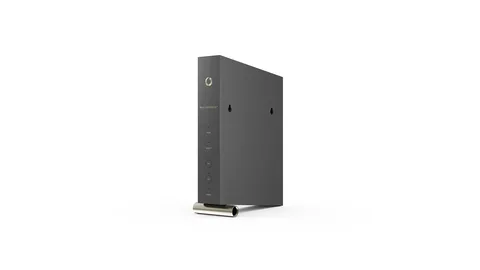
The Vodafone Station is the cable router Vodafone supplies with cable internet in Germany. You manage it in a browser at http://192.168.0.1, or with Vodafone’s UltraConnect app for everyday Wi-Fi tasks.
- Sign in
192.168.0.1- App
- UltraConnect app (iOS and Android)
- Password
- The password is on the label on the back of the Vodafone Station and on the Wi-Fi card that came with it. After your first sign-in, Vodafone asks you to change it.
- Models
- Vodafone Station Wi-Fi 6 (Technicolor CGA6444VF), Vodafone Station (Technicolor CGA4233DE), Vodafone Station (CommScope TG6442VF), Vodafone Station (Arris TG3442DE)
Sign in to the Vodafone Station
Connect your Mac to the Vodafone Station by Wi-Fi or cable.
Open
http://192.168.0.1in your browser.Enter the password and click Einloggen (Sign in).
The Übersicht (Overview) page opens.
To change the password later, click Einstellungen › Gerät (Settings › Device); it needs at least eight characters. Forgotten it? Vodafone’s answer is a factory reset: hold the RESET button for at least 30 seconds with a pen. That erases all your settings.
Restart it properly
You can restart from the web interface or by unplugging the box. It is ready again after about two minutes.
Sign in and click Status & Hilfe (Status and help) in the top menu.
Click Neustart (Restart) in the left menu.
Use the restart option on that page, not the Werkseinstellungen (Factory settings) section.
The Werkseinstellungen section on the Neustart page erases all your settings.
Without the interface
Unplug the Vodafone Station from the power for a moment, then plug it back in.
Or press RESET for under 5 seconds (Technicolor models); longer resets the box.
Wait about two minutes.
Schedule a restart
Vodafone’s manuals document no scheduled restart. WLAN › Zeitschaltung (Wi-Fi › Schedule) only switches Wi-Fi off at set times.
Update the firmware
Vodafone updates the firmware itself; the manuals document no manual update. While an update runs, all LEDs flash. Don’t unplug the box.
See connected devices
Sign in. The Übersicht (Overview) page lists connected devices, grouped by connection.
For more detail, choose Experten-Modus (Expert mode) at the top of the page.
Click Status & Hilfe › LAN-Status to see the devices on your network.
In the UltraConnect app, you can also see devices and block them.
UPnP and port forwarding
The Vodafone Station supports UPnP. When it is on, UPnP-capable devices can create port forwards themselves.
Sign in and click Internet in the top menu.
Click Allgemein (General) in the left menu.
Tick or untick UPnP aktivieren (Enable UPnP).
Click Anwenden (Apply).
With UPnP on, any device or app on your network can open ports without asking, and malware can too. Leave it off unless a console or app needs it. Keep the Vodafone Station firewall on; Vodafone strongly advises against turning it off.
Port forwarding by hand
Click Internet › Port-Forwarding and add a rule for the device’s IP address and port.
Click Anwenden (Apply).
NAT-PMP
Vodafone’s manuals document no NAT-PMP setting.
Prioritise calls and gaming
Vodafone’s manuals for the Vodafone Station document no QoS or device-priority setting.
2.4 and 5 GHz, and the channel
Band steering shows 2.4 and 5 GHz as one network and moves devices to the better band. Vodafone recommends leaving it on.
Sign in and choose Experten-Modus (Expert mode) at the top.
Click WLAN (Wi-Fi); the Allgemein (General) page opens.
Turn off Band Steering, then set up Heim WLAN (2.4 GHz) and Heim WLAN (5 GHz) separately.
Click Anwenden (Apply) and reconnect your devices.
Change the channel
In Experten-Modus, click WLAN › WLAN-Radar to see nearby networks.
Open WLAN › Allgemein (Wi-Fi › General), where the channels are set.
Pick a channel for the band and click Anwenden (Apply).
With Vodafone’s free SuperWLAN option, the Station picks the best channel automatically.
Mesh: which node a device uses
Vodafone’s SuperWLAN option adds SuperWLAN-Verstärker repeaters that form a mesh with the Vodafone Station and copy its Wi-Fi settings.
Book SuperWLAN for your cable line through Vodafone.
Press WPS on the Vodafone Station to add a SuperWLAN-Verstärker, or set it up in the UltraConnect app.
Manage it under the SuperWLAN menu in the web interface.
In Baden-Württemberg, Hessen and NRW, Bridge mode (Modem Mode) is not available while SuperWLAN is booked.
Guest network
Sign in and click WLAN (Wi-Fi); the Allgemein (General) page opens.
Turn on Gast-WLAN aktivieren (Enable guest Wi-Fi).
Under Konfiguration, enter a WLAN-Name (SSID) for guests.
Click Kennwort ändern (Change password) and enter 8 to 63 characters with upper and lower case and a number.
Click Anwenden (Apply).
Guest devices reach only the internet, not your home network. The UltraConnect app can set up guest Wi-Fi too.
DNS settings
Vodafone’s manuals document no setting for the DNS servers the Vodafone Station uses or hands out. Status & Hilfe › Diagnose only offers a DNS test. Set DNS on the Mac instead.
Connection status and logs
Sign in and click Status & Hilfe › Status for the box, the internet connection, the LAN and both Wi-Fi bands.
Click DOCSIS-Status for the cable downstream and upstream channels.
Click Ereignisprotokoll (Event log) for events the box recorded.
In Experten-Modus, Diagnose offers ping, traceroute and a DNS test.
Vodafone’s Speedtest Plus at speedtest.vodafone.de measures both to your device and to the cable router.
Manuals and downloads
- Vodafone Station Wi-Fi 6 (CGA6444VF) manual (PDF, German)
- Vodafone Station (CGA4233DE) manual (PDF, German)
- Vodafone Station (TG6442VF) manual (PDF, German)
- Vodafone Hilfe: Vodafone Station
Links go to the maker’s own pages.
Questions
Can I use my own router behind the Vodafone Station?
Yes, with Bridge mode (Modem Mode): Einstellungen › Modem Mode in Baden-Württemberg, Hessen and NRW, otherwise in MeinVodafone. It needs a Dual Stack or IPv4 line, and turns off Wi-Fi.
Which Vodafone Station do I have?
The model name is on the back of the box. Technicolor models use the menus on this page.
Sources
- Vodafone Hilfe: Vodafone Station – Hilfe und Tipps rund um Einrichtung
- Vodafone: Benutzerhandbuch Vodafone Station Technicolor CGA6444VF (PDF)
- Vodafone: Benutzerhandbuch Vodafone Station Technicolor CGA4233DE (PDF)
- Vodafone: Bedienungsanleitung Vodafone Station CommScope TG6442VF (PDF)
- Vodafone: Tipps & Tricks für Deinen Kabel-Router (PDF, 2026)
Checked on 1 November 2026.
See what your router can’t tell you
Kilobat is a Mac menu-bar app that watches the network from your side: which app is using it, whether the Wi-Fi, the router or the provider is slow, and why a call froze.
brew install seifip/kilobat/kilobat