Provider box · O2
O2 HomeBox login, restart, firmware and Wi-Fi settings
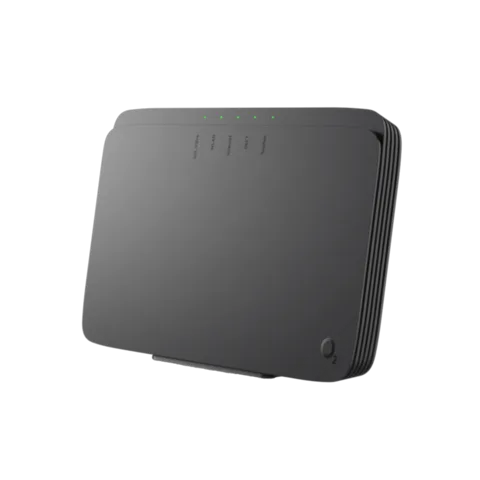
The HomeBox is the router O2 supplies in Germany for DSL and fibre; the current model is the HomeBox 4 (7741). You manage it in a browser at http://o2.box, or with the O2 my Service App for everyday Wi-Fi changes.
- Sign in
o2.boxor192.168.1.1- App
- O2 my Service App (iOS and Android)
- Password
- The preset password is on the type label (Typenschild) on the back of the HomeBox. If you set your own during the first set-up, use that one: O2 doesn’t know it.
- Models
- O2 HomeBox 4 (7741), O2 HomeBox 3 (6742), O2 HomeBox 2 (6641)
Sign in to the O2 HomeBox
Connect your Mac to the HomeBox by Wi-Fi or with a LAN cable.
Open
http://o2.boxin your browser, orhttp://192.168.1.1if it doesn’t load.Enter the password for the user interface (Benutzeroberfläche).
The Übersicht (Overview) page opens.
To change the password, open System › Kennwort ändern (System › Change password). Forgotten it? Hold the Reset button on the back for 10 seconds. That restores the label password and erases your changes.
Restart it properly
A restart keeps your settings. The HomeBox takes 2 to 3 minutes to boot; the Internet light shows red, then red and green, while it starts.
Sign in at
http://o2.boxand open System.Choose Zurücksetzen (Reset), where you can run a full or partial restart (Geräteneustart).
Wait 2 to 3 minutes until the Internet light is steady green.
The Reset button on the back restores factory settings when held for 10 seconds. Don’t use it to restart.
Without the user interface
Pull the HomeBox’s power plug, or switch it off with its on/off switch.
Wait about 30 seconds, then reconnect the power.
Wait until the lights show the box is ready again.
Schedule a restart
There is no scheduled restart, but the Inaktiver Modus (Inactive mode) switches the box off at set times, for example overnight. It starts again by itself when the period ends, keeping all settings.
O2’s manual documents no scheduled restart as such.
Update the firmware
The HomeBox updates its firmware automatically. O2 says a manual update is only needed if the automatic one fails and the hotline asks you to do it.
Download the firmware file O2 gives you and save it on your Mac.
Sign in at
http://o2.boxand open System › Firmware-Update.Under Manuelle Aktualisierung (Manual update), click Datei auswählen (Choose file) and pick the file.
Click Laden (Load). The front lights blink, and the box restarts when it has finished.
Don’t unplug any power or cable during an update; O2 warns this can damage the HomeBox. The current version is shown under System on the Übersicht page.
See connected devices
Sign in at
http://o2.box.Open Heimnetz (Home network) to see the status of the devices connected to the HomeBox.
To keep a device off the network, open Sicherheit (Security) and set up a MAC-Adressfilter (MAC address filter).
UPnP and port forwarding
O2’s HomeBox 4 manual documents no UPnP or NAT-PMP setting, so you can’t check from O2’s instructions whether apps can open ports automatically.
An open port lets computers on the internet reach a device at home. Open only the ports a game or device needs, and remove rules you no longer use.
Open a port by hand
Under Heimnetz, the IPv4/IPv6-Portfreigabe (IPv4/IPv6 port sharing) page opens the firewall for incoming TCP or UDP connections on chosen ports.
O2’s manual names the page but doesn’t give the steps for adding a rule.
Prioritise calls and gaming
O2’s HomeBox 4 manual documents no QoS or device-priority setting.
2.4 and 5 GHz, and the channel
At the factory, both bands share one network name, so each device picks the band that suits it. You can give them separate names.
Sign in and open Heimnetzwerk › WLAN (Home network › Wi-Fi).
Change the network name (SSID) of the 2.4 GHz or 5 GHz band.
Click Speichern (Save) and reconnect your devices to the new names.
Switching off the 5 GHz band saves about 1.5 to 2 W, but it costs speed. Check that it suits your home first.
Change the channel
The 2.4 and 5 GHz settings in Heimnetz include Kanalauswahl (Channel selection). O2 says the channel is normally preset, and neighbours on the same channel can slow your Wi-Fi.
O2’s manual doesn’t give step-by-step instructions for picking a channel.
Mesh: which node a device uses
The HomeBox 4 supports the EasyMesh standard for adding Wi-Fi repeaters.
O2’s manual doesn’t describe how to pair a repeater or manage the mesh.
Guest network
The WLAN-Gastzugang (Wi-Fi guest access) gives guests internet without access to your home network or the user interface.
Sign in and open the 2.4 GHz or 5 GHz Wi-Fi settings under Heimnetz.
Switch on WLAN-Gastnetzwerk (Wi-Fi guest network).
Change the preset network name and encryption if you want.
Set a time limit so the guest access switches itself off, then save.
DNS settings
O2’s HomeBox 4 manual documents no setting for the DNS servers the box hands out, only a DynDNS client under Internet. Set DNS on the Mac instead.
Connection status and logs
Sign in at
http://o2.box; the Übersicht (Overview) page opens.Check Internet for the online status, connection time and public IP addresses.
Check System for the device name, firmware version and system time.
Click Aktualisieren (Refresh) to update the page.
The O2 my Service App also runs an automatic check of the router and the line.
What the lights mean
DSL/Fiber steady green: line connected; blinking: synchronising. Internet steady green: online; red then red and green: booting; fast red blinking: wrong access data, such as the PIN. WLAN off: Wi-Fi switched off, which the WLAN button on the side turns back on.
Manuals and downloads
- O2: Handbuch O2 HomeBox 4 (7741) (PDF)
- O2: Anleitung zum manuellen Firmware-Update, HomeBox 4 (PDF)
- O2: Router-Anleitungen und Handbücher
Links go to the maker’s own pages.
Questions
Where is the HomeBox password?
The preset password is on the type label on the back. If you changed it during set-up and forgot it, only a 10-second press of Reset brings the label password back, and it erases your settings.
Do I need to update the HomeBox myself?
Normally not. It installs new firmware automatically. Use the manual update under System › Firmware-Update only if O2’s hotline asks you to.
Sources
- O2: Handbuch O2 HomeBox 4 (7741) (PDF)
- O2: Anleitung zum manuellen Firmware-Update, O2 HomeBox 4 (7741) (PDF)
- O2: Router-Anleitungen und Handbücher zum Download
- O2: Router-Hilfe – alle Tipps und Infos im Überblick
- O2: O2 HomeBox 4 – Infos und Einrichtung
Checked on 1 November 2026.
See what your router can’t tell you
Kilobat is a Mac menu-bar app that watches the network from your side: which app is using it, whether the Wi-Fi, the router or the provider is slow, and why a call froze.
brew install seifip/kilobat/kilobat