Provider box · Deutsche Telekom
Telekom Speedport login, restart, firmware and port sharing
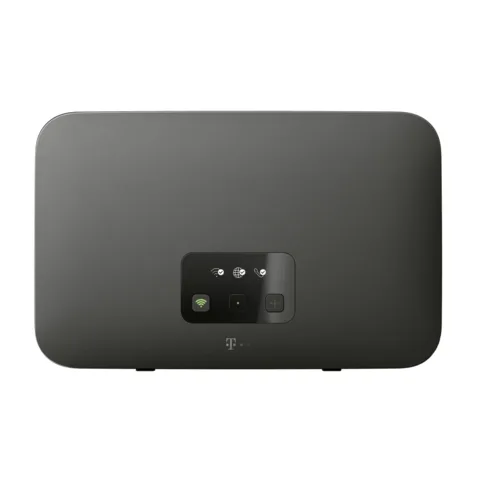
The Speedport is the router Deutsche Telekom supplies with MagentaZuhause lines. Most models are managed in a browser at http://speedport.ip; the Speedport 7 is managed only in the MeinMagenta app.
- Sign in
speedport.ipor192.168.2.1- App
- MeinMagenta (iOS and Android) for the Speedport Smart 4, Pro Plus and Speedport 7
- Password
- The Gerätepasswort (device password) is on the type label under the Speedport and on the Router-Pass card kept in its stand. Telekom recommends changing it straight away.
- Models
- Speedport Smart 4, Speedport Smart 4 Plus, Speedport Smart 4R, Speedport Pro Plus, Speedport Smart 3, Speedport 7
Sign in to the Speedport
Connect your Mac to the Speedport by Wi-Fi or cable.
Type
http://speedport.ipinto the address bar. If it doesn’t open, usehttp://192.168.2.1.Enter the Gerätepasswort and click Anmelden (Sign in).
In the MeinMagenta app instead, tap Internet, the router picture, WLAN, Router und Telefonie, then Router-Einstellungen.
Each wrong password doubles the wait before you can try again, and only one person can be signed in at a time. Forgotten it? As a Telekom customer, set a new one in the EasySupport Geräte-Manager at telekom.de/geraete-manager. Otherwise reset the Speedport, which erases all settings. A Speedport LTE router uses http://192.168.1.1.
Restart it properly
Your settings are kept. The restart takes about three minutes.
Sign in and click System.
Click Neustart (Restart) in the left column.
Click the Neustart button and wait.
Don’t confuse it with the Reset hole: holding a pin in it for 5 seconds restores factory settings and erases your setup.
With the button
Press the Neustart (Restart) button on the back for at least one second.
Wait until the Speedport has started again.
Schedule a restart
Telekom’s manual documents no scheduled restart.
Update the firmware
Sign in and click System, then Firmware-Updates.
Click Auf Update prüfen (Check for update). It also checks connected Mesh repeaters.
Click Installieren (Install). The Speedport restarts automatically afterwards.
With EasySupport on (System › EasySupport, the default), the Speedport updates itself automatically over the internet. Don’t unplug it while an update runs. System › System-Informationen shows the installed version.
See connected devices
Sign in and click Netzwerk (Network).
Click Verbundene Geräte (Connected devices) and choose a list or diagram view.
Click Liste aktualisieren (Refresh list) to update it.
Click a device for details, or Zum Gerät to open its own interface.
The list leaves out devices on the guest Wi-Fi and active VPN clients.
UPnP and port forwarding
Telekom’s manual for the Speedport Smart 4 documents no UPnP IGD or NAT-PMP setting for automatic port sharing. Its UPnP mention covers media sharing (UPnP AV) only. Open ports by hand instead.
Open a port by hand
Sign in and click Internet, then Portfreischaltung (Port sharing).
Enter a name and pick the device the rule is for.
Choose a template, or enter the public and internal ports.
Click Speichern (Save). You can add up to 32 rules.
Telekom points out that traffic through opened ports is not checked by the Speedport firewall. Keep a firewall on the device.
Prioritise calls and gaming
The Speedport prioritises telephony by default.
Sign in and click Netzwerk, then Priorisierung (Prioritisation).
Select up to two devices whose internet traffic should go first.
Click Speichern (Save).
Prioritised Wi-Fi
A separate network whose devices get up to half the Wi-Fi bandwidth and half the upload to themselves.
In Netzwerk, click Priorisiertes WLAN (Prioritised Wi-Fi).
Tick Priorisiertes WLAN verwenden, then set a name and a Wi-Fi key.
Click Speichern and connect your work devices to it.
2.4 and 5 GHz, and the channel
Sign in and click Netzwerk, then Name und Verschlüsselung (Name and encryption).
Enter a different WLAN-Name (SSID) for 2.4 GHz and for 5 GHz.
Click Speichern (Save) and reconnect your devices.
Change the channel
In Netzwerk, click Umgebungsscan (Area scan) to see neighbouring networks and their channels.
Click Sendeeinstellungen (Transmit settings).
Pick a channel for each band, or Automatisch, which Telekom recommends.
Click Speichern (Save).
Telekom suggests leaving about four unused channels between yours and busy neighbours. Some devices can’t use channels 12 and 13.
Mesh: which node a device uses
The Speedport Smart 3, Smart 4, 4R, 4R2, 4 Plus and Speedport 7 support Mesh with up to five repeaters, such as Speed Home WiFi or a MagentaTV Box.
Sign in and click Netzwerk › Verbundene Geräte.
Click Schematische Ansicht (Diagram view) to see each repeater’s signal and speed.
Click a repeater for its IP address, firmware and connected devices.
Update repeaters under System › Mesh with Auf Update prüfen.
Guest network
Sign in and click Netzwerk, then WLAN-Gastzugang (Guest Wi-Fi).
Tick WLAN-Gastzugang verwenden and choose how long it stays on.
Set the name, encryption and a key of 8 to 63 characters.
Tick Gäste haben nur Zugang zum Internet (Guests can only reach the internet).
Click Speichern. Zugangsdatenpass drucken prints a card with a QR code.
DNS settings
Telekom advises its own customers to keep its DNS servers; you can still set others.
Sign in and click Internet.
Find the DNS options and tick Bevorzugte DNSv4-Server verwenden and Bevorzugte DNSv6-Server verwenden.
Enter the servers and click Speichern (Save).
Telekom’s manual doesn’t name the left-column entry for the DNS options. Leave both unticked to get DNS servers automatically.
Connection status and logs
Sign in and click Übersicht › Status (Overview › Status) for the main status information.
Click Internet › IP-Adressinformationen for your public IPv4 and IPv6 addresses.
Click System › System-Meldungen (System messages) for the event log.
Tick Ausführliche System-Meldungen erfassen for more detail, and Liste exportieren to save it.
The MeinMagenta app also guides you through troubleshooting.
Manuals and downloads
- Speedport Smart 4 Typ A manual (PDF, German)
- Speedport Smart 4 quick start guide (PDF, German)
- Speedport Smart 4 firmware update guide (PDF, German)
Links go to the maker’s own pages.
Questions
Why can’t I open my Speedport 7 in a browser?
The Speedport 7 has no browser interface. Telekom manages it only through the MeinMagenta app.
Can I restore my settings after a reset?
With EasySupport on, the Speedport backs up its Wi-Fi settings to a Telekom server. To keep everything, click System › Einstellungen sichern and Sichern (Save backup) before you reset.
Sources
- Telekom Hilfe: Wie komme ich ins Konfigurationsmenü meines Speedport Routers?
- Telekom: Bedienungsanleitung Speedport Smart 4 Typ A (PDF)
- Telekom: Firmware-Änderungen Speedport Smart 4 Typ A (PDF)
- Telekom: Anleitung Firmware-Update Speedport Smart 4
- Telekom: Kurzanleitung Speedport Smart 4
Checked on 1 November 2026.
See what your router can’t tell you
Kilobat is a Mac menu-bar app that watches the network from your side: which app is using it, whether the Wi-Fi, the router or the provider is slow, and why a call froze.
brew install seifip/kilobat/kilobat