Provider box · Telstra
Telstra Smart Modem login, restart, port forwarding and band steering
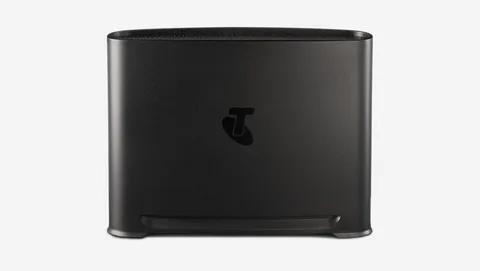
The Smart Modem is the modem-router Telstra supplies with its nbn and home internet plans. You change its settings in a browser at http://mymodem; My Telstra handles troubleshooting, extras and boosters.
- Sign in
mymodemor192.168.0.1- App
- My Telstra (iOS and Android), under Services › your internet service
- Password
- The username is
admin. On a Gen 4 or Gen 3, the default password is the Wi-Fi password on the bottom of the modem or its Wi-Fi details sticker. - Models
- Telstra Smart Modem Gen 4, Telstra Smart Modem Gen 4 – 5G, Telstra Smart Modem Gen 3, Telstra Smart Modem Gen 2
Sign in to the Telstra Smart Modem
Factory default. Telstra Smart Modem Gen 2 and Gen 1.1: username admin, password Telstra. Change it after you sign in.
Connect your Mac to the modem by Wi-Fi or Ethernet.
Open
http://mymodemorhttp://192.168.0.1.Sign in as
adminwith the modem password.Not sure which modem you have? Check the model number on its bottom or back.
In My Telstra, Services › your internet service › View your devices › Telstra Smart Modem also shows the model. Forgotten a password you changed? Hold the R reset button on the back (third from the left on a Gen 4) for 5 seconds. This erases all settings.
Restart it properly
Unplug the modem’s power cable.
Wait 10 seconds, then plug it back in.
Wait a few minutes. The front light turns solid green, or solid blue on 5G or 4G Home Wireless.
A restart is the first step in Telstra’s own troubleshooting. Don’t hold the R button: 5 seconds resets the modem to factory settings.
Restart the nbn connection box too
Switch the nbn connection box or battery unit off at the wall.
Wait at least two minutes, then switch it back on.
Schedule a restart
Telstra’s help pages describe no scheduled restart.
Update the firmware
Leave the modem switched on; it updates its own software, including on first use.
While an update runs, a Gen 4’s front light flashes blue and green for up to 10 minutes.
If it flashes for longer than 10 minutes, unplug the modem and plug it back in.
Telstra’s help pages document no manual firmware check or update.
See connected devices
Telstra documents device lists only for Internet Optimiser, a paid add-on.
In My Telstra, go to Services › your internet service › Extras to add Internet Optimiser.
Sign in at
http://mymodemand open the Internet Optimiser dashboard.Open Device Manager to see, rename and retype connected devices.
Open Network Monitor for the last 30 seconds of use, sorted by device.
UPnP and port forwarding
Telstra says some devices set themselves up with the modem automatically, but its help pages don’t document the UPnP switch or NAT-PMP.
Sign in at
http://mymodem.Select WAN Services or Services, then Port Forwarding. On some modems it’s under Advanced › Firewall.
Select Add new IPv4 (or IPv6) port mapping.
Enter a name, the Protocol, Destination port and Destination IP address.
Choose the + icon to save it.
Each forwarded port is reachable from the whole internet, so forward only what a camera, console or server needs, and delete old rules. For a fixed public address, Telstra sells a static IP under Extras in My Telstra.
NAT-PMP
Telstra’s help pages don’t mention NAT-PMP.
Prioritise calls and gaming
Internet Optimiser is a paid add-on on eligible plans. It prioritises games and video calls it recognises.
Sign in to the modem and open the Internet Optimiser dashboard.
Select Network Priority and turn on Prioritise Gaming or Prioritise Work From Home.
Under Congestion Control, set the sliders to about 70–85% as Telstra suggests.
For a short boost, select Priority Boost, pick the activity and set up to three hours.
For a work VPN, raise the VPN slider under Bandwidth Allocation to 25% or more.
2.4 and 5 GHz, and the channel
Band steering joins 2.4 and 5 GHz under one network name. Telstra advises turning it off only as a last resort.
On a Gen 4, sign in and select Wi-Fi Settings.
Downgrade Wireless Mode from Wi-Fi 7 and select Apply; band steering can’t be turned off under Wi-Fi 7.
Under Wi-Fi Settings, select Band Steering and disable it.
On a Gen 3 or older, open Wi-Fi, untick Band Steering or Split Networks on the 2.4GHz tab and save.
Change the channel
Telstra’s help pages give no steps for choosing a Wi-Fi channel.
Older devices that won’t connect
On a Gen 4, downgrade Wireless Mode to Wi-Fi 6 on both bands.
Under Wi-Fi Settings › Basic, change Encryption Type to WPA2 PSK.
Apply each change and wait 3 to 5 minutes before trying the device again.
Mesh: which node a device uses
Telstra Smart Wi-Fi Boosters extend the modem’s network, up to four per modem. They work with the Mongoose, Cobra XH, DJA0230, DJA0231 and LH1000.
Place the booster beside the modem and join them with the yellow-ended Ethernet cable.
Power the booster on and wait for a solid green or blue light, up to 15 minutes.
Unplug the cable and the booster, then move it halfway to the weak spot.
Power it on again; a solid green or blue light within about 3 minutes means a good link.
Amber means it is too far from the modem; red means it isn’t paired. Manage boosters in My Telstra under Services › Extras.
Guest network
Sign in at
http://mymodem.On a Gen 4, select Wi-Fi Setting › Guest and tick Enabled on the 2.4GHz and 5GHz tabs.
On a Gen 3, select Wi-Fi, then Guest under NETWORKS, and set State to On.
Change the name and password or note the generated ones, then select Apply or Save.
A device that has joined your main network may need to forget it first, or it will reconnect there.
DNS settings
Telstra’s help pages give no steps for changing the DNS servers on the Smart Modem. Set DNS on the Mac instead.
Connection status and logs
Check Telstra’s outage page for problems in your area.
In My Telstra, go to Help › Get help with an issue and pick the problem to run Telstra’s tests.
Check the front light. Green is connected, blue is mobile backup, red is no connection.
Sign in at
http://mymodemto see the modem’s status page.
If the modem has been on blue mobile backup for hours, use Services › your internet service › Improve your connection › Test and troubleshoot internet in My Telstra.
Manuals and downloads
Links go to the maker’s own pages.
Questions
How do I use my own router with a Telstra Smart Modem?
Turn on bridge mode. On a Gen 4, sign in and choose Access Control › Bridge Mode, toggle Enable and Apply. This turns off mobile backup and Telstra’s remote tests. A factory reset undoes it.
Why can’t an old device see my Wi-Fi on a Gen 4?
Some older devices don’t cope with Wi-Fi 7 band steering. Turn off band steering and connect the device to the 2.4 GHz network, the one without “5G” in its name.
Sources
- Telstra Support: How do I access and use my modem settings?
- Telstra Support: Quick guide to help you identify your Telstra modem model
- Telstra Support: Restart my modem or network connection device
- Telstra Support: What do the lights on my Telstra modem mean?
- Telstra Support: Set up port forwarding
- Telstra Support: How do I set up and manage Internet Optimiser?
- Telstra Support: How do I set up Internet Optimiser to prioritise gaming or work?
- Telstra Support: Smart Wi-Fi Booster set up help
- Telstra: Smart Wi-Fi Booster Gen 3 set-up guide (PDF)
- Telstra Support: Set up Telstra Smart Modem
- Telstra Support: Test and troubleshoot an issue with my internet
- Telstra Support: What is an IP address (dynamic and static)?
Checked on 1 November 2026.
See what your router can’t tell you
Kilobat is a Mac menu-bar app that watches the network from your side: which app is using it, whether the Wi-Fi, the router or the provider is slow, and why a call froze.
brew install seifip/kilobat/kilobat