Provider box · TPG
TPG Wi-Fi Max Modem login, restart, reset and Wi-Fi settings
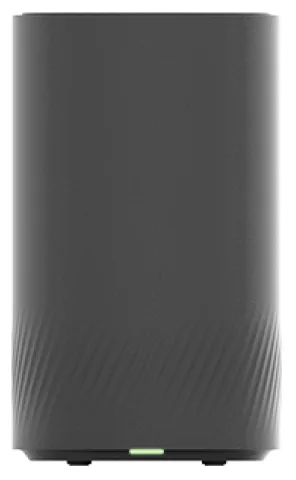
The Wi-Fi Max Modem is the Wi-Fi 7 modem TPG supplies with its nbn and fibre plans. You manage it in the My Internet Connect app or in a browser at https://192.168.1.1. TPG documents only a few of its settings.
- Sign in
192.168.1.1- App
- My Internet Connect app (iOS and Android)
- Password
- The Login Password is printed on the lower left of the barcode sticker on the modem. The Wi-Fi name, Wi-Fi password and a Wi-Fi QR code are on the same sticker.
- Models
- Wi-Fi Max Modem, Wi-Fi Max 5G Modem, TP-Link VX220-G2V, TP-Link VX420-G2V, TP-Link VX420-G2H
Sign in to the TPG Wi-Fi Max Modem
Connect your Mac to the modem’s Wi-Fi, or plug it into a LAN port.
Open
https://192.168.1.1in your browser.Log in with the Login Password from the sticker, or your own if you changed it.
To change it, click Administration in the left pane and fill in Password Settings.
Click Save settings.
In the app, the password is under Settings › Security › Change login password. The new password then works for both the app and the browser. Forgotten it? TPG says to factory reset the modem, which erases all custom settings.
Restart it properly
TPG’s troubleshooting guides restart the modem at the power outlet.
Turn off the modem’s power outlet for at least 60 seconds.
Turn the outlet back on.
Wait for the modem’s Internet light to come on.
Factory reset
Log in at
https://192.168.1.1and click Administration in the left pane.Select Backup/Restore Setting.
Under Restore to Factory Defaults, click Restore to Factory Defaults.
Wait for the modem to reboot, then set it up again with TPG’s setup guide.
If you can’t log in, hold the Reset button on the back for at least 10 seconds while the modem is on. It sits above the Ethernet ports, below the Pair button. The front light flashes when the reset starts.
Schedule a restart
TPG documents no scheduled restart.
Update the firmware
TPG documents no way to check for or install firmware on the Wi-Fi Max Modem. Its URL Blocking guide refers to a coming firmware update, so updates reach the modem, but TPG doesn’t say how.
See connected devices
TPG’s guides don’t describe a list of connected devices for the Wi-Fi Max Modem. Parental controls let you pick users or devices for a schedule.
Schedule internet time for a device
In the My Internet Connect app, go to Settings.
Under User Management, select Parental controls › Add new schedule.
Select the users or devices and tap the tick at the top right.
Enter a Schedule name, set the time and days, then tap Save and OK.
Toggle a schedule’s switch to pause or resume it.
Block websites
Log in at
https://192.168.1.1and click Network.Under Firewall, select URL Blocking and leave Action on Block.
Enter a domain such as
youtube.com, and itswww.version too.Click Save Settings.
Blocking isn’t in the app. It works in web browsers but may not block apps, and some services use several domains.
UPnP and port forwarding
TPG’s guides for the Wi-Fi Max Modem don’t cover UPnP, NAT-PMP or port forwarding, so none of them has a documented menu.
Prioritise calls and gaming
TPG documents no QoS or device-priority setting for this modem. TPG notes that devices on an Ethernet cable keep their connection when Wi-Fi drops out.
2.4 and 5 GHz, and the channel
Band steering is on by default: one Wi-Fi name covers 2.4 and 5 GHz, and devices switch to the best band automatically.
Log in at
https://192.168.1.1and click Wi-Fi in the left pane.Turn Band Steering off to see separate 2.4 GHz and 5 GHz settings, or on to merge them.
Keep MLO Enable on so devices can use several bands at once.
Check that Wi-Fi Enable is on and Hide Wi-Fi Network is off.
Click Save.
With band steering off, devices no longer switch bands by themselves and may drop out of 5 GHz range.
In the app
Open the My Internet Connect app and tap Settings.
Under Network Management, select Wi-Fi settings to see the Wi-Fi name and password.
Change the channel
TPG’s guides show no channel setting for the Wi-Fi Max Modem.
Mesh: which node a device uses
TPG documents no mesh extenders or mesh setup for the Wi-Fi Max Modem. Its Wi-Fi guide suggests a central, raised spot away from large appliances and cupboards.
Guest network
TPG’s guides don’t describe a guest Wi-Fi network on the Wi-Fi Max Modem. The Wi-Fi QR code on the sticker shares the main network.
DNS settings
TPG documents no way to change DNS servers on this modem. Set DNS on the Mac instead.
Connection status and logs
Check TPG’s Network Status page and nbn’s outages page for your address.
Look at the front light. Solid green means connected; flashing green means the session is down.
Solid red means the modem can’t connect; flashing red means it can’t reach TPG.
Use mobile data to run an nbn service test in TPG My Account.
Mobile Backup
When the main connection drops, the modem can switch to a phone’s personal hotspot. Up to 3 phones can be set up.
Log in at
https://192.168.1.1and select Network › WAN › Backup WAN.Tick Backup WAN Enable.
Enter the hotspot’s name and password in Wi-Fi name 1 and Wi-Fi Password 1.
Click Save Settings.
In the app it is Settings › Network Management › Mobile backup. If it doesn’t switch over, TPG suggests turning off the phone’s own Wi-Fi.
Manuals and downloads
Links go to the maker’s own pages.
Questions
Where is the TPG modem password?
On the lower left of the barcode sticker on the Wi-Fi Max Modem, labelled Login Password.
Is my TPG modem locked to TPG?
No. TPG says its modems aren’t locked and work with any compatible internet service.
Sources
- TPG Support: Basic Wi-Fi settings on a TPG modem
- TPG Support: How to change your TPG modem password
- TPG Support: How to factory reset your TPG modem
- TPG Support: Wi-Fi Max Modem status lights
- TPG Support: Mobile Backup on your Wi-Fi Max Modem
- TPG Support: Parental Controls on TPG modems
- TPG Support: URL Blocking on your Wi-Fi Max and Wi-Fi Max 5G Modems
- TPG Support: Troubleshooting Wi-Fi for dropouts
- TPG Support: Troubleshoot no connection on your nbn FTTP
- TPG Support: How to improve your Wi-Fi signal
- TPG Support: TPG Modem Guides
Checked on 1 November 2026.
See what your router can’t tell you
Kilobat is a Mac menu-bar app that watches the network from your side: which app is using it, whether the Wi-Fi, the router or the provider is slow, and why a call froze.
brew install seifip/kilobat/kilobat