Provider box · Optus
Optus Ultra WiFi Modem login, restart, port forwarding and Booster
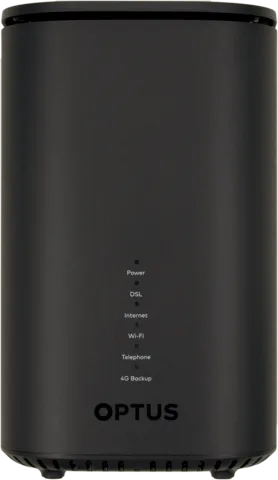
The Optus Ultra WiFi Modem (Gen 2) is the Wi-Fi 6 modem Optus supplies with its nbn plans, with a 4G backup SIM built in. You manage it in a browser at http://192.168.0.1; the My Optus app covers speed tests and help.
- Sign in
192.168.0.1- App
- My Optus app (iOS and Android)
- Password
- The modem password is printed on the label on the bottom of the modem. The Wi-Fi name and password are on the same label and on the Quick connect magnet in the box.
- Models
- Optus Ultra WiFi Modem (Gen 2), Optus Ultra WiFi Booster (Gen 2)
Sign in to the Optus Ultra WiFi Modem
Connect your Mac to the modem’s Wi-Fi, or plug it into a yellow LAN port.
Open
http://192.168.0.1in your browser.Click Enter password and type the password from the bottom of the modem.
Click Login.
The menu has Home, My Wi-Fi, Connected Devices, Settings, Restart, Help and 4G Status info. Optus documents no password recovery; a factory reset erases all your settings.
Restart it properly
It may take several minutes for the modem to reconnect after a restart.
Press On/Off on the back to turn the modem off.
Unplug the power supply and wait 30 seconds.
Plug the power supply back in.
Press On/Off to turn the modem on.
From the settings menu
Sign in at
http://192.168.0.1.Click Restart; Optus says this menu restarts the modem.
Factory reset
To keep a copy of your settings, click Settings, then Continue below Modem Settings.
Click Maintenance › Backup & Restore › Create Backup file.
Click Restart, then Factory reset modem twice.
Click Continue and wait.
Without the menu, hold a paper clip in the Reset hole for at least 10 seconds. A reset erases your Wi-Fi name, password and port forwards.
Schedule a restart
Optus documents no scheduled restart for this modem.
Update the firmware
Optus’s guides for the Ultra WiFi Modem (Gen 2) describe no firmware update page or check. Its LED guide lists no update light either.
See connected devices
Sign in at
http://192.168.0.1.Click Connected Devices to see the list of devices on the modem.
Optus’s guides don’t describe pausing or blocking a single device from this menu. If strangers are on your Wi-Fi, change the Wi-Fi password under My Wi-Fi.
Block websites
Click Settings, then Continue below Network Settings.
Click URL Filter, then Add Address.
Type the website address without
http://orhttps://.Click Apply.
UPnP and port forwarding
Optus’s guides for this modem don’t mention UPnP or NAT-PMP, so there is no documented switch for either. Port forwarding is documented.
The modem has a built-in firewall. Each forwarded port lets the internet reach that device directly, so forward only what a game or app needs and remove rules you no longer use.
Port forwarding
You need the IP address of the computer or console you forward to.
Click Settings, then Continue below Network Settings.
Click Port forwarding and type a Custom service name.
Choose a Service, or Other if unsure, and a Protocol such as TCP - UDP.
Leave External Host empty and enter the External Port, such as
6000-6100.Enter the device’s address as Internal Host and the same ports as Internal Port.
Click Add to save the rule.
Prioritise calls and gaming
Optus lists QoS (Quality of Service) as not supported on this modem. For speed and reliability, Optus suggests connecting devices to the yellow LAN ports with the supplied cable.
2.4 and 5 GHz, and the channel
The modem is dual band, 2.4 and 5 GHz Wi-Fi 6. A green Wi-Fi light means it switches devices between the bands automatically; blue means it doesn’t.
Sign in and click My Wi-Fi.
Click the field next to Wi-Fi Name (SSID) below the network you want to rename.
Type the new name and click Apply.
Reconnect your devices with the new details.
Optus’s guides don’t say how to give each band its own name.
Change the channel
Sign in and click My Wi-Fi.
Choose a channel from the Channel Selection list.
Click Apply.
Optus suggests a new channel when the connection is intermittent.
Mesh: which node a device uses
The Optus Ultra WiFi Booster (Gen 2) pairs with the modem to form a mesh. Optus says nearby devices can use the booster automatically; the device decides when to roam.
Plug the booster in next to the modem and make sure its On/Off button is pushed in.
When the Mesh light flashes red, connect the booster to a yellow LAN port with an Ethernet cable.
When the Mesh light turns solid green, it has paired; unplug the cable.
Move the booster halfway between the modem and the weak spot, off the floor.
A red Mesh light means the booster is too far away. If it still won’t connect, hold its Reset button with a pin until the Power light turns red, then pair it again.
Guest network
Optus’s guides for this modem don’t describe a guest Wi-Fi network.
DNS settings
Optus documents no way to change the DNS servers on this modem. Set DNS on the Mac instead.
Connection status and logs
Sign in and click Home to see the modem information.
Click Settings, then Continue below Modem Settings, to see the internet connection information.
Check the Internet light; solid green means connected and solid red means a connection error.
Solid blue means the modem is using its 4G backup SIM, not the nbn.
Optus says 4G backup isn’t meant as a stand-alone service. If the light stays blue, check the modem’s cables or check your connection in the My Optus app. Under 4G Status info, the backup’s Data APN is LTEBROADBAND.
Manuals and downloads
- Optus device guides: OPTUS Ultra Wi-Fi Gen 2
- Optus Ultra WiFi Modem (Gen 2) quick start guide (PDF)
- Optus Ultra WiFi Booster (Gen 2) quick start guide (PDF)
Links go to the maker’s own pages.
Questions
Where is the Optus modem password?
On the label on the bottom of the modem, next to the Wi-Fi name and password. The Quick connect magnet also has the Wi-Fi details.
Why is the Internet light blue?
The modem is using its 4G backup because the nbn connection is down. Check the cable to the nbn equipment and the My Optus app.
Sources
- Optus device guides: Establish a connection to the modem settings menu (Ultra Wi-Fi Gen 2)
- Optus device guides: Guide to the modem settings menu (Ultra Wi-Fi Gen 2)
- Optus device guides: Restart your modem (Ultra Wi-Fi Gen 2)
- Optus device guides: Restore factory default settings (Ultra Wi-Fi Gen 2)
- Optus device guides: Set up port forwarding (Ultra Wi-Fi Gen 2)
- Optus device guides: Change Wi-Fi Hotspot channel (Ultra Wi-Fi Gen 2)
- Optus device guides: Guide to the modem LEDs (Ultra Wi-Fi Gen 2)
- Optus device guides: Block websites (Ultra Wi-Fi Gen 2)
- Optus device guides: Ultra Wi-Fi Gen 2 specifications
- Optus Ultra WiFi Modem (Gen 2) quick start guide (PDF)
- Optus Ultra WiFi Booster (Gen 2) quick start guide (PDF)
Checked on 1 November 2026.
See what your router can’t tell you
Kilobat is a Mac menu-bar app that watches the network from your side: which app is using it, whether the Wi-Fi, the router or the provider is slow, and why a call froze.
brew install seifip/kilobat/kilobat