Provider box · Sunrise
Sunrise Connect Box login, restart, Wi-Fi and devices
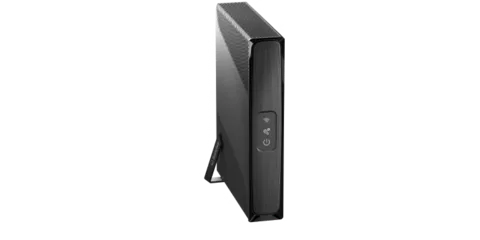
The Connect Box is the modem Sunrise supplies in Switzerland. You manage it in a browser at http://192.168.1.1 or in the Sunrise Connect App; the Connect Box 4 Fiber also has a touchscreen for Wi-Fi, diagnostics and restarts.
- Sign in
192.168.1.1- App
- Sunrise Connect App (iOS and Android)
- Password
- The browser interface asks for the Settings Password. On the Connect Box 4 Fiber it is on the Wi-Fi card at the back; on the Connect Box 3 it is on the label underneath, under “Settings Password”.
- Models
- Connect Box 4 Fiber, Connect Box 3, Connect Box 3 Fiber
Sign in to the Connect Box
Connect your Mac to the Connect Box’s Wi-Fi, or plug in a LAN cable.
Open
http://192.168.1.1in your browser.Enter the Settings Password from the label or card.
Open Advanced settings on the left for Wi-Fi and network options.
A factory reset deletes every setting made in the router interface, including the Wi-Fi name and password. With Automatically back up network settings on in the Connect App, the settings are restored from the cloud afterwards.
Restart it properly
A restart briefly takes down internet, Wi-Fi and telephone. The modem reconnects by itself.
On a Connect Box 4 Fiber, tap the Power button on the touchscreen.
Select Reboot Modem and confirm.
The Reset button at the back (held for 10 seconds) and Tools › Reset modem on the touchscreen restore factory settings. They are not a restart.
Any Connect Box
Disconnect the modem from the power supply.
Wait 30 seconds and plug it back in.
Schedule a restart
Sunrise’s help pages document no scheduled restart.
Update the firmware
Sunrise’s help pages document no firmware version page or manual update for the Connect Box. Sunrise doesn’t say how updates are delivered.
See connected devices
The Connect App lists every device connected to the modem and to any Connect Pods or Wi-Fi Extenders.
Open the Connect App and go to Devices.
View the connected devices, or sort them by device type.
Tap a device to suspend its internet connection.
Create user profiles and assign devices, to pause a whole group at once.
A smartphone whose Wi-Fi internet is suspended may switch to mobile data.
UPnP and port forwarding
Sunrise’s help pages document no UPnP setting for the Connect Box 4 Fiber or Connect Box 3. They document only bridge mode (Modem mode › Activate modem mode on the Connect Box 3) for using your own router.
Prioritise calls and gaming
Sunrise’s help pages document no QoS or device-priority setting for the Connect Box.
2.4 and 5 GHz, and the channel
The Connect Box 3 runs 2.4 and 5 GHz at the same time under one network and picks the better band automatically. You can turn one band off if a device needs it.
Open
http://192.168.1.1and enter the Settings Password.Click Advanced settings › Wi-Fi › Wi-Fi signal.
Set the 2.4 GHz or the 5 GHz network to Deactivate.
Click Apply changes.
Change the channel
Sunrise’s help pages document no way to pick a Wi-Fi channel by hand.
Change the Wi-Fi name and password
Open
http://192.168.1.1and sign in.Select Advanced settings › Configure your WiFi connection.
Enter the new name or password and click Accept changes, then reconnect your devices.
Mesh: which node a device uses
Sunrise’s Smart WiFi adds Connect Pods or Smart WiFi Extenders to the Connect Box as one mesh network. They are plug and play.
In the Connect App, go to For you and tap Start Home Scan to see whether a pod would help.
Plug the pod or extender in; it joins the existing Wi-Fi automatically.
Tap it on the device screen to see its connection status.
If it doesn’t appear, choose Devices › Network › Install device › Start installation (or the plus icon).
Keep pods six to nine metres apart, at most a corridor or two rooms, ideally along partition walls rather than thick supporting walls.
Guest network
Devices on the guest Wi-Fi can’t reach your other networks, such as Wi-Fi speakers.
In the Connect App, go to Devices and tap the Wi-Fi icon in the middle.
Open WiFi Networks, swipe left and tap Activate.
Enter a name and password for the guest Wi-Fi and tap Save.
Wait a few minutes until the guest network appears.
DNS settings
Sunrise’s help pages document no setting for the DNS servers the Connect Box hands out. Set DNS on the Mac instead.
Connection status and logs
On a Connect Box 4 Fiber, tap the Tools icon and select Diagnostics. It checks the internet, the fibre or network link and Wi-Fi.
If a warning icon shows, tap Tools and select the error message, such as No Signal or Internet connection interrupted.
In the Connect App, tap the Connect Box icon on the device screen and choose Test modem speed.
Check Sunrise’s current malfunctions page for known outages, or use technical support in My Sunrise.
Sunrise’s help pages don’t describe an event log or line-statistics page in the browser interface.
Manuals and downloads
Links go to the maker’s own pages.
Questions
Where is the Connect Box Wi-Fi password?
On the Wi-Fi card at the back of the modem. On a Connect Box 4 Fiber you can also tap the Wi-Fi icon on the touchscreen and select Password or QR Code.
Can I use my own router behind a Connect Box 3?
Yes, in bridge mode: sign in, open Modem mode, click Activate modem mode and Adopt changes. If that menu is missing, your line uses IPv6 and Sunrise’s customer service must switch it.
Sources
- Sunrise Support: Connect Box 4 Fiber, modem settings
- Sunrise Support: Connect Box 4 Fiber, touchscreen
- Sunrise Support: Connect Box 4 Fiber, WiFi name and password
- Sunrise Support: Connect Box 4 Fiber, Internet or WiFi not working
- Sunrise Support: Connect Box 4 Fiber, optimising WiFi
- Sunrise Support: Connect Box 3, settings
- Sunrise Support: Connect Box 3, WiFi name and password
- Sunrise Support: Connect App, network overview and device profiles
- Sunrise Support: Connect App, WiFi name and password
- Sunrise Support: Connect App, Home Scan
- Sunrise Support: Connect Pods
Checked on 1 November 2026.
See what your router can’t tell you
Kilobat is a Mac menu-bar app that watches the network from your side: which app is using it, whether the Wi-Fi, the router or the provider is slow, and why a call froze.
brew install seifip/kilobat/kilobat