Provider box · Swisscom
Swisscom Internet-Box login, restart, firmware and Wi-Fi
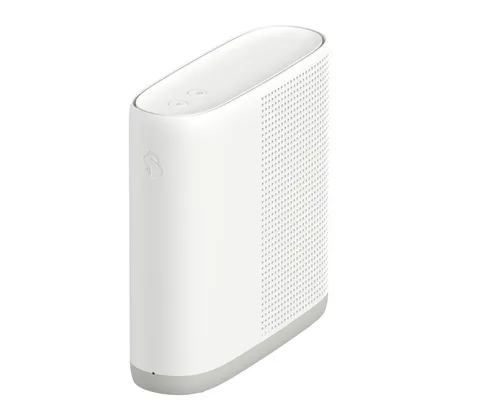
The Internet-Box is the router Swisscom supplies in Switzerland. Everyday settings live in the My Swisscom app and website; the full router portal opens in a browser at http://internetbox.swisscom.ch when you are on your home network.
- Sign in
internetbox.swisscom.chor192.168.1.1- App
- My Swisscom (iOS, Android and web)
- Password
- The router portal uses its own password; Swisscom’s help doesn’t print a default for it, and you can set a new one on the sign-in page. Swisscom routers carry no sticker with the Wi-Fi password: you find that only in My Swisscom.
- Models
- Internet-Box 5 Pro, Internet-Box 5, Internet-Box 4, Internet-Box 3
Sign in to the Internet-Box
Connect your Mac to the Internet-Box, by WLAN or Ethernet.
Open
http://internetbox.swisscom.chin your browser, or192.168.1.1.Enter the portal password and sign in.
For advanced menus such as firmware, switch the portal to Expert mode.
The router portal only opens from your home network. Away from home, My Swisscom shows your WLAN details, connected devices and internet blocking for devices.
Restart it properly
Swisscom’s troubleshooting steps restart the Internet-Box at the power supply. Restart connected WLAN-Boxes, switches and Powerline adapters afterwards too.
Briefly disconnect the Internet-Box from the power supply, or switch it off with its On/Off button.
Reconnect it, or switch it back on.
Wait until the status LED lights up white again.
Don’t press Reset to restart. On the Internet-Box 5, a one-second press with a pointed object underneath restores factory settings. Settings saved by Swisscom’s backup and restore come back afterwards.
Schedule a restart
Swisscom’s help pages document no scheduled restart. The WLAN schedule in My Swisscom only switches WLAN off at set times.
Update the firmware
Swisscom updates the Internet-Box firmware automatically, usually at night, as soon as a new version is available. A white flashing LED means an update is under way, followed by a reboot.
Sign in at
http://internetbox.swisscom.chfrom your home network.Select Expert mode.
Click Internet-Box › Firmware in the menu to see the current firmware.
Swisscom says you can also download and install firmware by hand rather than wait. Its firmware page lists the release notes for each model.
See connected devices
Open My Swisscom in the app or at swisscom.ch and go to your internet overview.
Open the overview of connected devices.
Set internet blocking for a device there if you need to.
In the router portal, the topology view shows how each device and WLAN-Box connects.
Since firmware 15.20, the portal marks devices that use a randomised (private) MAC address, records each device’s first connection, and shows data usage per device.
UPnP and port forwarding
Swisscom’s help pages document no UPnP setting for the Internet-Box. Its backup notes mention port shares and a DMZ in the portal, without a menu path.
Prioritise calls and gaming
Swisscom’s help pages document no QoS or device-priority setting for the Internet-Box.
2.4 and 5 GHz, and the channel
The Internet-Box 5 is dual-band Wi-Fi 7 (2.4 and 5 GHz); the Internet-Box 5 Pro adds 6 GHz. Swisscom’s release notes confirm user-defined 2.4 and 5 GHz channels in the portal.
Swisscom’s help pages document no menu path for splitting the bands or choosing a channel. The WLAN name, password and schedule are set in My Swisscom under Name & password in the WLAN settings.
Mesh: which node a device uses
Swisscom WLAN-Boxes extend the Internet-Box as a mesh with one WLAN name, so devices switch between boxes automatically. Use at most four, with one or two rooms between them.
Plug in the WLAN-Box where you want it, switch it on and wait two minutes.
Press the plus (+) button on the WLAN-Box.
Within two minutes, press the + button on the Internet-Box to pair them.
Wait until the WLAN-Box status LED lights up white. Or set it up in the My Swisscom app instead.
An Ethernet link between the boxes gives the most stable speed. Once paired, a WLAN-Box can move to a new spot without setting it up again.
Guest network
The guest WLAN has its own password and is fully separate from your private network.
Open My Swisscom and go to your internet overview.
Choose the guest WLAN and set it up with its own password.
Share that password, not your private WLAN key, with guests.
Recent firmware can also turn the guest WLAN off after a set time, and the portal shows a WLAN QR code for sharing.
DNS settings
Swisscom’s help pages document no menu path for the DNS servers the Internet-Box hands out. The 15.20 release notes mention custom DNS settings, lost on a downgrade, but not where they are. Swisscom DynDNS is part of the saved settings.
Connection status and logs
Look at the status LED. Steady white means everything is working.
Flashing red means no internet connection; check the cables. Steady red is an error, so switch the box off and on.
Steady blue (after the first ten minutes of installation) means the Internet-Box is faulty and needs exchanging.
In My Swisscom, check your connection and run Smart Support for a specific fault.
Check
www.swisscom.ch/statusfor current faults and maintenance work.
The portal has a diagnostics page and a speed test, but Swisscom’s help pages don’t give their menu path.
Manuals and downloads
- Swisscom Help: Internet-Box 5 Pro
- Swisscom Help: Internet-Box 5
- Internet-Box 5 installation manual (PDF)
- Swisscom Help: Firmware for your Swisscom devices
Links go to the maker’s own pages.
Questions
Where is my Swisscom WLAN password?
Only in My Swisscom: the Internet-Box has no sticker with it. Open the WLAN settings and click Name & password to see or change it.
How do I back up my router settings?
Internet-Box 3 and newer save them automatically to My Swisscom. To do it by hand, open the portal and go to Internet-Box & WLAN-Box › Internet-Box, then choose Save configuration or Restore configuration.
Which settings come back after a reset or a new box?
WLAN name and password, telephony settings, the portal password, IPv6, Swisscom DynDNS, port shares and DMZ. Third-party DynDNS logins and WLAN encryption are not restored.
Sources
- Swisscom Help: Access http://internetbox.swisscom.ch
- Swisscom Help: WLAN settings, password, name and WLAN off times
- Swisscom Help: Internet-Box 5
- Swisscom Help: Internet-Box 5 Pro
- Swisscom Help: Firmware for your Swisscom devices (Internet-Box release notes)
- Swisscom Help: Rectifying an Internet or WLAN fault
- Swisscom Help: WLAN-Box positioning and setup
- Swisscom: Internet-Box 5 installation manual (PDF)
Checked on 1 November 2026.
See what your router can’t tell you
Kilobat is a Mac menu-bar app that watches the network from your side: which app is using it, whether the Wi-Fi, the router or the provider is slow, and why a call froze.
brew install seifip/kilobat/kilobat