Provider box · Magenta
Magenta Internet Fiber Box login, restart, UPnP and Wi-Fi
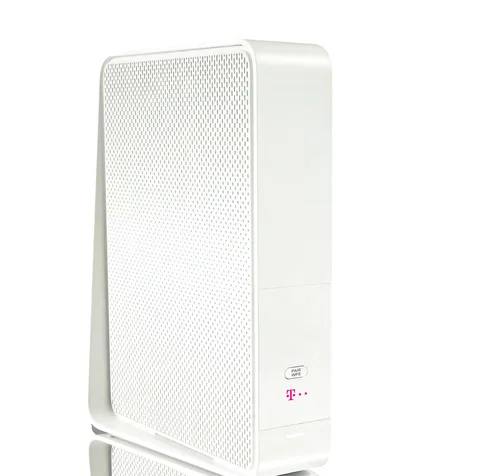
The Internet Fiber Box is the cable modem-router Magenta Telekom supplies with cable internet in Austria, inherited from UPC. You manage it in a browser at http://192.168.0.1.
- Sign in
192.168.0.1- Password
- The password is on the product label on the underside of the box. At the first sign-in the box offers to change it, and Magenta recommends doing so straight away.
- Models
- Internet Fiber Box
Sign in to the Magenta Internet Fiber Box
Connect your Mac to the Fiber Box by Wi-Fi or Ethernet.
Open
http://192.168.0.1in your browser.Pick your language, then enter the password from the label.
The Startseite (Home page) opens with a status overview.
To change the password later, open Admin › Passwort ändern (Change password), click Passwort konfigurieren and then Übernehmen (Apply). Forgotten it? Hold RESET on the back for at least 10 seconds. That erases all your settings, including the firewall.
Restart it properly
Sign in at
http://192.168.0.1and open Admin.Choose Wiederherstellen und Neustarten (Restore and restart).
Click Neu starten (Restart).
Wait until the power light stops blinking and stays white.
Don’t confuse Neu starten with Wiederherstellen der Standardwerte (Restore defaults) on the same page, which returns the box to factory settings. After a factory reset it can take 5 to 30 minutes to find a cable channel and reconnect.
With the power switch
Switch the box off with the EIN/AUS (On/Off) switch on the back.
Switch it back on and wait for the power light to stay white.
Schedule a restart
Magenta’s manual documents no scheduled restart.
Update the firmware
Magenta’s manual documents no firmware update page for the Fiber Box. The read-only Admin › Info page shows the box’s device information.
See connected devices
Sign in and look at the status overview on the Startseite (Home page) for Wi-Fi and Ethernet devices.
Open Verbundene Geräte (Connected devices) for details of every connected device.
To block a device, open Erweiterte Einstellungen › Sicherheit › MAC-Filter (Advanced settings › Security › MAC filter).
Choose the device name, add the filter rule and pick when it applies.
UPnP and port forwarding
The Fiber Box has a UPnP switch. Magenta suggests ticking it when you run an application that needs UPnP.
Sign in and open Erweiterte Einstellungen (Advanced settings).
Open UPNP.
Tick Aktivieren (Enable).
UPnP lets any program on your network open ports in the firewall without asking, which malware can abuse too. Turn it on only if a game or app needs it.
Forward a port by hand
Open Erweiterte Einstellungen › Sicherheit › Port-Weiterleitung (Port forwarding).
Click Neue Regel erstellen (Create new rule).
Enter the details and click Anwenden (Apply). You can delete rules on the same page.
NAT-PMP
Magenta’s manual documents UPnP, port forwarding, port triggering and DMZ, but no NAT-PMP.
Prioritise calls and gaming
Magenta’s manual documents no QoS or device-priority setting on the Fiber Box.
2.4 and 5 GHz, and the channel
The Fiber Box is dual-band. The 2.4 GHz band reaches further but is slower; 5 GHz is faster, shorter-range and usually less crowded.
Sign in and open Erweiterte Einstellungen › WLAN (Advanced settings › Wi-Fi).
Open Drahtlossignal (Wireless signal), where both bands’ basic settings are.
Switch a band on or off, or choose its wireless mode.
Set the channel manually or to automatic, and choose the channel width.
Magenta says most modems pick the best channel themselves, but checking how busy your channels are can still help.
Help older devices connect
Open Erweiterte Einstellungen › WLAN › Sicherheit (Security).
Choose the mixed mode WPA-PSK/WPA2-PSK instead of WPA2-PSK.
Mesh: which node a device uses
Magenta sells Magenta Mesh WLAN: Mesh Beacons that connect to the modem and build one larger network. They choose the best channel by themselves.
Magenta’s Fiber Box manual doesn’t describe pairing Mesh Beacons with the box.
Guest network
The guest network uses your 2.4 GHz network name with a guest suffix and its own password. Guests get internet but can’t reach files or printers on your main network.
Sign in and click Gastnetzwerk (Guest network) on the Startseite.
Or open Erweiterte Einstellungen › WLAN › Gastnetzwerk.
Set up the guest network there.
DNS settings
Magenta’s manual documents no setting for the DNS servers the box hands out; the DHCP page only reserves IP addresses. Set DNS on the Mac instead.
Connection status and logs
Sign in and open Erweiterte Einstellungen › Tools.
Open Status, Downstream and Upstream for the cable modem’s channel readings.
Open Netzwerk Log (Network log) for critical events in time order.
Use Ping or Traceroute to test the connection, and Admin › Info for the WAN IP settings.
What the lights mean
Power blinking white: starting; steady white: ready. Internet blinking green: searching for a connection or passing data; steady green: online. WLAN green: Wi-Fi active; red: Wi-Fi has failed. If no light is on, check the power supply.
Manuals and downloads
Links go to the maker’s own pages.
Questions
What is Modem-Modus?
It turns the router off so the box works as a plain cable modem for your own router. The interface then moves to http://192.168.100.1.
My Wi-Fi is slow with older devices. What helps?
Magenta says older Wi-Fi standards slow down every device on the same network. Use 5 GHz where you can, and an Ethernet cable for consoles and TV boxes.
Sources
- Magenta: Internet Fiber Box Benutzerhandbuch, Installation, Tipps & Tricks (PDF, July 2021)
- Magenta: Tipps WLAN optimieren
- Magenta: Hardware Support
Checked on 1 November 2026.
See what your router can’t tell you
Kilobat is a Mac menu-bar app that watches the network from your side: which app is using it, whether the Wi-Fi, the router or the provider is slow, and why a call froze.
brew install seifip/kilobat/kilobat