Router · Huawei
HUAWEI router login, restart, updates and UPnP
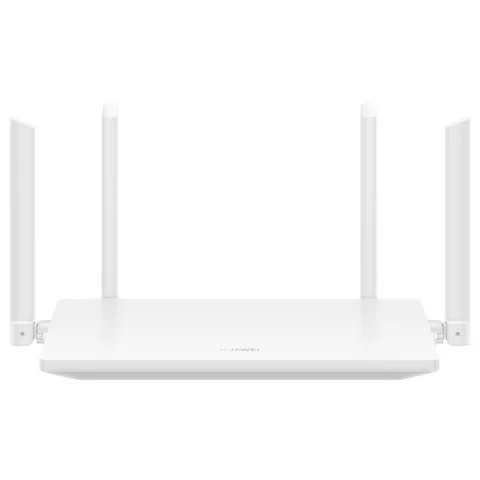
HUAWEI’s home Wi-Fi routers, such as the WiFi AX3, are managed in the HUAWEI AI Life app or on a web page in the browser. Some tasks, like restarting, are only in the app.
- Sign in
192.168.3.1- App
- The HUAWEI AI Life app
- Password
- There is no factory login password on general retail models. You create the login password in the setup wizard. Some models set up with WPS use a management password printed on the nameplate.
- Models
- HUAWEI WiFi AX2, HUAWEI WiFi AX3, HUAWEI WiFi AX3 Pro, HUAWEI WiFi WS5200 NEW, HUAWEI WiFi Mesh 3, HUAWEI WiFi Mesh 7, HUAWEI WiFi Q2 Pro
Sign in to the HUAWEI WiFi router
The address is printed on the nameplate on the bottom of the router; carrier versions may use another one.
Join the router’s Wi-Fi or plug the Mac into a LAN port.
Open
http://192.168.3.1, or the address on the nameplate.Enter the login password and select Log In.
On a phone, tap the icon in the top-right corner to switch to the desktop version first.
A forgotten login password can’t be recovered. Hold the Reset button (or the H/Hi/WPS button for over 10 seconds on some models) until the light goes off. This erases all settings.
Restart it properly
Join the router’s Wi-Fi and open the AI Life app.
Tap the router to open its management screen.
Go to Show more › Router settings › Restart router and tap OK.
On some app versions the path is Devices › Restart router.
HUAWEI’s restart article covers only the app and the power plug, not the web page. A secondary mesh router follows the main HUAWEI router’s settings.
Restart at the plug
Unplug the router’s power cable, then plug it back in.
Schedule a restart
HUAWEI’s help pages describe no scheduled restart. The Wi-Fi Timer only turns Wi-Fi off at set times.
Update the firmware
On the web page, go to More Functions › Manage Updates.
Click Update Now to check, then One-click update if a version is found.
To update by itself, turn on Auto-update, set the Update time and click Save.
In AI Life, the same options are under Updates (or Devices › Updates).
The router restarts during the update and nothing can go online until it finishes. Don’t unplug it. Updates keep your settings and can’t be rolled back.
See connected devices
On the web page, open Manage Device to see each device’s name, MAC address and the device count.
Turn off a device’s Internet Access switch to block it.
In AI Life, tap Connected devices (or Devices › Connected devices) for the same list.
Tap the edit icon next to a device to rename it.
HUAWEI suggests checking the count: more devices than you own means someone else has joined.
UPnP and port forwarding
HUAWEI routers support UPnP. HUAWEI’s English article says it is off by default.
Log in to the web page.
Go to More Functions › Network Settings › UPnP.
Turn UPnP on or off.
UPnP lets any app on your network open ports to the internet without asking. Leave it off unless a game, call or other app needs it.
NAT-PMP
HUAWEI’s help pages don’t mention NAT-PMP; only UPnP is documented.
Prioritise calls and gaming
HUAWEI’s English help documents no priority setting for apps or devices. You can cap a device’s speed instead.
On the web page, open Manage Device.
Turn on Limit Rate for the busy device.
Set its maximum upload and download speeds and save.
In AI Life, open the device under Connected devices and use Speed limit.
Each router allows only a limited number of speed-limited devices, online or offline.
2.4 and 5 GHz, and the channel
By default 2.4 GHz and 5 GHz share one name, and Prioritize 5 GHz moves devices to the faster band.
On the web page, click My Wi-Fi.
Turn off Prioritize 5 GHz (Tri-band auto-switch on tri-band models) and click Save.
The 5 GHz network appears separately, named like
HUAWEI-XXXXXX_5G.In AI Life, it’s under Show more › Wi-Fi management › Wi-Fi.
Change the channel
On the web page, go to More Functions › Wi-Fi Settings › Advanced Wi-Fi Settings.
Set the channel in Channel. On 2.4 GHz, try 1, 6 and 11.
Or, in AI Life, open Wi-Fi management › Wi-Fi quality and tap Remove interference.
Remove interference only works on 2.4 GHz and is greyed out if the channel is already best. Devices drop briefly while it switches. A restart also picks a better channel.
Mesh: which node a device uses
HUAWEI routers link up with HUAWEI WiFi Mesh+, wirelessly (up to five secondary routers) or with cables.
Set up the main router and wait for its light to be steady.
Place a new or reset router within about 1 metre and power it on.
When the main router’s light flashes slowly, press its H (or WPS) button.
When the second router’s light is steady, move it to where you need coverage.
Or open AI Life, which detects the new router, and follow the prompts.
Connect each extra router to the main one, not in a chain. HUAWEI suggests no more than two walls between them. The secondary routers copy the main Wi-Fi name and password.
Guest network
On the web page, go to More Functions › Wi-Fi Settings › Guest Wi-Fi.
Turn on guest Wi-Fi and set its name and password.
Choose how long it stays on, such as 4 hours or 1 day; Delay 30 min extends it.
In AI Life, it’s under Show more › Guest Wi-Fi, with an extra speed limit option.
Guests can go online but can’t reach your home devices or the router settings. Guest devices are isolated from each other, so screen casting doesn’t work.
DNS settings
HUAWEI’s English help pages don’t describe changing the DNS server on these routers. The setup wizard asks for DNS servers only on a Static IP connection. To use another resolver, set it on the Mac instead.
Connection status and logs
In AI Life, tap Smart diagnosis (or Network › Smart diagnosis).
It checks the connection, signal and router status, and offers suggestions.
Tap Checkup for a report on connectivity, speed, interference and routing.
For firmware and hardware details, open More Functions › About Router on the web page.
There is no event log to read. More Functions › System Settings › Developer Options › Save Locally saves diagnostic data for HUAWEI support.
Manuals and downloads
Links go to the maker’s own pages.
Questions
Why can’t I find the settings on my secondary router?
When the main router is a HUAWEI router, the secondary router follows its settings. Change them on the main router.
What if my router came from my provider?
Carrier-customised HUAWEI routers can use a different address and default password. Check the nameplate or ask the provider.
Sources
- HUAWEI Support: How can I log in to my HUAWEI router’s web-based management page
- HUAWEI Support: How can I set up the Internet for my new HUAWEI router on my computer
- HUAWEI Support: What should I do if I forget my router’s login password?
- HUAWEI Support: How do I restore a HUAWEI router to its factory settings
- HUAWEI Support: How do I restart my HUAWEI router
- HUAWEI Support: How do I update the firmware version of my HUAWEI router
- HUAWEI Support: How to manage the devices connected to a Huawei router
- HUAWEI Support: How do I enable UPnP on my HUAWEI router
- HUAWEI Support: How do I disable Prioritize 5 GHz/Tri-band auto-selection
- HUAWEI Support: How do I optimize my Wi-Fi channels of my HUAWEI router
- HUAWEI Support: How do I cascade the HUAWEI Router to HUAWEI WiFi Mesh+ routers
- HUAWEI Support: How can I turn on my HUAWEI router’s Guest Wi-Fi
- HUAWEI Support: How do I use the HUAWEI router’s smart diagnosis function in the AI Life App
- HUAWEI Support: How to diagnose errors with my router
- HUAWEI Support: How do I view my HUAWEI router’s device information
- HUAWEI Support: How can I set my HUAWEI router’s Wi-Fi to turn off at a certain time
Checked on 1 November 2026.
See what your router can’t tell you
Kilobat is a Mac menu-bar app that watches the network from your side: which app is using it, whether the Wi-Fi, the router or the provider is slow, and why a call froze.
brew install seifip/kilobat/kilobat