Router · Firewalla
Firewalla setup, restart, updates, UPnP and Smart Queue
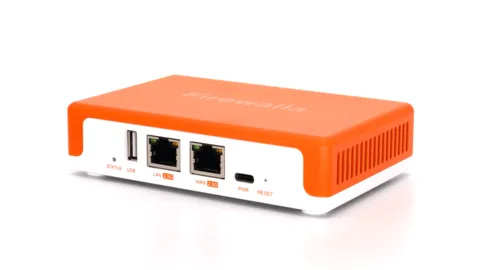
Firewalla makes firewall routers such as the Gold, Purple and Orange, used as your main router or bridged behind your provider’s box. There is no admin web page to sign in to: you pair the box with the Firewalla app and manage everything there.
- Sign in
- The Firewalla app
- App
- Firewalla app (iOS and Android)
- Password
- There is no admin password. You pair the app with the box by scanning the QR code on its underside. Wi-Fi passwords on Orange and Purple are ones you set in the app.
- Models
- Firewalla Orange, Firewalla Purple, Firewalla Purple SE, Firewalla Gold Pro, Firewalla Gold SE, Firewalla Gold Plus, Firewalla Gold
Sign in to the Firewalla
Install the Firewalla app, and make sure your phone has internet access, ideally over mobile data.
Connect the box’s WAN port to your modem or provider router, then power it on.
In the app, tap + and choose your model, such as Firewalla Orange.
When the box is found, scan the QR code on its underside.
Choose Yes, set up as a router, or Bridge Mode to keep your current router.
After a reset, pair the box again as a new box.
Restart it properly
Firewalla advises against routine reboots. It updates without rebooting and recovers from faults by itself; reboot only when there is a real problem, such as no internet and no way to reach the box.
On Gold Pro, press the Reboot button; on the original Gold, Rev B and Gold Plus, the Reset button reboots it.
On other models, unplug the power and plug it back in.
Watch the status light; on Orange, light off means normal and blinking red means the network is down.
Schedule a restart
Firewalla documents no scheduled restart, and recommends against routine ones.
Factory reset
In the app, tap Box Settings › Advanced › Reset › Reset to Factory Defaults.
Keep the old box icon in the app until you have restored your settings.
On Gold SE and Gold Pro, the Reset button is a factory reset, not a reboot. A reset erases everything until you restore it from the app.
Update the firmware
Leave the box connected; Firewalla installs box updates automatically.
Keep the Firewalla app itself updated from the App Store or Google Play.
Firewalla says all box updates are automatic and mandatory, and install without a reboot and with minimal interruption. There is no manual firmware download.
See connected devices
On the box’s main screen in the app, tap Devices to see every wired and wireless device.
Tap a device to see its activity, and on Orange or AP7 its Wi-Fi channel and signal.
To rename it, scroll to Device Name, tap the arrow, type a name and tap Save.
To find weak Wi-Fi devices, tap View Options and sort by Signal Strength.
Firewalla alerts you when a new device joins. Turn on New Device Quarantine to limit new devices automatically until you approve them.
UPnP and port forwarding
Firewalla supports UPnP port mapping in Router and DHCP modes, and lets you allow it only on chosen networks, such as a gaming VLAN.
On the box’s main screen, tap Network to open Network Manager.
Tap NAT Settings › Port Forwardings.
Under UPnP, tap Apply To › Specific Networks, and tick the networks that may use it.
Ports opened by UPnP appear in the same list, where you can block any of them.
Firewalla recommends manual port forwarding over UPnP, because any device or app can open ports without your oversight. Limit UPnP to the networks that need it. Ports only work with a public IP address; behind your provider’s NAT they won’t.
Manual port forwarding
Tap Network › NAT Settings › Port forwarding › Add Port Forwarding.
Choose the protocol, external port, device and internal port.
Under Ingress Firewall, limit who may reach the port, then save.
NAT-PMP
Firewalla’s help centre doesn’t mention NAT-PMP or UPnP status counters.
Prioritise calls and gaming
Smart Queue reduces bufferbloat, prioritises traffic and rate-limits apps. It isn’t available in Bridge Mode.
On the box’s main page, open Smart Queue and toggle it on.
Tap Mode: Static for all traffic, or Adaptive with your internet speeds.
Tap Smart Queue Rules to prioritise a device or app, or limit its speed.
Choose a Queue Type: FQ_CoDel above 200 Mbps, CAKE below that.
CAKE helps on slower or variable lines and with lag during uploads and video calls, but uses more CPU.
2.4 and 5 GHz, and the channel
Only Orange and Purple have built-in Wi-Fi; Gold needs your own access points or Firewalla AP7. On Orange each Wi-Fi network can use 2.4 GHz, 5 GHz or both.
On the box’s main screen, tap Wi-Fi and select an SSID.
Tap Edit in the top-right corner.
Under Frequency Band, pick 2.4 GHz, 5 GHz or both, then save.
To split bands, create a second SSID with only one band.
Change the channel
Tap Wi-Fi › Access Points and select Orange.
Under 2.4 GHz or 5 GHz, tap Channel.
Switch from Automatic to Manual and pick a channel.
Automatic mode on 5 GHz includes DFS channels. Orange has no 6 GHz; AP7 does.
Mesh: which node a device uses
Mesh Wi-Fi comes from Firewalla Access Point 7, wired or wireless. Orange’s built-in Wi-Fi can’t run at the same time as AP7.
Pair the AP7 in the app; Wi-Fi networks you create apply to every AP7.
Tap Network, then the Topology tab, to see each AP7, its backhaul and its devices.
On an AP7’s detail page, tap Connection Type › Backhaul Mode to choose Automatic or Wired Only.
Devices roam between AP7s on their own.
Guest network
There is no single guest switch. You create a separate network for guests and give it its own Wi-Fi.
Tap Network › Create Network and create a local network or VLAN for guests.
On Orange, tap Wi-Fi › Create Wi-Fi, set a name and password, and select that network.
Add rules so guest devices can’t reach your other local networks.
Tap QR Code on the Wi-Fi’s page and Share it with guests.
Turn on New Device Quarantine for the guest network for extra control. On Gold, use an access point that broadcasts a guest SSID on that VLAN.
DNS settings
On the box’s main page, tap Services and toggle DNS over HTTPS on.
Choose the devices it applies to and the servers, such as Cloudflare, Google, Quad9 or OpenDNS.
To set plain DNS servers instead, tap Network, then the WAN or a LAN, and edit DNS Servers.
Firewalla is the DNS server for your networks. With DoH on, covered devices use it even if they set their own DNS. DoH breaks names that point at local addresses, so turn it off if a local service stops resolving.
Connection status and logs
Look at the Network Performance bar on the box’s main page; red means the internet was down.
Tap it to see outages, latency, packet loss and events from the last 24 hours.
Tap Test Internet Speed, or set automatic daily tests under Test Options.
Tap Wi-Fi Test while on the box’s Wi-Fi to measure the link from your phone.
From a Mac on your network, http://fire.walla:8833/ss/ tests the speed between it and the box.
Manuals and downloads
- Firewalla Orange Installation Guide
- Firewalla Gold Series Installation Guide
- Firewalla Feature Guide: Network Manager
Links go to the maker’s own pages.
Questions
Is there a Firewalla web admin page?
Not for setup. Firewalla is managed in the Firewalla app, paired to the box by its QR code.
Should I reboot my Firewalla every week?
No. Firewalla says the box updates and recovers without reboots, and recommends rebooting only when there’s a specific problem.
Sources
- Firewalla Help: Firewalla Orange Installation Guide
- Firewalla Help: Firewalla Gold Series Installation Guide
- Firewalla Help: Do I need to reboot Firewalla once in a while?
- Firewalla Help: How to Reset Firewalla Box?
- Firewalla Help: Rename A Connected Device
- Firewalla Help: Feature Guide: Network Manager
- Firewalla Help: Create Port Forwarding on Gold/Purple/Orange Series
- Firewalla Help: Smart Queue
- Firewalla Help: Firewalla Orange Wi-Fi Configuration Guide
- Firewalla Help: Getting Started with Firewalla Access Point 7
- Firewalla Help: Network Segmentation Use Cases
- Firewalla Help: DNS over HTTPS (DoH)
- Firewalla Help: Network Performance and Quality Monitoring
- Firewalla Help: A Secure and Better Network with Firewalla (Part 1): Visibility
Checked on 1 November 2026.
See what your router can’t tell you
Kilobat is a Mac menu-bar app that watches the network from your side: which app is using it, whether the Wi-Fi, the router or the provider is slow, and why a call froze.
brew install seifip/kilobat/kilobat