Provider box · Ziggo
Ziggo SmartWifi modem login, restart, Wi-Fi channel and guest network
The SmartWifi modem is the cable modem Ziggo supplies in the Netherlands, the successor to the Connectbox. Ziggo recommends managing it with the SmartWifi app or SmartWifi web; the browser interface at 192.168.178.1 still works at home.
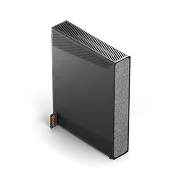
- Sign in
192.168.178.1- App
- Ziggo SmartWifi app (iOS and Android), or SmartWifi web at smartwifiweb.ziggo.nl
- Password
- The modem’s default password is on the sticker on the underside of the modem, or on a card that came with it. SmartWifi web uses your Mijn Ziggo login with an extra SMS code instead.
- Models
- SmartWifi modem (black, Sagemcom F3896LG), Ziggo wifi-router (Sagemcom F5685LGE), SmartWifi modem Giga, SmartWifi modem (Connectbox)
Sign in to the SmartWifi modem
Connect your Mac to the modem’s Wi-Fi, or by Ethernet cable if no sign-in page appears.
Type
http://192.168.178.1in the address bar and press Return.If the browser warns the page isn’t secure, click Advanced and continue to
192.168.178.1.Enter the modem password and click Doorgaan (Continue).
Ziggo warns that settings made at 192.168.178.1 are saved in the modem but don’t show up in the SmartWifi app or SmartWifi web. Forgotten the password? Press the reset button for a few seconds with a paperclip, wait 5 minutes, and sign in with the sticker password. That restores factory settings.
Restart it properly
Unplug the modem from the power for about a minute.
Plug it back in and wait until it has started up.
Restart any SmartWifi pods or other Wi-Fi points the same way.
Ziggo says the modem picks the best Wi-Fi channel again each time it starts. Don’t use the reset button to restart: it returns the modem to factory settings.
Schedule a restart
Ziggo documents no scheduled restart.
Update the firmware
Ziggo’s help pages document no firmware version page or manual update for the SmartWifi modem.
See connected devices
Open the SmartWifi app and sign in with your Mijn Ziggo details.
Tap Apparaten (Devices) in the bar at the bottom.
See which devices are connected to the Wi-Fi.
Pause a device’s internet for a while if needed.
Ziggo’s help pages describe the device overview only in general terms, without exact steps for pausing.
UPnP and port forwarding
Ziggo’s help pages document no UPnP setting for the SmartWifi modem. They say port forwarding, DHCP and MAC filtering are in SmartWifi web.
Open SmartWifi web at
smartwifiweb.ziggo.nl.Sign in with your Mijn Ziggo email address, password and SMS code.
Find port forwarding, DHCP and MAC filtering among its advanced settings.
Port forwarding exposes a device directly to the internet; forward only the ports it needs. Ziggo doesn’t publish the exact SmartWifi web menu path, so check the labels there. A forwarded port also needs a public IPv4 address on your connection.
NAT-PMP
Ziggo documents no NAT-PMP setting.
Prioritise calls and gaming
Ziggo’s help pages document no QoS or device-priority setting on the SmartWifi modem.
2.4 and 5 GHz, and the channel
By default the modem uses one network name for 2.4 and 5 GHz. Ziggo advises keeping that, and using the SmartWifi app to switch to its optimal settings.
Sign in at
192.168.178.1and click Geavanceerde instellingen (Advanced settings).Click Draadloos (Wireless) in the menu.
Under 2,4 GHz wifi-configuratie, set the Wifi-naam (SSID) (Wi-Fi name).
Under 5 GHz wifi-configuratie, set a different name to split the bands.
Click Wijzigingen toepassen (Apply changes). The connection drops for about a minute.
Change the channel
In Geavanceerde instellingen, click Draadloos to reach Draadloos signaal (Wireless signal).
For 2.4 GHz, click Handmatig (Manual).
Set the Kanaalbreedte (Channel width) to 20 MHz.
Change Channel from Auto to 1, 6 or 11, which don’t overlap.
Click Instellingen opslaan (Save settings).
Ziggo calls a fixed channel no lasting fix for slow Wi-Fi, and advises leaving it on automatic. With SmartWifi pods you can’t change the channel yourself.
Mesh: which node a device uses
Ziggo’s SmartWifi pods extend the modem’s Wi-Fi and are managed in the SmartWifi app. Ziggo’s TP-Link Deco boosters use the Deco app instead.
Open the SmartWifi app and tap Apparaten (Devices) at the bottom.
Under Optimaliseer je netwerk (Optimise your network), tap Ja, start (Yes, start).
Tap Van start gaan (Get started) and follow the steps.
Run the Wifi Thuisscan (home Wi-Fi scan) to check the signal in each room.
Optimising may mean reconnecting your devices once. With pods, SmartWifi chooses channels by itself.
Guest network
Open the SmartWifi app and go to Wifi Details on the first screen.
Swipe right once to see the Gastnetwerk (Guest network) and tap Inschakelen (Turn on).
Tap Ja, sla op (Yes, save). The connection may drop briefly.
Tap the pencil to change the guest name and password, then Opslaan (Save).
Share the details with the QR code.
Only the modem broadcasts the guest network, not the SmartWifi pods, so its range can be smaller.
In the browser
Sign in at
192.168.178.1and click Wijzig je gastnetwerk (Change your guest network).Click Schakel gast wifi-netwerk in (Turn on guest Wi-Fi) and Volgende (Next).
Set the Wifi-naam (SSID) and Wachtwoord (Password), then Volgende.
Keep Altijd ingeschakeld (Always on), or set an end date and time, and click Afgerond (Done).
DNS settings
Ziggo’s help pages document no setting for the DNS servers the modem hands out. Set DNS on the Mac instead.
Connection status and logs
Sign in to Mijn Ziggo and start the ServiceScan.
It tests your connection and Wi-Fi remotely and gives advice.
If the scan doesn’t solve it, contact Ziggo’s Wifi Crew from the results.
Ziggo documents no connection-status or event-log page in the modem’s own interface.
Manuals and downloads
Links go to the maker’s own pages.
Questions
Should I use 192.168.178.1 or SmartWifi web?
Ziggo recommends the SmartWifi app or SmartWifi web, which always show your current settings. Changes made at 192.168.178.1 don’t appear there.
Which Wi-Fi channel should I pick on 2.4 GHz?
Ziggo says to pick 1, 6 or 11 with a 20 MHz width, because the other channels overlap.
Sources
- Ziggo: SmartWifi modem/wifi-router (zwart)
- Ziggo: Inloggen op modem, router of wifi-versterker
- Ziggo: Wifi-netwerknaam wijzigen
- Ziggo: Wifi-kanaal wijzigen
- Ziggo: Wifi-gastnetwerk instellen
- Ziggo: SmartWifi app
- Ziggo: Modem of wifi-router instellen
Checked on 1 November 2026.
See what your router can’t tell you
Kilobat is a Mac menu-bar app that watches the network from your side: which app is using it, whether the Wi-Fi, the router or the provider is slow, and why a call froze.
brew install seifip/kilobat/kilobat