Provider box · KPN
KPN Box login, restart, updates and UPnP
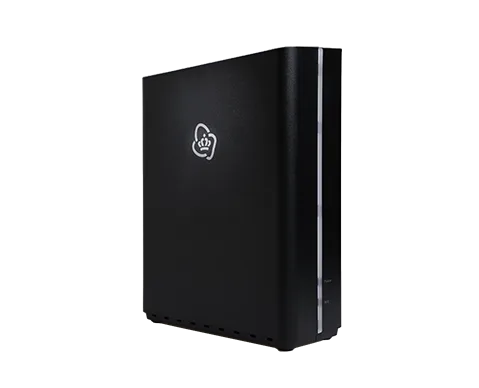
The KPN Box is the modem KPN supplies in the Netherlands. The Box 14, Box 12 and Experia Box V10 and V10A run the same KPN Software, so the browser interface at mijnmodem.kpn looks the same on all of them. The MijnKPN app handles everyday Wi-Fi tasks.
- Sign in
mijnmodem.kpnor192.168.2.254- App
- MijnKPN (iOS and Android), under Mijn Wifinetwerk
- Password
- The default password is on the sticker on the back of the modem; on an Experia Box V10 it is shown on the sign-in page. The Box 14 asks you to choose your own password the first time you sign in. KPN Software no longer needs a user name; where one is shown,
adminis filled in already. - Models
- KPN Box 14, KPN Box 12, Experia Box V10A, Experia Box V10
Sign in to the KPN Box
Connect your Mac to the KPN Box by Wi-Fi or Ethernet.
Open
mijnmodem.kpn,192.168.2.254orinstellen.localin your browser.The sign-in page shows the modem’s software version below its picture.
Enter the password and click Inloggen (Sign in).
To set your own password later, open Instellingen (Settings) and the Login wachtwoord (Sign-in password) tab.
Forgotten a password you set? Click Toegangswachtwoord vergeten? (Forgotten access password?) under the sign-in button, then briefly press the Wi-Fi button on the modem within 5 minutes. Only the sign-in password returns to the one on the sticker; your other settings stay. If the page won’t open, turn off any VPN without split tunnelling and any blocking browser extensions.
Restart it properly
KPN’s first advice for any problem is to restart the modem by its power plug.
Pull the KPN Box’s plug from the wall socket.
Wait 10 seconds.
Plug it back in and wait until the Power light is steady green.
Don’t use the reset hole or Reset dit apparaat (Reset this device) under Instellingen › Systeem to restart: both return the box to factory settings and erase your own changes. A reset takes 10 to 15 minutes; a purple light means the box is on factory settings.
Schedule a restart
KPN documents no scheduled restart. Wifinetwerk › Tijdschema (Wi-Fi network › Schedule) only switches Wi-Fi off at set times.
Update the firmware
Open
mijnmodem.kpn; the sign-in page shows the current software version.Sign in, then open Instellingen (Settings) and Systeem (System).
If an update is shown as available, start it with the update button there.
Wait while the Power light is blue; the box is updating and restarts by itself.
KPN pushes updates to the modem automatically, so you normally do nothing. KPN posts an article for each release in the Product Updates section of its community.
See connected devices
Open the MijnKPN app and tap Mijn wifinetwerk (My Wi-Fi network) at the top left.
Tap Apparaten (Devices) below the Wi-Fi symbol.
KPN devices such as the modem, Wifipunten and TV box are listed first, your own devices below.
Tap a device to switch its Wi-Fi access off, set a daily limit or a weekly schedule.
Tap the blue pencil to give the device a recognisable name.
In the browser, the device list under Thuisnetwerk › IP-adres reserveren (Home network › Reserve IP address) shows each connected device with its IP and MAC address.
UPnP and port forwarding
KPN Software has a UPnP switch for automatic port forwarding. KPN suggests it mainly for gaming; you don’t need it if you only set fixed port forwards.
Sign in at
mijnmodem.kpn.Click Beveiliging (Security) in the left menu.
Click UPnP in the top row.
Turn on UPnP with the slider.
Click Opslaan (Save). Herstellen (Restore) returns the factory values.
UPnP lets any program on your network open ports in the modem’s firewall without asking, and malware can use that too. Turn it on only if a game or app needs it. KPN recommends a fixed IP (Thuisnetwerk › IP-adres reserveren) for any device you forward ports to.
NAT-PMP
KPN’s knowledge base documents no NAT-PMP setting. Fixed forwards are under Beveiliging › Port forwarding, with separate IPv4 and IPv6 tabs.
Prioritise calls and gaming
KPN’s knowledge base documents no QoS or device-priority setting in KPN Software. The MijnKPN app can pause a device or limit its daily time, not prioritise it.
2.4 and 5 GHz, and the channel
The main network uses one name for 2.4 and 5 GHz. To give older or smart-home devices a single band, KPN offers Extra wifinetwerk (Extra Wi-Fi network): a separate 2.4 GHz or 5 GHz network.
Sign in at
mijnmodem.kpnand click Wifinetwerk (Wi-Fi network) in the left menu.Click Extra wifinetwerk in the top row.
Choose 2.4 GHz or 5 GHz at the top, then turn on the network with the slider.
Change the name (by default your network name plus
_ExtraWiFi2Gor_ExtraWiFi5G) and the password.Click Opslaan (Save).
For devices that only connect on 2.4 GHz, KPN suggests an extra 2.4 GHz network with WPA2 security. Giving both extra networks the same name joins them into one again.
Change the channel
Click Wifinetwerk, then the Wifisignaal (Wi-Fi signal) tab.
Under the 2.4 or 5 GHz settings, choose the channel and bandwidth.
Save the change. The buttons above can switch Wi-Fi 6 off for older devices.
KPN advises leaving these on their defaults unless you have Wi-Fi problems. Channel settings on a Wifipunt are set separately, under Thuisnetwerk › the Wifipunt › WiFi-radio.
Mesh: which node a device uses
The KPN Box forms a mesh with KPN’s Wifipunten: SuperWifi 2, SuperWifi 1 and Experia Wifi running KPN Software. The modem stays in charge of the Wi-Fi settings.
On the sign-in page, click the right-hand button to see your Wifipunten and their status.
After signing in, click Thuisnetwerk (Home network) in the left menu.
Click a Wifipunt to open its details, and the WiFi-radio tab for its radio settings.
Or open the MijnKPN app: Mijn wifinetwerk lists the Wifipunten among KPN devices.
Switching Wi-Fi off on the modem (Wifinetwerk › Wifisignaal) asks whether to switch it off on all Wifipunten too, or only on the modem. With SuperWifi 1, KPN advises WPA2 and the Wi-Fi 5 setting.
Guest network
Sign in at
mijnmodem.kpnand click Wifinetwerk (Wi-Fi network).Click Gastnetwerk (Guest network) in the top row and turn it on with the slider.
Choose how long it stays on, from 1 to 48 hours or unlimited.
Set the name (by default your network name plus
_Gast) and choose your own password.Optionally cap guests’ speed at 10 to 50 Mbit/s, then click Opslaan (Save).
In the MijnKPN app: Mijn Wifinetwerk › Wifi instellingen, tap the guest network and its slider. The guest network is kept apart from your own network on a separate VLAN, with its own address range.
DNS settings
Sign in at
mijnmodem.kpnand click Internetverbinding (Internet connection) in the left menu.Click DNS in the top row.
Untick the box that keeps KPN’s DNS servers.
Enter the IPv4 DNS servers you want, and the IPv6 ones if you use IPv6.
Click Opslaan (Save).
Devices on your network then use the new servers. The modem itself keeps using KPN’s DNS, so Internetverbinding › Informatie still shows KPN’s servers.
Connection status and logs
Look at the Power light. Green means all is well; orange means internet, TV or phone isn’t working.
Blinking red means the box is syncing and fetching an IP address; steady red means a fault, so restart it.
For details, sign in and click Internetverbinding › Informatie (Internet connection › Information).
Open the IPv6 tab for the IPv6 connection.
KPN’s knowledge base doesn’t describe an event log for KPN Software. The MijnKPN app and KPN’s Wifi Manager check your Wi-Fi from your phone.
Manuals and downloads
- KPN: Box 14 handleiding en hulp bij inloggen, resetten en meer
- KPN: Box 12 handleiding en hulp bij problemen
- KPN: handleidingen en software
Links go to the maker’s own pages.
Questions
Can I reset just the sign-in password?
Yes. Click Toegangswachtwoord vergeten? on the sign-in page and press the Wi-Fi button within 5 minutes. Only the password returns to the one on the sticker.
How do I give a smart plug a 2.4 GHz network?
Create an Extra wifinetwerk on 2.4 GHz under Wifinetwerk, with WPA2 security, and connect the device to that name.
Sources
- KPN Kennisbank: Modems met KPN Software, webinterface en instellingen
- KPN Kennisbank: KPN Box 14, van specificaties tot instellingen
- KPN: Box 14 handleiding en hulp bij inloggen, resetten en meer
- KPN: Box 12 handleiding en hulp bij problemen
- KPN Kennisbank: Reset het KPN modem (KPN Box / FRITZ!Box)
- KPN Kennisbank: Modems met KPN Software, port forward instellen en UPnP aanzetten
- KPN Kennisbank: Modems met KPN Software, wifi instellingen wijzigen
- KPN Kennisbank: Modems met KPN Software, extra wifinetwerk instellen
- KPN Kennisbank: Modems met KPN Software, gastwifi instellen
- KPN Kennisbank: Modems met KPN Software, DNS instellingen aanpassen
- KPN Kennisbank: Modems met KPN Software, DHCP binding / vast IP instellen
- KPN: Verbonden apparaten bekijken met de MijnKPN app
Checked on 1 November 2026.
See what your router can’t tell you
Kilobat is a Mac menu-bar app that watches the network from your side: which app is using it, whether the Wi-Fi, the router or the provider is slow, and why a call froze.
brew install seifip/kilobat/kilobat