Provider box · StarHub
StarHub router login, restart, firmware and UPnP
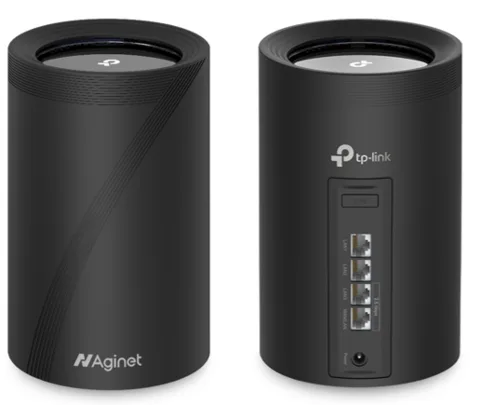
StarHub supplies TP-Link routers with its Fibre Broadband plans: Wi-Fi 7 mesh models such as the HB410, HB615, HB710 and EB810v on UltraSpeed plans, and the Wi-Fi 6 EX510 on others. You manage them in the TP-Link Aginet app or in a browser at tplinkwifi.net.
- Sign in
tplinkwifi.netor192.168.0.1- App
- TP-Link Aginet (iOS and Android)
- Password
- There is no factory password on the HB410: you create one the first time you open the page. The HB615 prints a web password on the bottom of the router. The default Wi-Fi name and password are on the product label.
- Models
- TP-Link HB410, TP-Link HB615, TP-Link HB710, TP-Link EB810v, TP-Link EX510
Sign in to the StarHub TP-Link router
Join the router’s Wi-Fi, or plug in with Ethernet.
Open
http://tplinkwifi.net,http://192.168.0.1orhttp://192.168.88.1in a browser.The first time, create a login password, then log in with it.
To change it later, go to Advanced › System Tools › Administration and use Account Management.
Forgotten it? Click Forgot password if you use a TP-Link ID or turned on Password Recovery. Otherwise hold Reset until the light flashes yellow: about 6 seconds on the HB410, 10 on the EB810v. That erases everything, so you must set up the internet connection again.
Restart it properly
Open the Aginet app and go to Network.
Tap the mesh devices icon and select the router.
Tap the option to reboot it. Your settings are kept.
Choosing Remove instead of reboot in the app, or More › System › Delete Network, resets the router to factory settings.
In the browser
Sign in and go to Advanced › System Tools › Reboot Schedule.
Click Reboot and wait a few minutes.
Schedule a restart
On the same Reboot Schedule page, turn on Auto Reboot.
Set the Time and click Save.
The schedule follows the router’s system time, so check that it is correct.
Update the firmware
Open the Aginet app and tap More › System › Firmware Update.
The app checks for a new version.
Follow the prompts to download and install it.
On the EB810v the app path is More › Firmware update. TP-Link advises upgrading over a cable, not Wi-Fi, and never switching off mid-update.
In the browser
Sign in and go to Advanced › System Tools › Firmware Upgrade.
Click Check for Upgrades.
If a new version appears, click Upgrade, then Yes.
See connected devices
Open the Aginet app and go to Network.
Tap a connected device for its live upload and download speed.
Change its Device Name and Device Type so you’ll recognise it.
In the browser, open Basic › Network Map and click the clients icon.
Block a device
In the app, tap More › Block List.
Tap + and choose the device.
UPnP and port forwarding
Sign in at
tplinkwifi.net.Go to Advanced › NAT Forwarding › UPnP.
Toggle UPnP on or off.
TP-Link turns UPnP on by default. It lets any app on your network open ports without asking, which malware can use too. Turn it off unless a console or call app needs it.
NAT-PMP
Neither StarHub nor TP-Link documents NAT-PMP on these routers.
Prioritise calls and gaming
In the Aginet app, tap More › QoS.
Turn on QoS and enter your plan’s maximum upload bandwidth.
Tap Bandwidth Allocation and drag the sliders to set each priority’s share.
Tap Add High Priority Device and choose the device.
In the browser, the same settings are under Advanced › QoS.
2.4 and 5 GHz, and the channel
Band steering puts 2.4 GHz and 5 GHz under one name and password, and moves devices to the best band. On the EB810v it doesn’t cover the 6 GHz or MLO networks, which keep their own names.
In the Aginet app, tap More › Wi-Fi Settings.
Turn Band Steering on or off.
Tap a network to change its name or password, then save.
In the browser, the same switch is under Wireless › Wi-Fi Settings.
Change the channel
In the app, tap More › Wi-Fi Settings, then the network.
Tap Advanced and set the channel and channel width.
In the browser, use Advanced › Wireless › Wireless Settings. StarHub recommends Auto for both; pick a fixed channel only if you have interference.
Mesh: which node a device uses
Factory reset the new unit and power it on.
In the Aginet app, tap + › Add Agent › Mesh Device › Next.
Choose LED is flashing blue and wait for discovery to finish.
On Devices Found, choose Add as agent, then Done.
The routers use EasyMesh: add the same model or a compatible TP-Link unit, as other brands won’t work. WPS is off by default, as Singapore’s IMDA requires; turn it on in the web page before pairing that way.
Check the mesh
In the app’s Network tab, check each unit is online.
Tap a unit for its speed, IP address and connected devices.
Guest network
In the Aginet app, tap More › Guest Network.
Set a Wi-Fi name and password for guests.
Guests get internet without seeing your main network.
In the browser
Go to Advanced › Guest Network and find the Wireless section.
Tick Enable for a band, then set the name, Security and password.
Click Save.
DNS settings
Neither StarHub nor TP-Link’s guide shows how to choose the DNS servers the router hands to devices. Set DNS on the Mac instead.
Connection status and logs
In the browser, open Advanced › Status for the internet and Wi-Fi details.
Advanced › System Tools › System Log lists events; click Save Log to keep a copy.
Advanced › System Tools › Diagnostics runs ping and traceroute from the router.
In the app, More › Test Internet Speed runs a speed test; StarHub suggests choosing its own server.
Manuals and downloads
- StarHub Broadband Routers FAQ (HB410, HB615, HB710, EB810v, EX510)
- TP-Link HB-series mesh user guide (PDF)
- TP-Link EB810v user guide
Links go to the maker’s own pages.
Questions
Is there a default admin password?
Not on the HB410: you create one on your first visit to tplinkwifi.net. The HB615 prints a web password on its base.
Can I add another brand’s mesh unit?
No. StarHub says to use the same model or a compatible TP-Link EasyMesh unit.
Who handles faults during the warranty?
StarHub’s FAQ sends warranty support to TP-Link Singapore on +65 6284 0493. The routers carry a four-year limited warranty.
Sources
- StarHub: Broadband Routers FAQ
- StarHub: Get Fibre Broadband ready
- StarHub: UltraSpeed broadband with WiFi 7
- TP-Link: HB-series mesh user guide (PDF)
- TP-Link: HB410 support and downloads (Singapore)
- TP-Link: HB710 support and downloads (Singapore)
- TP-Link: EB810v support and downloads (Singapore)
Checked on 1 November 2026.
See what your router can’t tell you
Kilobat is a Mac menu-bar app that watches the network from your side: which app is using it, whether the Wi-Fi, the router or the provider is slow, and why a call froze.
brew install seifip/kilobat/kilobat